AION 2 Best Settings: Graphics, FPS and Controls
Where to Start with Your Setup
Good AION 2 settings do two things: they keep your frame rate steady in crowds and they never hide enemies, bosses or skill effects from you. Maxed-out graphics with dropped frames only get in the way, because dodging and picking targets become harder.
Menu names in the Global client may differ from the ones used here, so go by what a setting does. Every value below is a starting point rather than an official number, so adjust it to your PC.
Play in fullscreen at your monitor's native resolution.
Set an FPS cap your PC can hold in group content.
Lower shadows, reflections, effects and other players' detail first.
Install the game on an SSD.
Judge the result in a city, a dungeon and PvP, not in an empty zone.
System Requirements and Presets
The Global PC version launched on October 5, 2026 per the NCSOFT schedule, with Founder's Pack early access starting September 30. The game is distributed through Steam and the PURPLE launcher, with servers in North America, South America, Europe and Asia. The Steam requirements look like this:
Component | Minimum | Recommended |
|---|---|---|
OS | Windows 10 or 11, 64-bit | Windows 10 or 11, 64-bit |
CPU | Ryzen 5 2600 or Core i5-10500 | Ryzen 7 3700X or Core i7-11700 |
Memory | 8 GB | 16 GB |
GPU | GTX 1050 Ti 4 GB or RX 470 4 GB | RTX 2070 8 GB or RX 5700 XT 8 GB |
DirectX and storage | DirectX 12, 100 GB, SSD preferred | DirectX 12, 100 GB, SSD preferred |
Full HD preset | Very Low | Low |
If your hardware sits near the minimum, don't chase pretty visuals: pick 1920x1080, the Very Low preset, and raise single options afterwards. Closer to the recommended specs, start from Low and move to manual tuning.
Graphics and FPS: What to Lower First
Shadows, reflections, effects quality and the detail of other players eat the most frames. Cut those first: the image gets only slightly worse while the FPS gain is clearly visible.
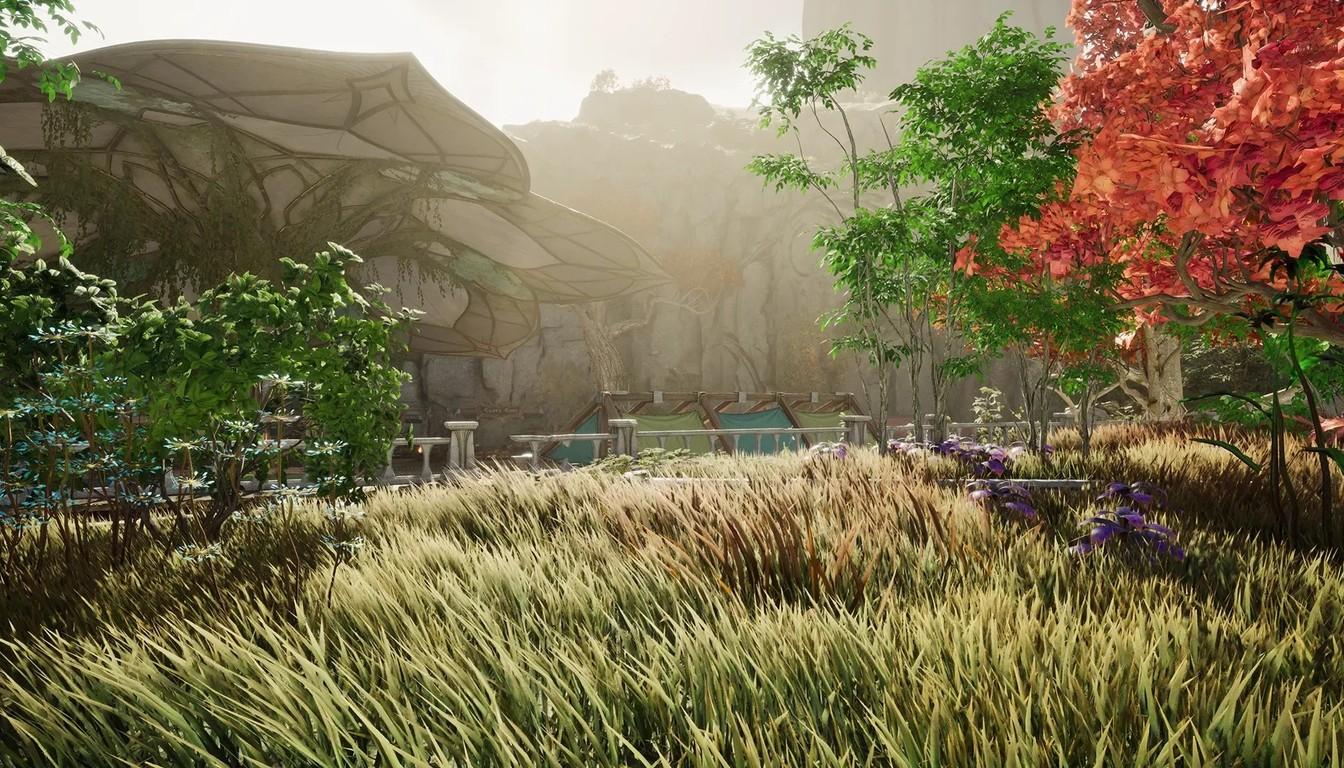
Shadows: low for nearly everyone. Medium is fine if you hold your frame rate even in a crowd.
Reflections: low. They strain the GPU near water and shiny surfaces and add little in a fight.
Effects: medium. If frames drop in expeditions or PvP, go to low so mass skills stop tanking your FPS.
View distance: high for the open world and PvP, medium if outdoor areas get heavy. Avoid the lowest value, since distant players and targets become harder to spot.
Motion blur and depth of field: turn both off for a readable fight.
Bloom: a matter of taste, but reduce it if skills look too bright.
Textures depend on video memory. Players generally suggest low or medium on 4 GB, medium on 6 GB and high on 8 GB. If the game stutters while VRAM is full, drop textures one step.
For the frame cap, steady beats high. A locked 60 FPS feels better than jumping between 90 and 45. Weaker PCs do well with 45 or 60, stronger ones and high-refresh monitors with 90, 120 or the monitor refresh rate, but only if frames never sag. Turn VSync off with G-SYNC or FreeSync for lower input delay. If tearing remains, turn it on after setting a stable cap.
DLSS and Resolution Scale
The Western build supports NVIDIA DLSS. Exact menu labels may differ, so treat the advice below as recommendations rather than fixed rules. DLSS Super Resolution works on RTX 20 through 50 series cards.
1080p: you can leave DLSS off. Use Quality when you need extra frames.
1440p: start with Quality and move to Balanced during heavy content.
4K: Quality or Balanced, with Performance kept for weaker cards.
Frame Generation is limited to RTX 40 and 50 cards and needs an upscaler active. In PvP it is usually advised to keep it off, because the added latency matters more in duels than the smoother motion. Without DLSS, lower the resolution scale to 85-90% and keep anti-aliasing at medium or high.
Control Modes and Targeting
The game has two control modes, and the slash key (/) switches between them. The setting lives under Combat, then Controls, in the PC control mode option.
AION 2 Mode is the default. The cursor is hidden, the mouse steers the camera and targets are picked from the screen center. Tab jumps to the nearest target. The cursor returns when you open a UI panel or press the display-cursor key.
AION 1 Mode is classic MMO control. The cursor is visible, you click to target and can click to move. Tab still jumps to the nearest enemy.
AION 2 Mode suits fast combat, dodging and PvP. AION 1 Mode is handy for veterans of the first game, players with multi-button mice and healers who pick allies with the cursor. Test both on regular mobs rather than mid-dungeon, since switching controls during a run breaks your movement habits.
For targeting, keep main target lock and the option that sets a main target on right-click attack if you like combat sticking to the chosen enemy. If your target keeps changing by itself, turn off the automatic main target. Option names in your client may differ, so look in the Combat section.
Keybinds, Camera and Interface
A sound rule for keybinds: dodge, defense and consumables sit next to WASD. Abilities you need under pressure should not live on distant number keys. There is no universal layout, so here is one practical scheme.
Dodge on Shift or a side mouse button.
Defensive skill and healing on F, C or Z, under your fingers.
Core skills on Q, E, R and 1-5.
Flight with Space up and Ctrl down, if they don't clash with other actions.
Control mode switch on a spare key, so you can test it outside combat.
The camera should give awareness without making precise targeting hard. Moderate horizontal sensitivity, slightly lower vertical sensitivity, a wide camera distance and reduced camera shake help you read attack telegraphs. Leave room to zoom in for bosses and PvP.
In the interface, keep combat information near the center: your health and resources, target health and status effects, the boss cast bar, party frames, important buffs and debuffs, cooldowns and consumables. Make sure windows never cover enemy telegraphs.
Audio
In combat, sound often warns you about an attack before the animation ends. Music and ambience should not drown out those cues. A reasonable starting point is music at 30-50%, effects at 70-100%, ambience at 30-50%, dialogue at 60-80% and voice chat at 70-100%. Set master volume to taste.
FPS Drops, Stutter and Lag
If frames still fall after tuning graphics, check what sits outside the game menu.
Install the game on an SSD and update your GPU driver.
Close extra overlays and screen recorders.
Restart the client after big setting changes and long sessions.
Verify game files in Steam or PURPLE.
Let a new location finish loading before judging smoothness.
Cities and large PvP battles load the processor: many characters, pets, skins and effects. Cut other players' detail, effects from outside your party, character quality, view distance, shadows and nameplates. Change one option at a time and watch the result.
Tell low FPS apart from network latency. Low FPS gives choppy camera movement, frame-time spikes and sluggish response in crowds. Network lag shows up as delayed skill activation, unpredictable character movement and late damage registration. Graphics settings cannot fix a slow connection.