Battlefield 6 Best Settings for Competitive Play and Maximum FPS
Battlefield 6 Best Settings – Complete Optimization Guide for Graphics, HUD, and FPS
Battlefield 6 Beta pushes the series forward with upgraded destruction, detailed maps, and a heavily expanded settings menu. But with this complexity comes confusion — dozens of toggles, camera controls, HUD options, and graphics settings that can overwhelm even experienced players. Leaving everything on default means risking lower FPS, visual clutter, and less responsive controls.
This guide brings together the best Battlefield 6 settings for maximum performance, clear visuals, and minimal input delay. We’ll cover:
Optimal graphics settings for different PC builds.
How to adjust camera and visual effects for clarity.
Best HUD and interface tweaks for competitive play.
Performance tips to boost FPS and reduce stutter.
Fixes for the most common beta issues.
At the end, you’ll find an FAQ and expert advice from Dving.net to help you prepare for launch day dominance.

Best Battlefield 6 Graphics Settings for PC
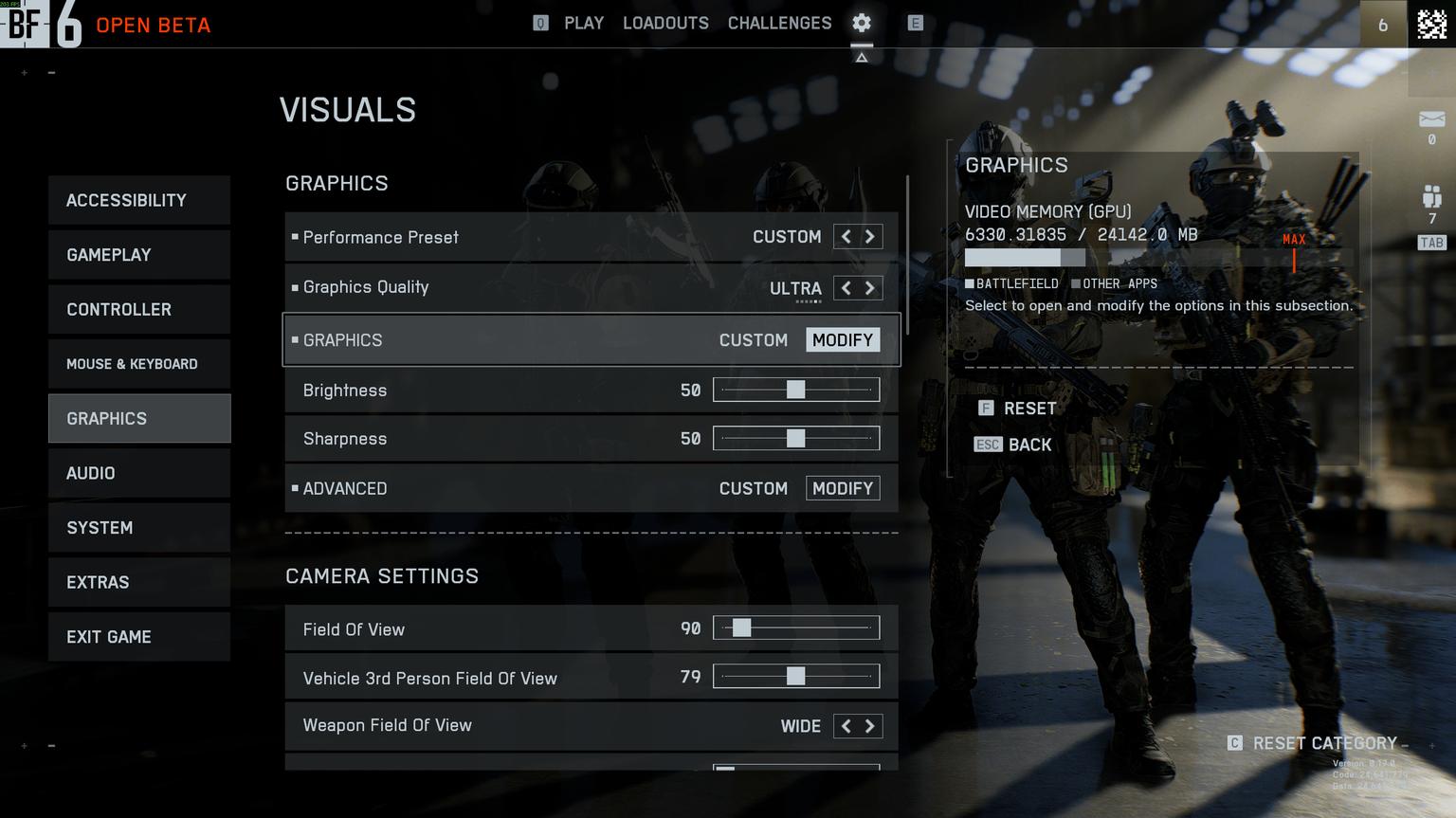
The BF6 settings menu is split into multiple tabs. To get the best balance between FPS and visual clarity, you’ll need to tweak each section.
1. Graphics Tab – Visuals & Camera
Setting | Recommended Value | Why |
|---|---|---|
Performance Preset | Custom | Unlocks all individual settings for fine-tuning. |
Graphics Quality | Modify | Flexibility to balance quality and performance. |
Brightness | 50 | Baseline value; adjust for your monitor. |
Sharpness | 50 | Crisp image without over-sharpening. |
Field of View | 90 | Balance between awareness and aim stability. |
Vehicle 3rd Person FOV | 79 | Optimal vehicle visibility. |
Weapon FOV | Wide | Shrinks weapon model, increases screen real estate. |
Tip: Increase FOV to 100–110 if you prefer a wider peripheral view for aggressive playstyles.
2. Graphics Tab – Camera Effects
Setting | Value | Why |
|---|---|---|
World Motion Blur | Off | Removes motion blur for clearer movement tracking. |
Weapon Motion Blur | Off | Improves clarity when firing. |
Camera Shake Amount | 20 | Minimal screen shake during explosions and recoil. |
Chromatic Aberration | Off | Removes distracting color fringing. |
Vignette | Off | No darkening around edges. |
Film Grain | Off | Clean, noise-free image. |
Disabling post-processing effects boosts clarity and improves target visibility.
3. Display Tab – Screen Setup
Setting | Value | Note |
|---|---|---|
Fullscreen Mode | Fullscreen (Borderless optional) | Fullscreen offers better performance stability. |
Fullscreen Resolution | Native (e.g., 2560×1440) | Maximum sharpness without scaling. |
Vertical Sync | Off | Lower input delay, more responsive controls. |
Tip: Use Borderless if you need to alt-tab frequently (e.g., for streaming), but expect a small FPS drop.
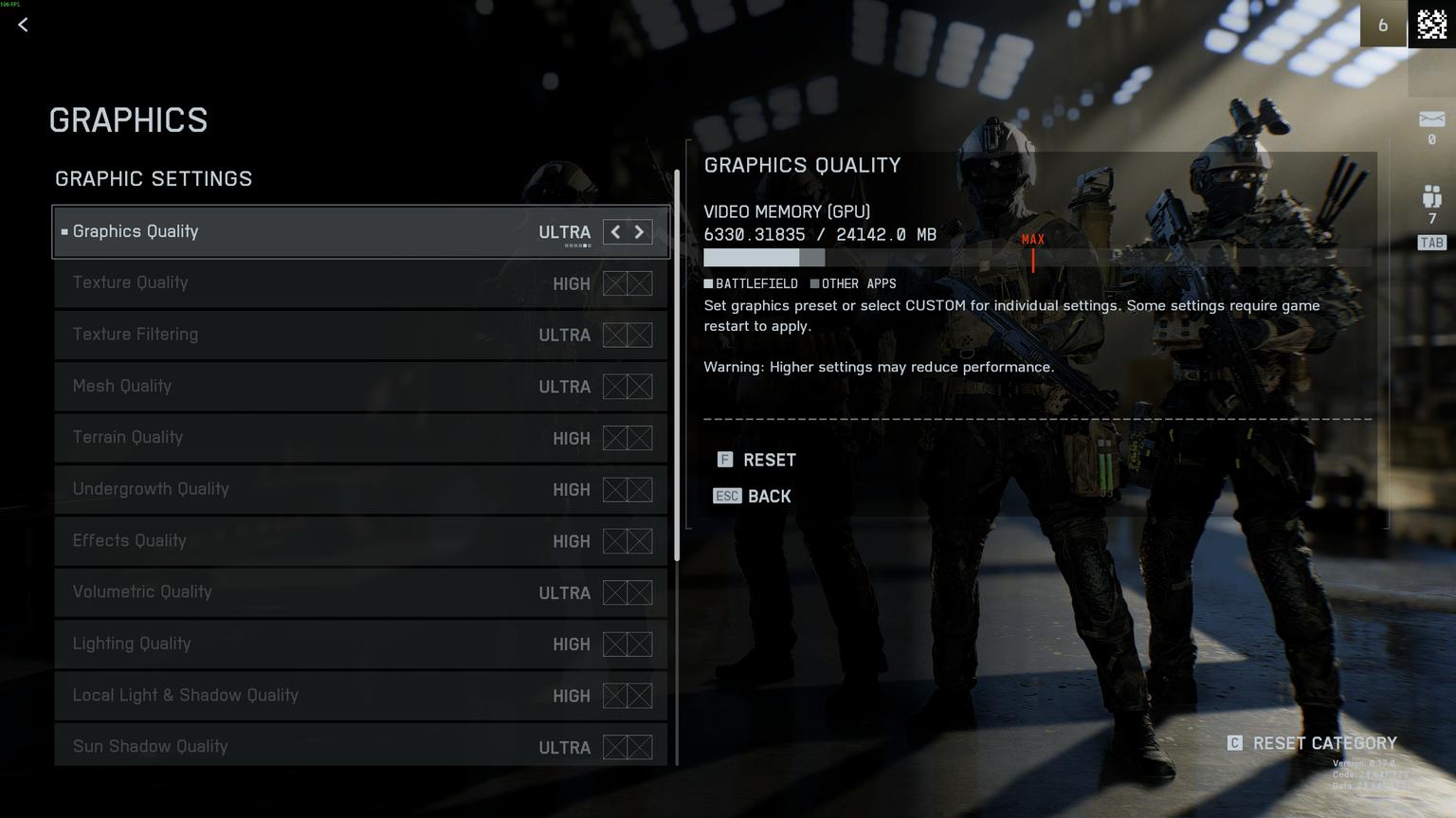
4. Advanced Graphics Settings – Quality Options
Setting | Recommended Value | Notes |
|---|---|---|
Texture Quality | High | Sharp textures without VRAM overload. |
Texture Filtering | Ultra | Maximum surface detail. |
Mesh Quality | Ultra | Clearer models at distance. |
Terrain Quality | High | Good balance of detail and FPS. |
Undergrowth Quality | High / Low | Low for FPS boost, High for visual richness. |
Effects Quality | High | Balanced visuals with minimal FPS cost. |
Volumetric Quality | High | Realistic fog/smoke. |
Lighting Quality | High | Balanced light rendering. |
Local Light & Shadow Quality | High | Sharp shadows and light details. |
Sun Shadow Quality | Ultra | Maximum quality for sunlight shadows. |
Shadow Filtering | PCSS / PCF | PCF for FPS, PCSS for visuals. |
Reflection Quality | High | Clear reflections. |
Screen Space Reflections | Off | Reduces noise and boosts FPS. |
Post Process Quality | High | Clean image processing without heavy FPS hit. |
Screen Space AO & GI | GTAO High / SSGI Low | GTAO for clarity, SSGI for speed. |
High Fidelity Objects Amount | Ultra | Maximum nearby detail. |
HUD & Interface Settings for Battlefield 6
In battle, excessive on-screen clutter can obscure your vision. These tweaks ensure you only see what’s essential.
1. HUD Motion & Overlay Settings
Setting | Value | Benefit |
|---|---|---|
Soldier HUD Motion | Off | HUD remains static while moving/jumping. |
Vehicle HUD Motion | Off | Stable HUD while driving. |
Show Vehicle Seat | On | Quick seat changes. |
Show Soldier Overlays | On | Displays essential damage/healing feedback. |
Show Vehicle Overlays | On | Shows critical vehicle-specific info. |
Show Outlines on Allies | On | Easier friendly identification. |
2. Icon Intensity & Transparency
Element | Recommendation |
|---|---|
Icon Intensity | 60 |
Enemy Icons | 100% opacity in all states |
Friendly Icons | Reduce slightly in ADS mode |
3. Crosshairs & Hit Indicators
Standard Hit: White
Headshot: Orange
Kill: Red
Armor Hit: Blue/Purple
Disable floating damage numbers if they distract you.
Performance Optimization & Troubleshooting
1. Battlefield 6 Won’t Launch / Crashes at Startup
Common causes:
Secure Boot disabled in BIOS.
DirectX 12 conflicts.
Corrupted game files.
Fixes:
Enable Secure Boot in BIOS.
Verify game files via Steam/EA App.
Disable Mandatory ASLR in Windows Security settings.
2. Secure Boot Requirement on PC
The game will not launch without Secure Boot enabled — required by the anti-cheat system.
How to enable:
Enter BIOS (DEL/F2/F10).
Find Secure Boot under Security/Boot.
Enable, save, and restart.
3. Low FPS & Stuttering
Disable these for a performance boost:
Motion Blur (both)
Film Grain
Vignette
Chromatic Aberration
Depth of Field
Pro Tip: Cap FPS slightly below your monitor’s refresh rate (e.g., 117 for 120Hz) for smoother pacing.
4. Visual Bugs & Missing Weapons
Avoid optics that obstruct ADS view.
Swap problematic attachments.
5. HUD/UI Not Responding
Rebind “Close Map” manually.
Change gadget loadout temporarily.
Exit and re-enter vehicles.
Conclusion
The Battlefield 6 Beta shows incredible potential, but correct settings can unlock the game’s full performance and visual clarity. Disable unnecessary effects, optimize your HUD, and tune graphics for your hardware to achieve smooth FPS, clear visuals, and responsive controls.
Dving.net can also help you get ahead — from unlocking weapons to boosting ranks and securing exclusive rewards, all fast, safe, and guaranteed.
FAQ
❓ Why won’t Battlefield 6 launch on my PC?
— Enable Secure Boot in BIOS.
❓ How do I fix startup crashes?
— Disable Mandatory ASLR and verify game files.
❓ Why is my FPS low on a high-end PC?
— Turn off post-effects and adjust textures to match your VRAM.
❓ Is Secure Boot required to play BF6?
— Yes, it’s mandatory for anti-cheat.