Battlefield 6 How to Use the Range Finder – Sniper and DMR Attachment Guide
Battlefield 6 How to Use the Range Finder
Landing long-range headshots in Battlefield 6 takes precision, not luck. The Range Finder attachment removes guesswork by measuring distance and adjusting your zeroing automatically. Whether you’re a dedicated sniper or DMR specialist, this tool ensures your bullet lands exactly where you aim. This guide explains how to unlock, equip, and use the Range Finder effectively so every shot counts in every battle.

What the Range Finder Does
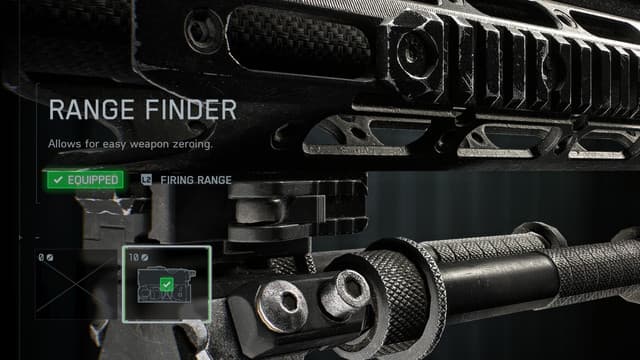
The Range Finder in Battlefield 6 is a sniper and designated marksman rifle attachment designed for accuracy over long distances. Placed in the Right Accessory slot, it unlocks at Mastery Rank 4 for compatible rifles such as the M2010 ESR and M39 EMR. Once equipped, it calculates the distance to your target and adjusts your zeroing from 100 m to 500 m, eliminating the need to manually compensate for bullet drop.
When aiming through a magnified scope, activate the Range Finder by holding B on PC or pressing Down on the D-Pad on consoles. The range appears on the lower-right corner of your HUD, updating instantly. With correct calibration, your shot travels straight to the crosshair instead of arcing over time.
Equipping the Range Finder
Access your weapon customization menu and choose the Right Accessory section. Once unlocked, the Range Finder will appear as an available option. It costs 10 Attachment Points, so plan your setup carefully to balance other upgrades like barrels or optics.
If you’re still leveling weapons, use a DMR instead of a sniper—these rifles gain Mastery faster and let you unlock the attachment sooner. Once installed, you’ll notice immediate improvement in shot alignment, particularly at medium-to-long ranges.
When to Use the Range Finder
The Range Finder shines on maps with wide sightlines, vehicle combat, or open terrain. It slightly assists aim when scoped, reducing the adjustment time between shots and helping hit moving targets.
Ideal Scenarios
Cross-map sniping: Adjusts bullet drop automatically, letting you focus on timing.
Recon gameplay: Gives consistent distance data for efficient team spotting.
Vehicle targeting: Helps calculate rocket and shell trajectories for precise impacts.
Keep in mind that it only functions with magnified scopes; iron sights or 1× optics won’t display distance or adjust zeroing.
Sniping Without the Range Finder
If you haven’t unlocked the attachment yet, you can still manage bullet drop manually. Aim at a target, ping the location to see the distance in meters, then press B on PC or Down on the D-Pad on consoles to adjust your zeroing in 100-meter increments. This process is slower and less precise but saves valuable Attachment Points for other equipment.
Manual zeroing helps players understand how bullet drop behaves, which is valuable even after unlocking the Range Finder. It trains your awareness of trajectory and improves consistency when the attachment isn’t available.
Tips for Using the Range Finder Effectively
The Range Finder improves accuracy, but efficiency depends on your technique. To make the most of it, combine good positioning, awareness, and quick calibration.
Re-Zero Regularly
Zeroing at 100 m won’t land headshots at 400 m. Adjust your range whenever you change elevation or advance across the map. Constant recalibration keeps every shot lined up.
Combine with Spotting
Ping enemies before firing. Use Q, LB, or L1 to mark them, then check the range before taking the shot. This coordination gives your team real-time intel while you confirm distance.
Practice with Static Targets
Before diving into matches, practice on stationary enemies or environmental objects. Get familiar with bullet travel time and the delay between pings and shots.
Pair with High-Zoom Scopes
Attachments like 6x–12x optics amplify the Range Finder’s effectiveness, turning precise distance readings into instant headshots.
Don’t Forget DMRs
The Range Finder benefits semi-automatic rifles too. While DMRs can’t one-shot at long distances, accurate zeroing makes burst fire patterns more reliable.
Adjust Your Playstyle
Use elevation to your advantage. Higher ground extends visibility, making range measurement faster and more accurate. Avoid moving while calibrating, as even small shakes can misalign your scope.
Over time, these habits turn long-range fights into calculated eliminations rather than hopeful guesses.
Frequently Asked Questions
How do you activate the Range Finder in Battlefield 6?
Aim down sights and hold B (PC) or press Down on the D-Pad (console). The distance appears above your ammo counter, automatically calibrating your rifle to match.
How can you unlock the Range Finder?
Earn Rank 4 Mastery with compatible rifles like the M2010 ESR or M39 EMR. Once unlocked, select it in your Right Accessory slot.
Does it work without a magnified scope?
No. The Range Finder only functions with optics that zoom beyond 1×. Iron sights or reflex scopes don’t support range display or zeroing.
Which weapons can equip it?
Only sniper rifles and DMRs. It cannot be attached to assault rifles or LMGs, as those don’t require range calibration.
Does the Range Finder aim for you automatically?
Not fully—it slightly adjusts zeroing to match your target’s distance but doesn’t correct for lateral movement or recoil. You still need precision and timing.
Can I zero my weapon without it?
Yes. Ping a location to read the distance, then adjust your zero manually using B or Down on the D-Pad in 100-meter steps.
Final Thoughts
The Range Finder transforms how you approach Battlefield 6 sniping. It turns long-distance shots from hopeful guesses into precise eliminations. Whether you’re picking off enemies across a valley or calculating the arc for a tank shell, mastering this tool elevates your gameplay to professional levels.
Practice, adjust often, and let your aim speak for itself—the Range Finder rewards those who take the time to perfect it.