Monster Hunter Wilds Best Settings Guide — FPS, Display & Performance Tips
Monster Hunter Wilds Best Settings Guide — Boost FPS and Performance in 2025
This comprehensive Monster Hunter Wilds Best Settings guide helps you get the most out of your game on PC, consoles, and Steam Deck. Whether you're running on minimum specs or a 4K powerhouse, we’ve prepared the best graphics settings for each scenario, so you can enjoy high FPS and stable gameplay. Additionally, you’ll find tips for optimal display, accessibility tweaks, and answers to common performance-related questions.

💻 PC System Requirements
Before adjusting settings, ensure your hardware meets the minimum or recommended specs:
Spec | Minimum | Recommended |
|---|---|---|
OS | Windows 10+ | Windows 10+ |
CPU | i5-10600 / Ryzen 5 3600 | i5-11600K / Ryzen 5 5500 |
GPU | GTX 1660 Super / RX 5600 XT | RTX 4060 / RX 6700 XT |
RAM | 16 GB | 16 GB |
Storage | 75 GB SSD | 75 GB SSD |
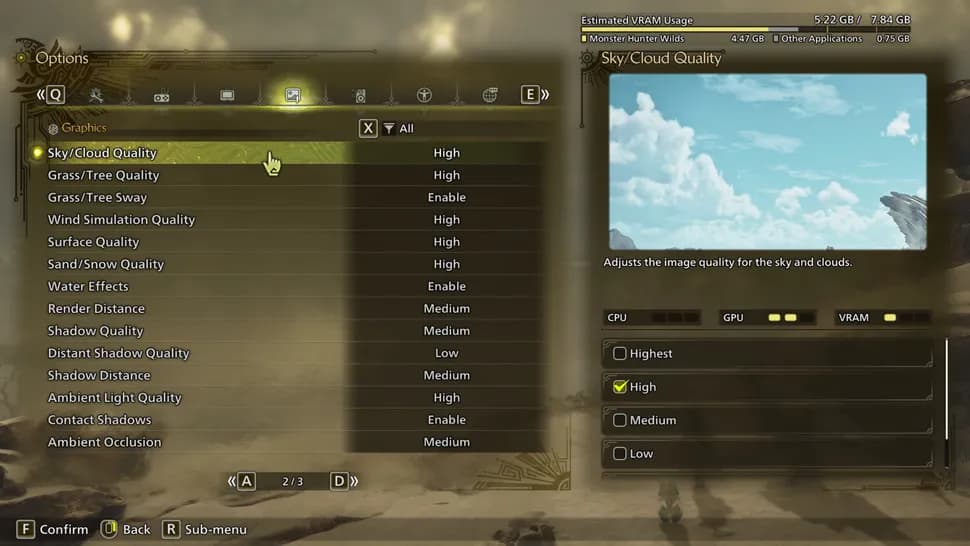
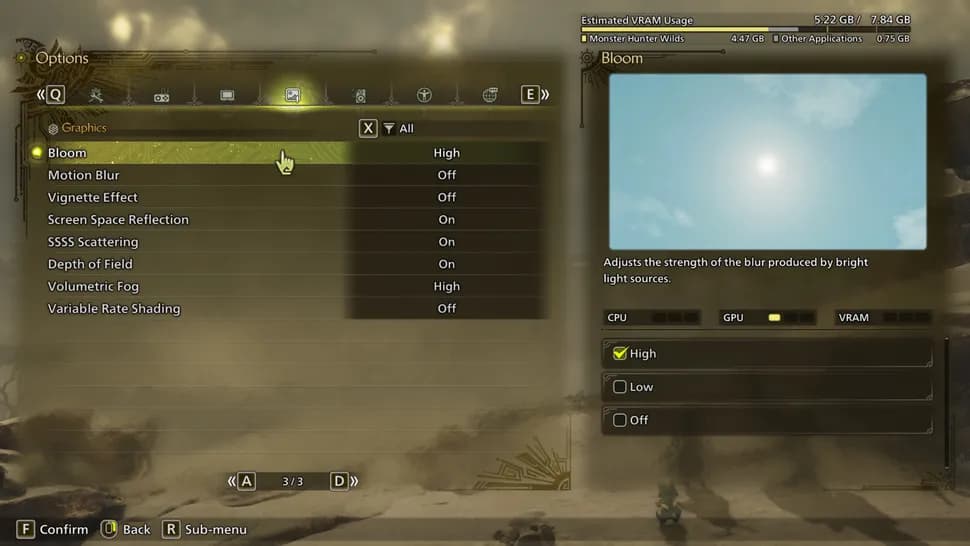
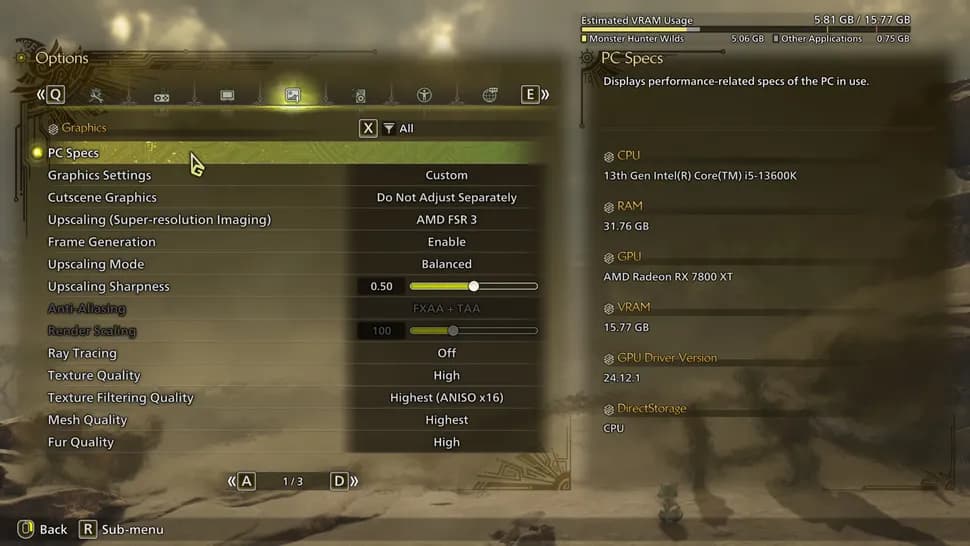
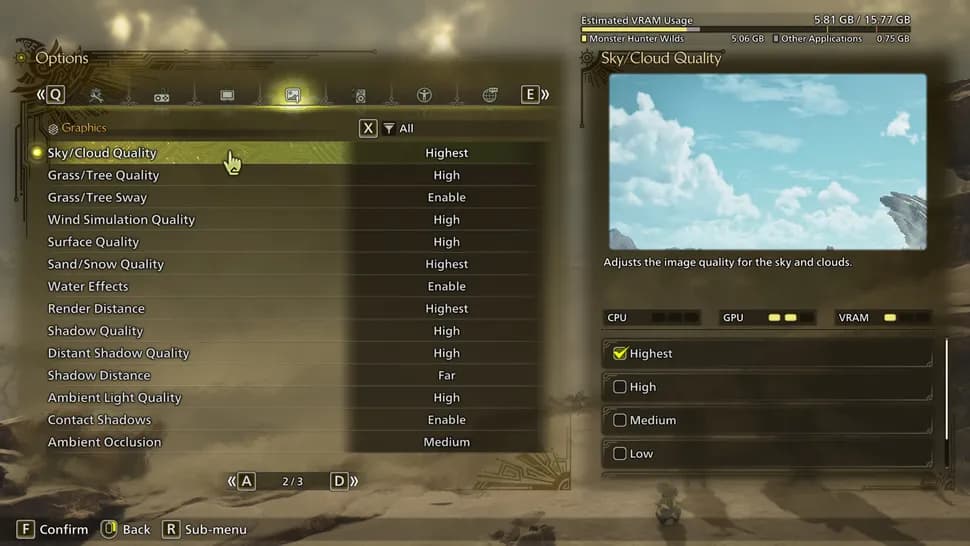
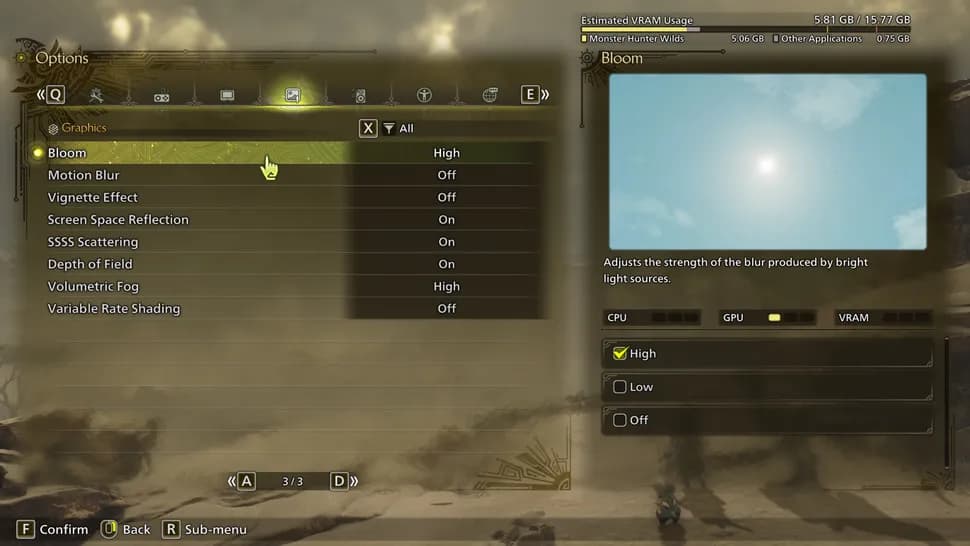
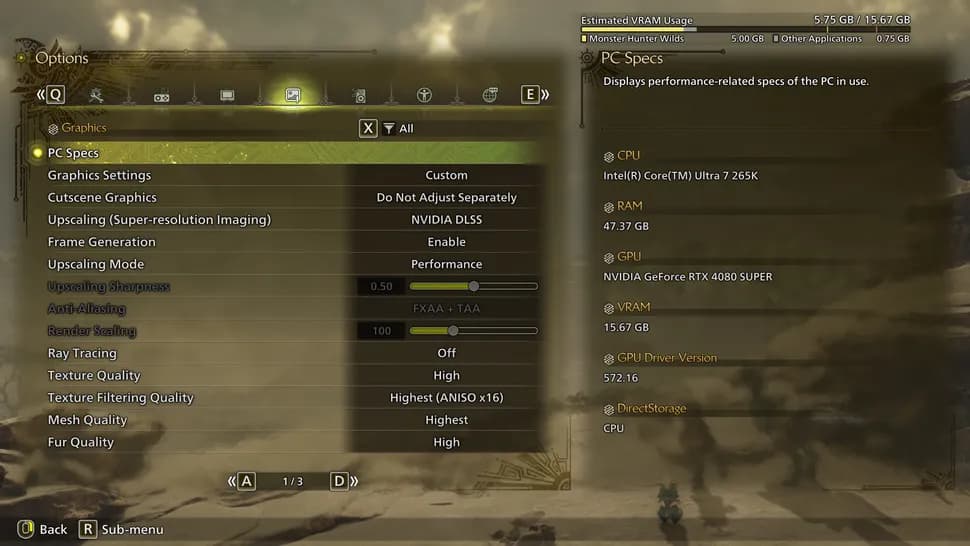
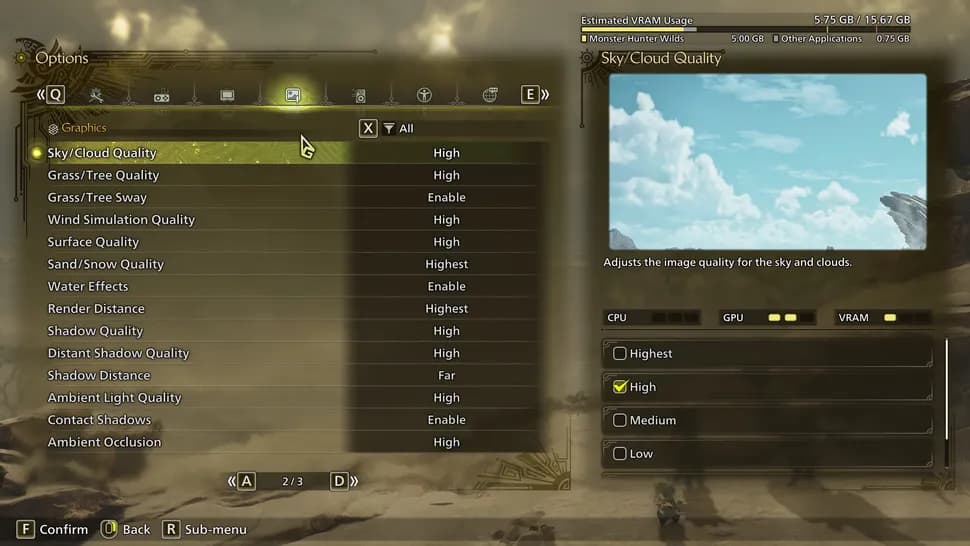
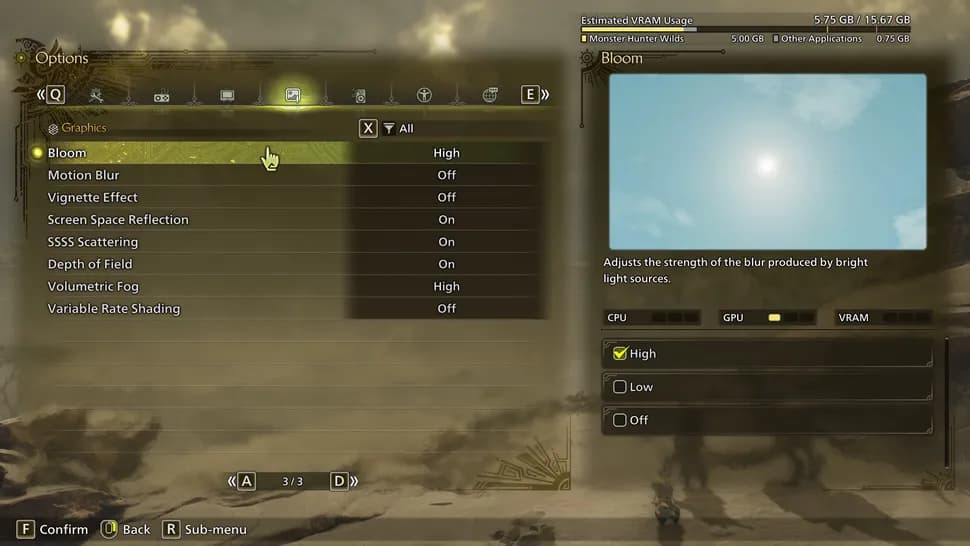
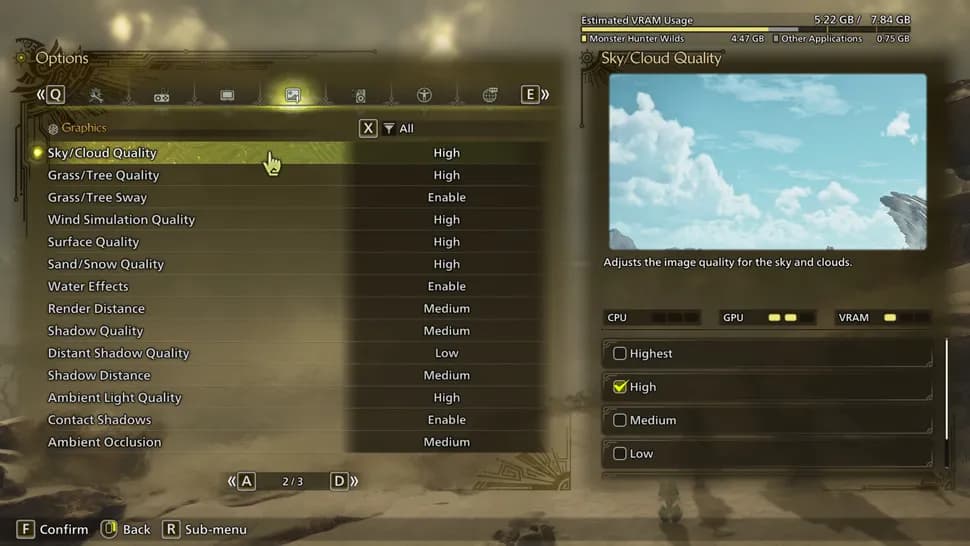
⚙ Best PC Settings by Spec Tier
We’ve divided optimal settings into 4 categories:
Minimum Requirements Settings
Resolution: 1080p
Upscaling: FSR 3.1 Balanced
Frame Generation: Disabled
Texture Quality: Low
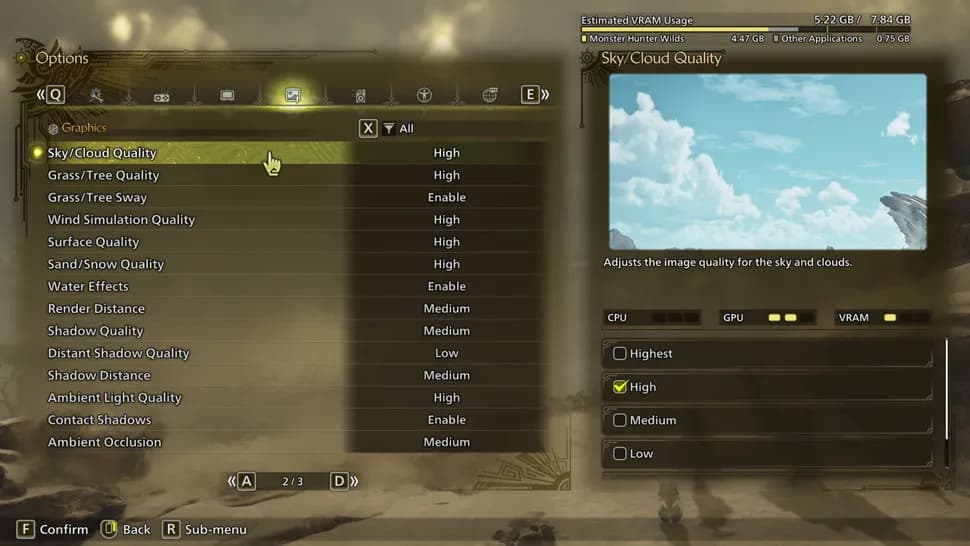
Shadow Quality: Medium
Water Effects: Enabled
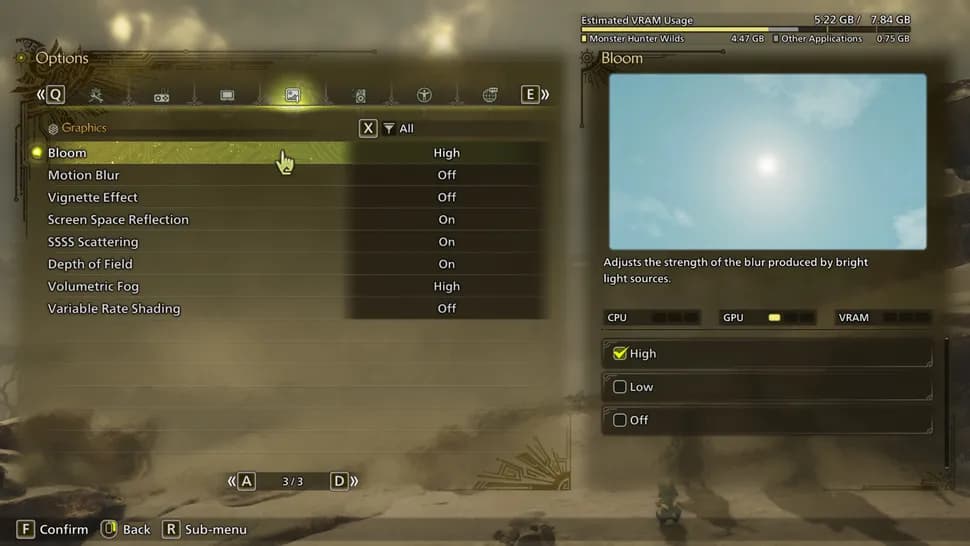
Volumetric Fog: Low
📝 Tip: Use FSR or XeSS for budget builds.
Recommended for 1080p
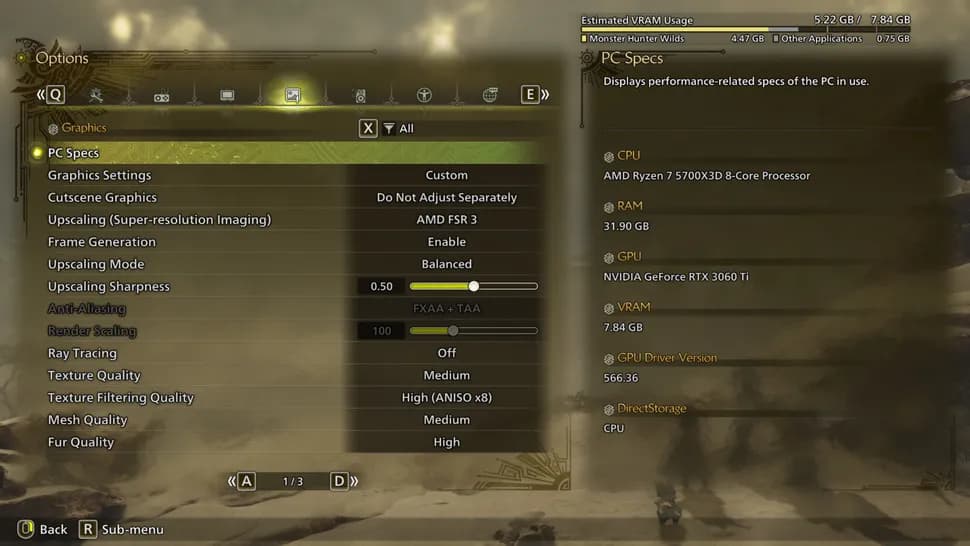
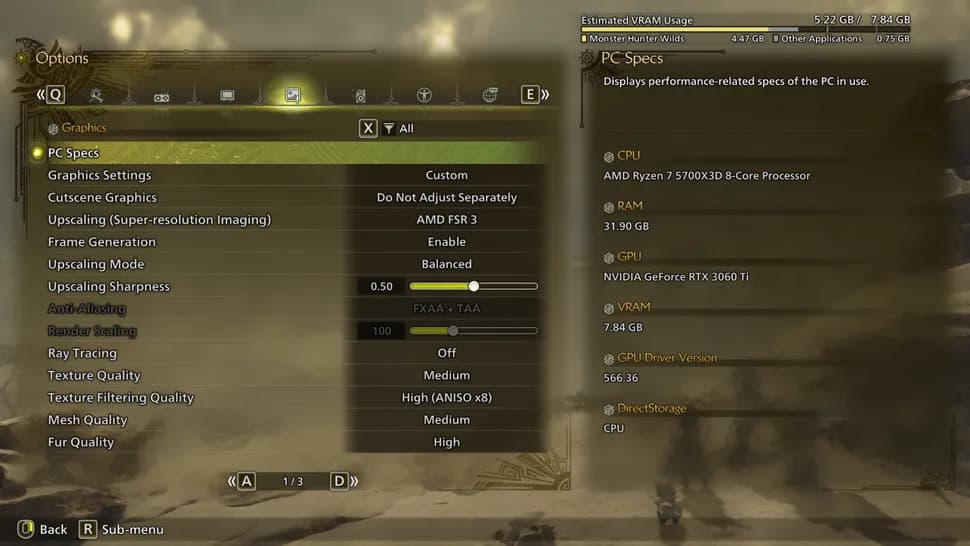
GPU: RTX 3060 Ti / RX 6700 XT
CPU: i5-12600K / Ryzen 7 5700X
Texture: Medium
Shadow: Medium
Anti-Aliasing: Off
Ambient Occlusion: Medium
Recommended for 1440p
GPU: RTX 4070 Super / RX 7800 XT
Texture: High
Shadow: High
Volumetric Fog: Low
Frame Gen: Enabled
Recommended for 4K
GPU: RTX 4080 Super / RX 7900 XT
Texture: Ultra
Mesh, Sky, Water: Ultra
Motion Blur: Off
Frame Gen: Enabled
🎮 Console Best Settings
PS5 / Xbox Series X
Resolution Mode: Performance Mode (60 FPS)
HDR: Enabled
V-Sync: Enabled
Motion Blur: Off
Volumetric Fog: Low
💻 Steam Deck Settings
Resolution: 640x480
Upscaling: FSR Ultra Performance
Texture & Shadow Quality: Low
Frame Gen: Off
Volumetric Fog: Low
🔧 Tip: Use FSR or AMD Radeon Chill to balance heat and FPS.
🧩 Display Settings for Better Performance
Display Mode: Borderless Window
Resolution: Native
Frame Rate: Uncapped
V-Sync: Disabled
NVIDIA Reflex: Enabled (if supported)
Cutscene Frame Rate: Off
♿ Accessibility Settings
Although Monster Hunter Wilds lacks full accessibility features (like colorblind mode), some UI adjustments are available:
Subtitle Size: Small / Default / Large
Cutscene Subtitles: On/Off
Speaker Names: On/Off
Menu: Title Screen → Options → Interface
❓ FAQ — Monster Hunter Wilds Settings
How to change graphics settings?
Open the "Options" from the title screen and go to the "Graphics" tab.
Is Monster Hunter Wilds optimized?
Not entirely. Expect FPS drops or crashes, even on decent setups.
How to get 60 FPS?
Enable Variable Resolution and lock it to 60 FPS.
How much VRAM is needed?
Minimum: 6 GB | Recommended: 8 GB+
Is my PC good for MH Wilds?
If you meet at least the minimum GPU (GTX 1660 Super or RX 5600 XT), you're good to go.
✅ Conclusion
There’s no one-size-fits-all setting for Monster Hunter Wilds. However, with this guide, you can adjust graphics and performance based on your build to enjoy smooth, beautiful gameplay. If tweaking isn’t your thing, let our pros at Dving.net optimize your journey — from Campaign boosting to Weapon unlocks and Palico upgrades.