CS2 Settings for Max FPS: Video, Mouse and Radar
Where to Start Tuning
Counter-Strike 2 (CS2) launched on September 27, 2023, and its default settings are generic rather than competitive. About fifteen minutes of manual tuning gets you steadier FPS, faster response and a cleaner view of enemies.
One rule matters most: your FPS should stay at or above your monitor refresh rate. If you have a 144 Hz screen and run 100 frames, the picture stutters, and nice shadows do not make up for it.
The order below is video settings, launch options and drivers, mouse and resolution, sound and radar, then examples from pros. Treat every value as a starting point and test it on your own PC. That matters most before ranked games in Premier mode, where frame drops hurt the most.
Video Settings for FPS and Visibility
CS2 has no single perfect video preset, but the logic is stable: turn off whatever eats frames without helping in a fight, and keep whatever helps you spot enemies.
Setting | Suggestion | Why |
|---|---|---|
Display Mode | Fullscreen | Lowest latency and overhead |
Wait for Vertical Sync | Disabled | Removes input lag |
Boost Player Contrast | Enabled | Models stand out from the background; some pros turn it off by taste |
Global Shadow Quality | Low or Medium | Large impact on FPS |
Model/Texture, Shader and Particle Detail | Low | More frames at the cost of a plainer picture |
Anti-Aliasing Mode (CMAA2/MSAA) | CMAA2 or 4x MSAA | CMAA2 is cheap, 4x MSAA is cleaner if your GPU has headroom |
FidelityFX Super Resolution | Disabled | Upscaling blurs the image |
NVIDIA Reflex Low Latency | Enabled, optionally with Boost | Cuts latency on NVIDIA GPUs |
Shadows are the most debated item. One approach is Low global shadow quality with Dynamic Shadows set to All, so player shadows stay visible. Another is Medium or High if your system has spare power. Try both on a familiar map and keep the one that holds FPS in firefights.
High Dynamic Range is a judgment call: Performance adds a grainy filter for a small FPS gain, while Quality skips it. For the remaining options, such as ambient occlusion and texture filtering, start from the lowest preset and raise one setting at a time until FPS starts to drop. If the game needs more headroom, lower the resolution instead of switching on upscaling.
To check the result, start a match against bots on a familiar map, turn on the frame counter with cl_showfps 1 in the console and run through the heaviest spots with lots of smoke and grenades. If minimum FPS drops below your refresh rate there, lower shadows and detail. Change one item at a time so you know what gave the gain, and write down the final values: settings sometimes reset after a driver or game update.
Launch Options and Drivers
Launch options go into the game properties in Steam. A working baseline is -high +fps_max 0 -console -refresh 144 -nojoy. Replace 144 with your own refresh rate.
-console opens the console right at launch.
-refresh forces the monitor refresh rate.
+fps_max 0 removes the frame cap.
-nojoy disables gamepad support.
-high raises process priority. Some players get stutters from it, so compare play with and without.
+exec autoexec.cfg loads your config at startup.
The -novid and -disable_d3d9ex flags are leftovers from CS:GO. CS2 has no intro video and runs on DirectX 11 and Vulkan, so leave them out.
With drivers, compare rather than guess. Common NVIDIA advice is Prefer maximum performance power mode, vertical sync off and image scaling off. AMD lists usually turn off Radeon Super Resolution, Chill, Boost and Enhanced Sync. According to player reports, AMD Anti-Lag 2 now works in CS2, so enable it in an Adrenalin profile and compare response. Test every driver tweak on your own setup, since there are no universal values.
Mouse, Resolution and Refresh Rate
There is no universal sensitivity, but the starting point is clear. The most common DPI is 400, and pros use it too. Set sensitivity so a 180-degree turn does not need a swipe across the whole mousepad. Load a practice map or a casual server and drill flicks with your favorite weapons.
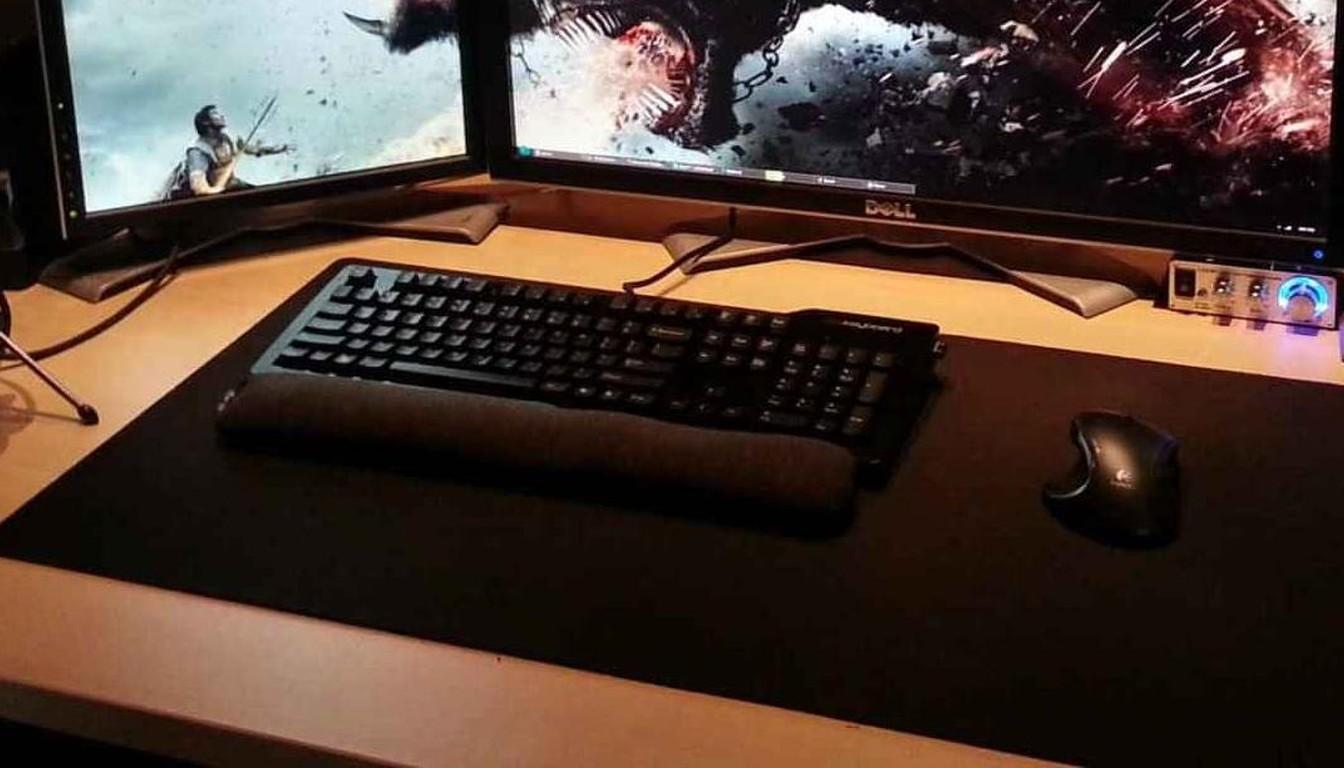
Mouse polling rate is usually set to 1000 Hz or higher, and pros differ here, so go by comfort. Adjust DPI after that.
The resolution debate is old. Many pros pick 4:3 (1280x960): players say models look bigger on a stretched screen and are easier to track by eye. 16:9 (1920x1080) gives a wider field of view. If you have never played 4:3, there is no reason to relearn the game around it, and if you are used to it, keep it.
For refresh rate, aim for at least 144 Hz, and 240 Hz or more for competitive play. Panels at 480 and 540 Hz are on sale now, but returns past 240 Hz are far smaller than the jump from 60 to 144. Choose by budget and by whether your PC can actually hold that many frames.
It is a good habit to revisit sensitivity every couple of weeks. If the crosshair regularly flies past the target, the value is too high, and if you run out of pad space, it is too low. Steps of 5-10 percent are enough to feel a difference without losing muscle memory.
Sound and Radar
In-game volume depends on system volume. Lock one level in Windows and adjust everything else around it, otherwise your hearing keeps recalibrating. Footsteps and bomb sounds often matter more than a pretty picture, so use headphones that give you clear directional audio.
The radar is for spotting enemies your teammates have found and for seeing where the bomb lies. Base values:
cl_radar_always_centered 1 keeps you in the middle of the radar;
cl_radar_rotate 1 rotates the map with you;
cl_hud_radar_scale from 1.0 to 1.3 sets radar size (range 0.8-1.3);
cl_radar_scale defaults to 0.7, and guides more often suggest 0.3-0.35 so the whole map fits (range 0.25-1.0);
cl_radar_square_with_scoreboard 1 makes the radar square while the scoreboard is open.
Pro Player Settings
Pro configs change often, but their core is similar. For example, m0NESY plays 1280x960 stretched 4:3 with 400 DPI and 2.3 sensitivity, which is 920 eDPI. s1mple uses the same resolution and 400 DPI with 3.09 sensitivity (about 1236 eDPI), and reportedly runs a 240 Hz monitor.
Pro video settings differ from player to player, and in pro lists anti-aliasing is most often 4x MSAA. There is no need to copy someone else's build one to one, because sensitivity and resolution are tied to your hand and eyes. Take ideas, then tune the values for yourself. A good yardstick for comparing is eDPI, which is DPI multiplied by in-game sensitivity.
When Settings Stop Helping
A perfect config removes technical obstacles, but it will not raise your rank on its own. If you have hit a ceiling, the cause is the gameplay, not the settings. A new account plays placement matches, and their result sets your starting point, so it pays to finish tuning before them.
If your rating is stuck, coaching with an experienced player shows positions, utility lineups and the mistakes in your replays. For a fast climb, DVING offers a rank boost, and for those who prefer not to share an account with strangers there is a private rank boost. There is also a separate level service for FACEIT.
Before any of that, check the basics: stable FPS, comfortable sensitivity, a readable radar and clean sound.