Destiny Rising Best Settings – Optimize FPS, Graphics & Controls
Destiny Rising Best Settings Guide
Optimize Destiny Rising for the smoothest gameplay possible. This guide breaks down the best settings for both mobile and emulator players—covering FPS boosts, control tweaks, and graphical tuning. Learn how to adjust performance, sharpen visuals, and configure controls for comfort and precision. Whether you’re on phone or PC, these settings will make your Guardian feel more responsive than ever.

Best Destiny Rising Settings Overview
Getting your configuration right in Destiny Rising transforms the entire experience. Smooth performance, balanced visuals, and accurate controls not only improve comfort but also give you an edge in combat.
Below, you’ll find the most efficient Destiny Rising settings for mobile and emulator users—tested for optimal stability, responsiveness, and visual clarity.
Destiny Rising Best Settings for Mobile
Main Focus Areas
When playing on mobile, only a few setting categories truly affect gameplay:
Controls
Graphics
Effects
These three determine your FPS, input response, and overall comfort. Everything else can stay at default unless you prefer to personalize interface options.
Controls – Firing Mode Tab
This defines how weapon classes behave when pressing or holding fire. Each type supports multiple input styles, from tap-to-fire to hold-to-release. Fine-tuning these makes aiming more natural and reduces accidental shots.
Recommended Firing Modes
Weapon Type | Recommended Mode | Reason |
|---|---|---|
Auto Rifle | Tap to Aim and Fire | Balanced, quick for PvP |
Pulse Rifle | Tap to Aim and Fire | Precise and reactive |
Scout Rifle | Tap to Aim and Fire | Ideal for long-range fights |
Hand Cannon | Hold to Aim Release Fire | Better timing & recoil control |
Sniper Rifle | Hold to Aim Release Fire | Prevents early shots |
Shotgun | Tap to Aim and Fire | Fast for close combat |
SMG | Tap to Aim and Fire | Keeps accuracy and hipfire |
Sidearm | Tap to Aim and Fire | Responsive for duels |
Bow | Hold to Aim Release Fire | Consistent power shots |
Rocket Launcher | Hold to Aim Release Fire | Avoids misfires |
Fusion & Linear Fusion | Tap to Aim and Fire | Reliable charging rhythm |
Machine Gun | Tap to Aim and Fire | Stable sustained damage |
Tap-to-Aim-and-Fire remains the safest default, but precision weapons benefit from the hold-and-release type.
Controls – TPP and Weapons Tabs
The TPP (third-person) mode should be set to Mixed, letting you switch seamlessly between shoulder view and ADS.
Under the Weapons tab, tweak automation and aiming aids:
Setting | Value | Reason |
|---|---|---|
Aim Assist | Enhanced | Helps mobile precision |
Stop Reloading on Sprint | Off | Prevents reload canceling |
Auto-Swap on Empty Mag | On | Smooth transitions |
Simultaneous Aim & Fire | On | Saves milliseconds in fights |
ADS Mode | Tap | Quickest mobile option |
Super/Melee Attack | Instant | No delay on input |
These settings eliminate interruptions, making Destiny Rising feel closer to a console shooter.
Movement and Gyro Tabs
Setting | Value | Reason |
|---|---|---|
Stop Aiming on Sprint | Off | Keeps ADS when moving |
Sprint Sensitivity | 100 | Fast activation |
Left Stick Auto Sprint | On | Effortless mobility |
Gyro Settings | On ADS | Adds precision for long-range fights |
Gyro on ADS provides sniper-level precision without forcing constant motion. If it feels uncomfortable, keep it off entirely.
Effects Tab
To improve clarity and reduce eye fatigue:
Setting | Recommended | Reason |
|---|---|---|
FPP / TPP Field of View | 90 | Wider awareness |
Motion Blur | Off | Sharper image |
Screenshake | Off | Better aim stability |
Notification Style | 2D | Cleaner HUD |
Mini-Map Mode | Rotating | Faster orientation |
Raising FOV and disabling blur gives a clear PvP advantage by exposing more of the battlefield.
Sensitivity Settings
Global Sensitivity
Setting | Value | Reason |
|---|---|---|
Acceleration Mode | Speed | Natural swipe feel |
Global Sensitivity | 80 | Balanced for all weapons |
ADS (Short/Medium/Long) | 80 | Uniform aiming speed |
Custom Sensitivity
Only adjust if a certain weapon class feels unstable. For example, reduce sniper ADS slightly if over-aiming.
Controller Settings
Destiny Rising supports Xbox and PlayStation controllers natively.
Start with defaults, then fine-tune stick dead zones and sensitivity for comfort.
Rebinding abilities or melee to side buttons often improves reaction time.
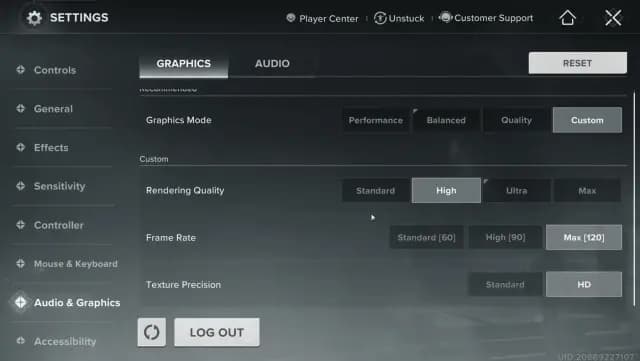
Graphics Tab
Recommended Graphics Settings
Setting | Value | Reason |
|---|---|---|
Graphics Mode | Custom | Manual control |
Rendering Quality | Ultra | Sharp visuals |
Frame Rate | High | Stable FPS without overheating |
Auto-Adjust on Lag | On | Prevents frame drops |
Lower rendering quality to High if your device overheats or stutters. For most players, Ultra visuals + High FPS give the best balance.
Device Requirements
Minimum: Snapdragon 835 / Dimensity 700 • iPhone 7 or newer • 15 GB storage
Recommended: Snapdragon 8-series / Dimensity 800 • iPhone 11 or iPad 8th Gen+ • 15 GB storage
Best Settings for Emulators
Mouse & Keyboard – Controls Tab
Setting | Value | Explanation |
|---|---|---|
TPP ADS Mode | Hold | Familiar for FPS players |
Sprint Mode | Toggle | Easier for long sessions |
Mouse Sensitivity | 13 / 13 | Balanced X/Y control |
ADS Sensitivity | 0.8 | Keeps steady aim |
Keybinding Layout
Classic WASD movement, RMB for ADS, LMB for fire, Q/V for abilities, and Space for jump — nearly identical to Destiny 2.
BlueStacks Performance Settings
Setting | Value | Benefit |
|---|---|---|
CPU Cores | 4 | Stability |
RAM Allocation | 12 GB | No stutters |
Frame Rate | 240 FPS | Ultra-smooth play |
VSync | Off | Minimal input delay |
Resolution | 2560×1440 / 320 DPI | Crisp image quality |
MuMuPlayer Settings
Setting | Option | Benefit |
|---|---|---|
Renderer | Vulkan | Best stability |
Performance Mode | High (6–8 cores, 8–12 GB RAM) | Max smoothness |
Resolution | 1920×1080–2560×1440 | Sharper detail |
Frame Rate | 120 FPS | Fluid motion |
Discrete GPU | On | Uses full graphics power |
Combined with in-game Max graphics and HD textures, this delivers PC-tier visuals with consistent frame pacing.
Conclusion
Destiny Rising gives players near-console-level customization. Whether on phone or emulator, you can adjust every setting—from gyro to frame rate—to tailor gameplay exactly to your style.
The right setup means smoother combat, stable performance, and visuals sharp enough to make every strike feel powerful.
F.A.Q.
What are the best settings for Destiny Rising on mobile?
Use Ultra rendering and High frame rate; reduce to Balanced on weaker phones.
What’s best on PC via emulator?
BlueStacks – High Performance + 240 FPS; MuMu – Vulkan + 120 FPS at 1440p.
Does it support controllers?
Yes — full Xbox/PlayStation compatibility with custom mapping.
How much storage does it need?
Around 15 GB across all devices.
What’s the optimal FPS?
60 – 120 FPS for stability; emulators can push higher on strong rigs.