Black Ops 7 Best Settings Guide – Graphics, Display, Audio & Controller Optimization
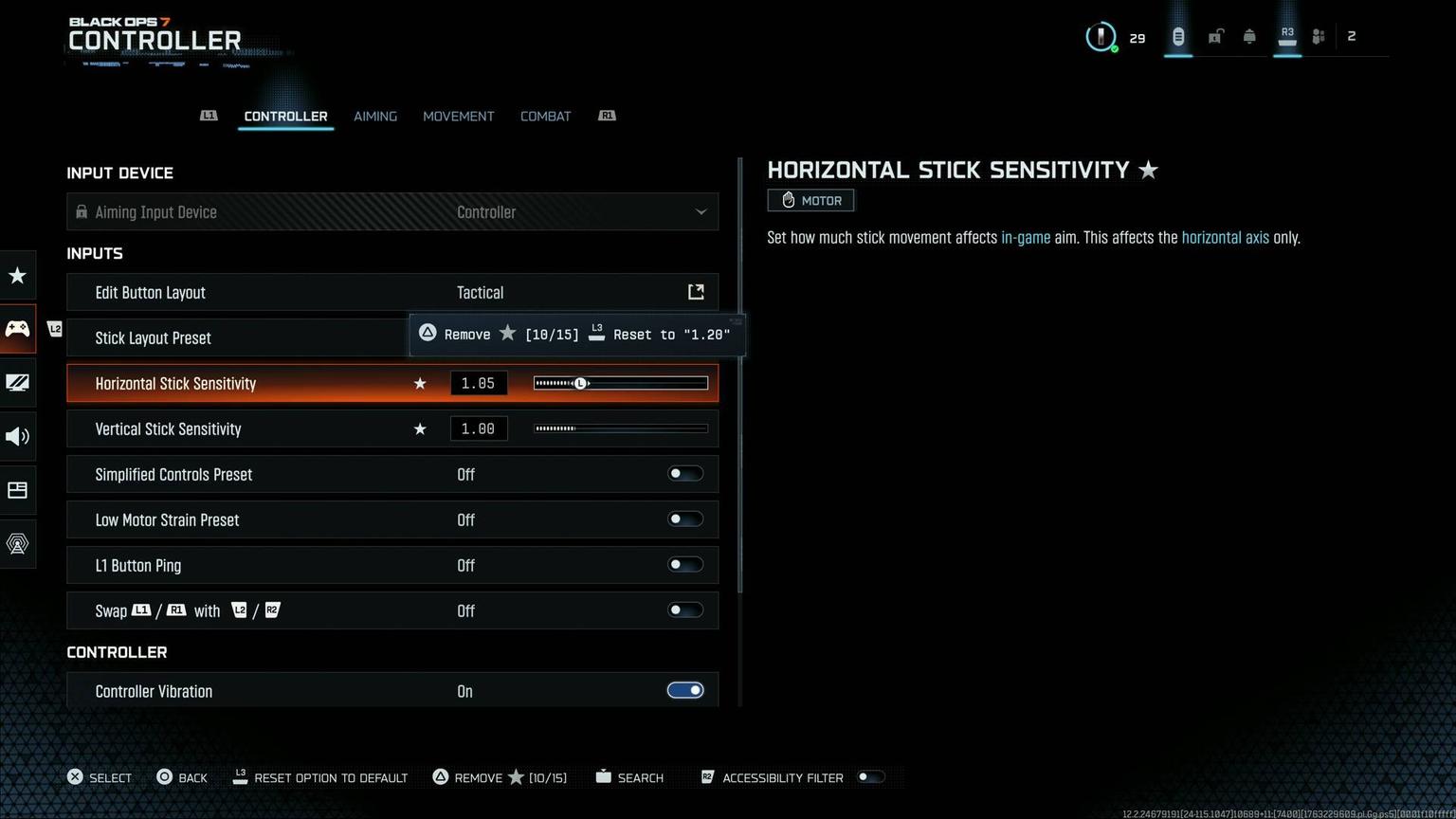
Black Ops 7 Best Settings – Full Performance & Clarity Guide
Optimizing Black Ops 7 settings can dramatically improve reaction speed, aiming precision, and overall match consistency. This complete guide breaks down the best display, graphics, gameplay, audio, mouse, and controller settings to help you achieve smooth FPS, clear visuals, and stable control in every fight. Whether you are a casual player or preparing for competitive matches, these settings will give you a clean and responsive experience.

Black Ops 7 Optimization Tips Before Changing Settings
Before adjusting in-game menus, make sure your system is ready for stable performance. These steps reduce stutter, improve loading times, and prevent input delay.
Recommended system preparation:
Update GPU drivers (NVIDIA / AMD latest version)
Close background apps (browsers, overlays, Discord hardware acceleration)
Set Windows Power Plan to High Performance
Enable Windows Game Mode
Disable unnecessary startup applications
Install Black Ops 7 on an SSD
Allow shader compilation to finish before playing
Turn off Xbox Game Bar, Steam Overlay, and recording overlays if you don’t use them
These optimizations help even on powerful PCs and are essential for older hardware.
Black Ops 7 Best Gameplay Settings
Gameplay settings affect movement behavior, sprint activation, sliding, mounting, and action responsiveness. These options create smoother transitions and prevent accidental actions during fights.
Best gameplay configuration:
Sprint Behavior – Toggle
Tactical Sprint – Single Tap
Slide/Dive Behavior – Tap to Slide, Hold to Dive
Automatic Sprint – Off
Mount Activation – ADS + Melee
Interact/Reload – Tap to Reload
Equipment Behavior – Hold
Armor Plate Behavior – Apply One
Weapon Mount Exit Delay – Short
Auto Move Forward – Off
This setup gives fast traversal while keeping manual control during close-range fights.
Black Ops 7 Best Display Settings
Display settings define how smooth and responsive the game feels. Correct options reduce latency and eliminate screen tearing.
Recommended display settings:
Display Mode – Fullscreen
Resolution – 1920×1080
Refresh Rate – Match your monitor
V-Sync – Off
Dynamic Resolution – Enabled (target 60/120 FPS)
HDR – Off unless you prefer visual depth
Brightness – 50%
Frame Rate Limit – 60–120 FPS depending on hardware
Colorblind Mode – Optional preference
Fullscreen + V-Sync Off gives the lowest input delay and the fastest aim response.
Black Ops 7 Best Advanced Settings
Advanced settings influence latency, shader stability, CPU usage, and texture streaming. These adjustments help avoid micro-stutters during gunfights.
Best options:
Nvidia Reflex / AMD Anti-Lag – Enabled + Boost
On-Demand Texture Streaming – Disabled
Framerate Smoothing – Off
Render Worker Count – Auto
Shader Cache – On
Restart Shaders On Boot – Off
Input Device Delay – Low
Color Profile – sRGB
Reflex/Anti-Lag significantly improves hit registration and reduces input timing issues.
Black Ops 7 Best Graphics Settings
Graphics settings balance visibility, clarity, and smooth FPS. Competitive players prioritize sharp edges, clean environments, and high frame stability.
Best graphics configuration:
Texture Resolution – Normal or Low
Shadow Quality – Low
Particle Quality – Low
Ambient Occlusion – Off
Depth of Field – Off
Motion Blur (both) – Off
Film Grain – Off
Anti-Aliasing – SMAA T2X
Volumetric Lighting – Low
Fog – Low
DLSS/FSR – Balanced
Field of View – 110–120
ADS Field of View – Affected
Turning off blur, depth effects, and heavy shadows keeps visuals sharp and enemies clear in motion.
Black Ops 7 Best Controller Settings
Controller users gain major advantages from proper sensitivity, aim assist, and curve adjustments. These settings support precise aim tracking and faster reaction timings.
Best controller options:
Stick Sensitivity – 6–8
ADS Sens Multiplier – 0.85–0.95
Aim Response Curve – Dynamic
Target Aim Assist – On
Aim Assist Type – Default or Precision
Button Layout – Tactical
Trigger Effects – Off
Controller Vibration – Off
Left Stick Deadzone – 0.05–0.07
Right Stick Deadzone – 0.04–0.06
Auto Sprint – Off
Armor Plate Behavior – Apply One
This layout gives consistent aim stability and smoother transitions between actions.
Black Ops 7 Best Audio Settings
Clear sound is crucial for detecting footsteps, reloads, and distant gunfire. Proper audio settings improve directional awareness significantly.
Best audio options:
Audio Mix – Headphones Bass Boost
Master Volume – 80–100%
Effects Volume – 100%
Dialogue Volume – 60–80%
Music Volume – 0–20%
Hit Marker Sound – Default
Reduce Tinnitus – On
Mono Audio – Off
Licensed Music Mute – On
Bass Boost helps highlight footsteps and reload sounds without excess noise.
Black Ops 7 Best Mouse Settings
Mouse settings determine aim consistency. The goal is raw input, no smoothing, and a sensitivity that feels stable in all fight distances.
Best mouse configuration:
DPI – 400–800
In-Game Sensitivity – 4–6
ADS Sens Multiplier – 0.90–1.00
Mouse Acceleration – Off
Mouse Smoothing – Off
Mouse Filtering – 0
Polling Rate – 1000Hz
ADS Sens Type – Relative
Low DPI with raw input provides the best precision.
Black Ops 7 System Requirements
Minimum and recommended specs you need to run the game smoothly:
Minimum:
Ryzen 5 1400 / i5-6600
8 GB RAM
GTX 970 / RX 470
Windows 10
SSD with 161 GB free
Recommended:
Ryzen 5 1600X / i7-6700K
12 GB RAM
RTX 3060 / RX 6600XT
Windows 11
SSD with 161 GB free
Black Ops 7 Best Competitive Settings
For ranked or high-level play, speed and clarity matter more than visuals.
Recommended competitive setup:
Fullscreen
1080p
120–240 Hz refresh rate
V-Sync Off
FOV 110–120
Motion Blur Off
Depth of Field Off
Anti-Aliasing SMAA T2X or Off
DLSS/FSR Balanced
Texture Quality Normal
Shadows Low
Aim Response Dynamic
Aim Assist Default / Precision
Controller Layout Tactical
Vibration Off
Audio Mix Bass Boost
Black Ops 7 Best Settings FAQ
What is the best FOV?
110–120 gives wide vision without breaking aim consistency.
Should DLSS or FSR be used?
Yes, Balanced mode provides sharp visuals and higher FPS.
Does turning off Motion Blur help?
Yes — turning it off makes movement clearer and improves target tracking.
Best aim assist type?
Default for most players; Precision for experienced users.
Should FPS be capped?
Cap slightly below your monitor’s refresh rate for smoother gameplay.
Which settings improve FPS the most?
Shadows, Volumetrics, Depth of Field, Motion Blur, and Ambient Occlusion turned off.
Is 8GB RAM enough?
Playable, but 12–16GB is recommended for consistent performance.
Should colorblind settings be used?
Optional — many players use them to improve HUD contrast.
Conclusion
Optimizing Black Ops 7 settings is one of the fastest ways to improve reaction time, aiming stability, and overall match consistency. The right combination of display, graphics, audio, and control settings removes visual noise, lowers input delay, and keeps the game smooth even during the most intense moments. With cleaner visuals, faster responsiveness, and stable FPS, it becomes easier to track opponents, win close-range duels, and maintain control of every engagement.
Use this guide as a full baseline, then fine-tune sensitivity, FOV, and graphic details to match your own playstyle. Whether you prefer aggressive pushes, long-range control, or balanced gameplay, these settings ensure that your aim remains sharp and your movements fully responsive. With proper optimization, every match feels smoother — and every fight becomes easier to win.