Battlefield 6 How to Enable Secure Boot – Complete Setup and Fix Guide
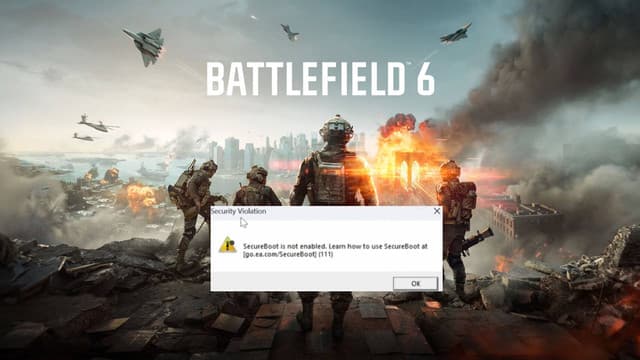
Battlefield 6 How to Enable Secure Boot
Turning on Secure Boot in Battlefield 6 ensures your game runs smoothly and EA Anti-Cheat functions properly. This guide walks you through enabling Secure Boot, checking your BIOS settings, and fixing common startup issues. With just a few system adjustments, you’ll remove launch errors, protect your PC, and enjoy Battlefield 6 without interruptions or security warnings.

Why Secure Boot Is Important for Battlefield 6
Secure Boot is a built-in motherboard feature that verifies only trusted software loads during startup. For Battlefield 6, it’s mandatory—EA Anti-Cheat won’t operate without it. When disabled, you’ll often encounter repeated error messages or a failed game launch.
Key Benefits of Secure Boot
Prevents tampered files: Stops unsigned or altered drivers from loading.
Supports EA Anti-Cheat: Confirms your system’s integrity before gameplay.
Protects your PC: Reduces risks of hidden malware or unsafe kernel operations.
In short, enabling Secure Boot keeps both your system and Battlefield 6 stable.
How to Check Secure Boot Status in Windows
Before heading into BIOS, verify whether Secure Boot is already active. You can do this directly from Windows:
Press Win + R, type msinfo32, and hit Enter.
In the System Information window, locate the line Secure Boot State.
You’ll see one of three results:
On — Secure Boot is enabled.
Off — Supported but currently disabled.
Unsupported — Your PC uses Legacy BIOS instead of UEFI.
If it’s Off or Unsupported, the next steps will guide you through enabling it properly.
How to Enable Secure Boot in BIOS or UEFI
If Secure Boot isn’t active, it must be turned on from the BIOS (UEFI). Follow these easy steps:
Restart your PC and press Delete, F2, or F10 during startup.
Find the Boot, Security, or Authentication tab.
Locate Secure Boot and set it to Enabled.
If it’s greyed out, disable Legacy Boot or CSM first.
Save and exit (F10 on most boards).
Extra Tip
If Secure Boot still doesn’t appear, your drive may use the MBR partition scheme. Convert it to GPT using the mbr2gpt tool or reinstall Windows in UEFI mode. Once done, restart twice to finalize changes.
Common Issues and Quick Fixes
Enabling Secure Boot is usually simple, but certain setups may cause confusion. Below are the most frequent problems and how to solve them quickly.
Secure Boot Option Is Greyed Out
If the toggle is unavailable, Legacy Boot or CSM mode is still active. Enter your BIOS, disable those options, restart, and the Secure Boot setting should become selectable.
“Unsupported” Status in Windows
This message indicates your drive uses the MBR format. Secure Boot requires UEFI + GPT. Convert your drive using mbr2gpt from Windows or reinstall the OS with UEFI enabled.
Secure Boot Still Causes EA Anti-Cheat Errors
After enabling, restart your PC twice. Then repair EA Anti-Cheat through the EA App or Steam. This refreshes the verification process.
Missing Secure Boot Option
Older motherboards may not display it until a firmware update is installed. Visit your manufacturer’s website and update the BIOS to the newest version.
PC Doesn’t Boot After Enabling Secure Boot
Return to BIOS and verify your main drive appears under Windows Boot Manager or Trusted Keys. If not, reload the default key database and re-save.
Once your configuration is correct, Battlefield 6 should start without any anti-cheat errors or boot interruptions.
Troubleshooting Tips for Battlefield 6 Players
Even with Secure Boot active, Battlefield 6 may occasionally fail to launch. These quick fixes resolve the most common post-setup issues.
Double Restart the System
Some PCs recognize Secure Boot only after two full reboot cycles. Perform both to confirm Windows locks in your changes.
Repair EA Anti-Cheat
Go to EA App → Battlefield 6 → Manage → Repair. This rebuilds the security driver and rechecks integrity.
Run as Administrator
Right-click the Battlefield 6 shortcut → Run as Administrator. It helps the anti-cheat initialize correctly at startup.
Update BIOS and Windows
Outdated firmware or unpatched Windows builds can disrupt detection. Always apply the latest updates.
Recheck Secure Boot Status
Run msinfo32 again. If it says “On,” you’re all set. If it reverted to “Off,” confirm Legacy/CSM remains disabled.
Reinstall EA Anti-Cheat
If problems persist, uninstall the anti-cheat, reboot, then reinstall when launching the game. It’ll rebuild the verification keys.
Note: Windows 11 users generally have fewer issues since the OS enforces Secure Boot by default. Windows 10 users may need to revisit BIOS settings after major system updates.
Frequently Asked Questions
Do I need Secure Boot to play Battlefield 6?
Yes. EA Anti-Cheat requires Secure Boot to verify hardware integrity. Without it, the game won’t launch.
Can Battlefield 6 run without Secure Boot enabled?
No. It’s a mandatory system requirement for multiplayer integrity checks.
How do I confirm Secure Boot is working?
Open msinfo32 and look for Secure Boot State: On. That confirms proper configuration.
Does Secure Boot affect game performance?
Not at all. It only secures the pre-boot phase; it doesn’t influence CPU, GPU, or memory performance.
What if I can’t find Secure Boot in BIOS?
Your PC might use Legacy BIOS or an MBR disk. Switch to UEFI and convert your drive to GPT to reveal the option.
Is TPM 2.0 also needed for Battlefield 6?
No. Battlefield 6 doesn’t require TPM 2.0. EA Anti-Cheat checks only for Secure Boot status.
Final Thoughts
Enabling Secure Boot is essential for running Battlefield 6 without EA Anti-Cheat errors. Once active, your PC becomes safer, your boot process more secure, and your gameplay smoother. After setup, restart twice, confirm the status, and enjoy Battlefield 6 without any startup interruptions. Proper system configuration today saves you hours of troubleshooting tomorrow.