Recommended League of Legends Settings for Performance and Control
The best League of Legends settings preserve the information you need while making movement, targeting and camera control repeatable. Start with a readable native-resolution image, a frame rate your computer can sustain during fights, an accessible attack command and audible pings. Changing every slider to a professional player's values is less useful than identifying what currently causes your mistakes.
Checked October 22, 2026, in the live 26.21 context: this guide covers ordinary PC League of Legends, not a Classic-specific ruleset. The main control recommendations use the default Point & Click input. Keyboard (WASD) is a real alternative with its own bindings and camera behavior, explained separately below.
These presets are starting points, not measured benchmarks or guaranteed FPS gains. Test them in the Practice Tool or a custom game, change one group at a time and keep a note of your previous values. A quiet fountain is not a useful substitute for testing a busy fight.
Find the right settings window
The out-of-match League client and the running match have different responsibilities. Open the client's cog for client behavior and supported hotkey settings. For the complete in-match view, enter the Practice Tool and press Esc. Current camera controls have a dedicated Camera section; old guides that place every camera option under Game are not a reliable menu map.
Area | What to adjust | Where to start |
Video | Resolution, display mode, quality, FPS cap, V-Sync | Inside a running game |
Camera | Follow behavior, movement speed and camera options | In-match Camera section |
Hotkeys | Input method, abilities, attacks and camera shortcuts | In-match Hotkeys; client supports many bindings |
Interface | HUD, minimap, cursor, information and chat display | In-match Interface section |
Game | Gameplay/input options such as attack-move behavior | In-match Game section |
Sound | Gameplay sound categories and volume | In-match Sound; distinguish client audio |
Client General | Low Spec Mode and closing the client during a game | Client cog, outside a match |
Labels can differ by language and input profile. Read the command name rather than copying its old position in a screenshot. English labels are retained where a specific Russian localization has not been verified.
Video settings that protect performance and readability
Use the display's native resolution first. It keeps text, health bars and small targets sharp. On an overloaded system, reducing resolution can help, but it also makes those details less clear. Confirm the monitor's intended refresh rate in the operating system's display settings; do not confuse that with League's Frame Rate Cap.
Try Fullscreen first when diagnosing performance. Borderless is convenient for switching applications and may work just as well on your setup; compare actual behavior instead of assuming a universal latency penalty. Windowed mode is useful for a smaller game window but changes how much desktop space the cursor crosses.
Video option | Practical starting choice | When to change it |
Character Quality | Medium | Lower on weak hardware; keep models easy to distinguish |
Environment Quality | Low or Medium | Reduce decoration before sacrificing resolution |
Effects Quality | Low, then check real ability cues | Raise if effects become harder to read and performance allows |
Shadows | Off for a performance test | Keep a low setting if it helps you read positions |
Anti-Aliasing | Off for a performance test | Enable if jagged edges distract and spare performance exists |
Character Inking | Off initially | Compare outlines for readability rather than assuming a fixed FPS benefit |
Frame Rate Cap | A sustainable available value | Test busy fights, temperatures and responsiveness |
Wait for Vertical Sync | Off for an initial latency comparison | Turn on if tearing is the more disruptive problem |
V-Sync and Wait for Vertical Sync refer to the same synchronization choice here, not two separate required switches. There is no need to disable a second invented option.
Hide Eye Candy removes ambient decoration, not essential enemy spell hitboxes or every cosmetic effect. Enable it if the extra scenery distracts you. Disable Enable Screen Shake if movement of the image is uncomfortable or makes tracking harder; do not promise a measurable FPS gain from that choice. These are clarity preferences as well as performance decisions.
Match the frame cap to your actual system
FPS measures how often the game renders frames. Monitor refresh rate measures how often the display refreshes. A high-refresh screen cannot create frames the computer never renders, and a 60 Hz screen is not suddenly a 144 Hz screen because the counter exceeds 144 FPS. Extra rendered frames can still affect response, so the two numbers are related without being interchangeable.
Unlimited rendering can be useful on a capable system, but can also produce unnecessary heat, power use or inconsistent performance under load. Compare an available cap that the PC sustains in fights with uncapped operation. A weak laptop can start by testing 60 FPS, then move to another available value if it has headroom. This is a test value, not a competitive requirement or a promise that the laptop can hold it.
V-Sync reduces visible tearing by synchronizing presentation with the display, but may increase input delay. If responsive control matters most, start with it off; if tearing makes moving targets difficult to follow, compare it on. Variable-refresh displays and driver settings add another layer, so a single cap-and-sync recipe cannot cover every monitor.
Judge the result by responsiveness and sustained fight performance, not the highest number while standing still. If FPS is stable but commands arrive late because of network latency, lowering shadows will not fix that separate problem.
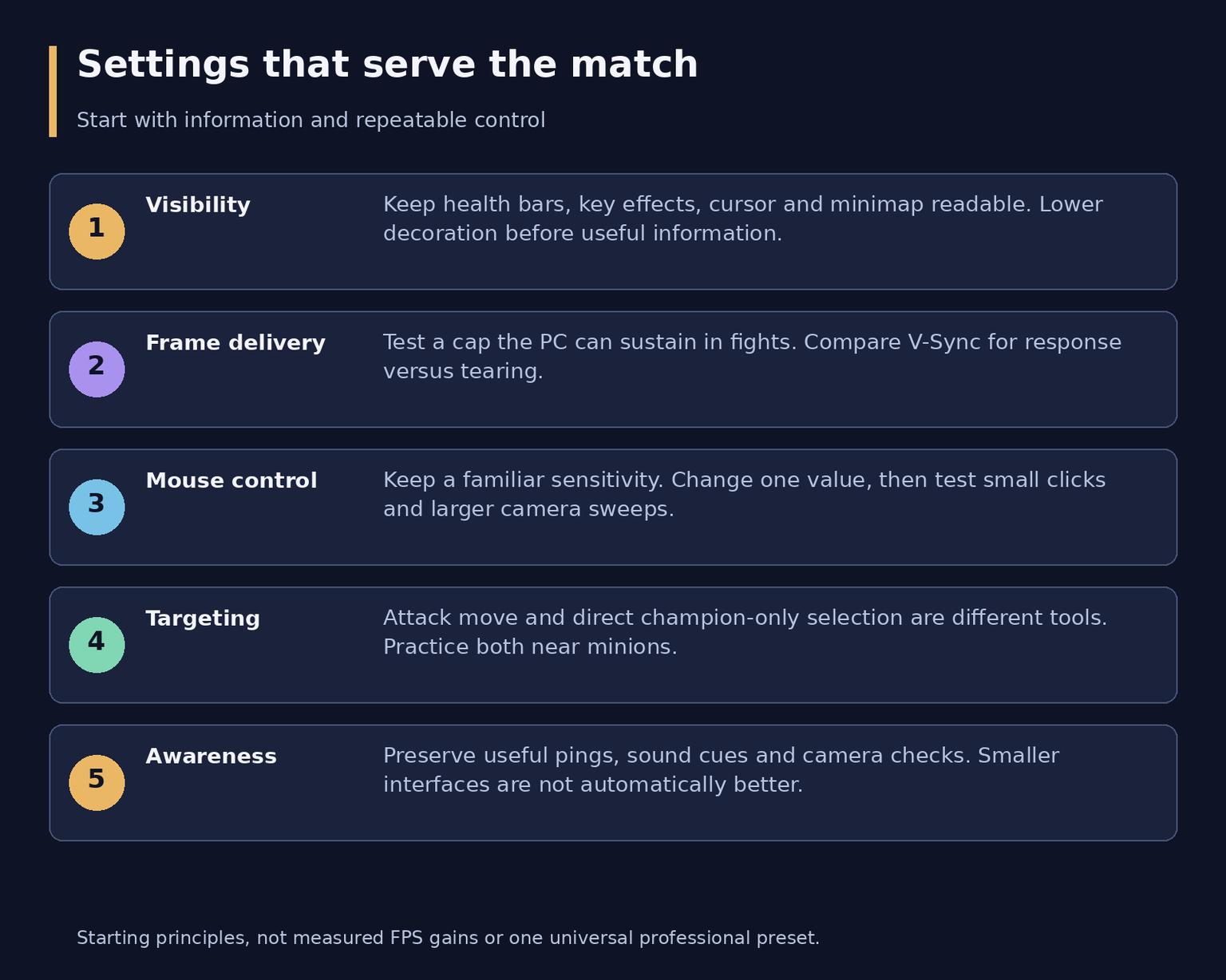
Prioritize readable information, consistent frame delivery and repeatable control before cosmetic preferences.
Keep mouse control repeatable
DPI is a hardware sensitivity choice; Mouse Speed is the in-game pointer adjustment. Resolution, available mouse space and your existing habits also matter. Begin with a familiar DPI and the default in-game speed, then adjust only one of them. You should be able to move between lane targets and the minimap without repeated overshooting or uncomfortable travel.
Test small clicks on minions and larger sweeps to a screen edge. If precise selections are difficult, reduce speed modestly; if you constantly run out of comfortable movement, increase it modestly. No professional DPI or combined sensitivity number is mandatory.
Keep operating-system pointer settings stable while comparing in-game changes. Do not present Enhance Pointer Precision as a guaranteed LoL latency fix: platform and input handling matter, and this guide does not claim that one Windows checkbox has an identical effect in every configuration. Verify actual cursor travel before adopting a change.
Do not import an old Hardware Cursor configuration-file tweak as a required Windows setting. Riot documents a separate Use Software Mouse option on macOS and warns against it at low frame rates; that does not establish an equivalent Windows toggle. For normal setup, use the exposed controls rather than editing game files.
Side buttons can be convenient for a targeting modifier or an active item if you can press them without changing your aim. Riot supports mouse buttons 1 through 5 through the normal bindings; do not assume every extra button on a gaming mouse is directly detected.
Choose camera control by the information you need
Unlocked camera lets you frame the next threat, inspect a nearby fight and see farther along a lane. It also adds a task: moving the view without losing your own champion. Use Space to recenter and Y to toggle camera lock in the standard Point & Click layout, or keep equivalent accessible binds if you have changed them.
Locked camera makes tracking your champion easier, especially while learning movement. Its cost is that useful space ahead of the action can fall outside the frame. It is a valid learning or comfort choice, provided you deliberately check the minimap and look away when needed. It is not a moral or skill test.
Semi-Locked permits limited movement while retaining the champion in view. Fixed Offset keeps a centered relationship; Per-Side Offset adjusts the locked framing for the side of the map. These describe framing choices, not extra zoom or permission to see through fog of war. Try each briefly and choose the one that gives you an understandable view.
Set Camera Move Speed so an edge-scroll adjustment does not fling the view past the action. Mouse-button drag scroll offers another way to move the camera; try it if edge scrolling is uncomfortable. Camera movement and pointer sensitivity have different jobs, so equal slider values are not a rule. F9 has a reserved screen-edge-scrolling function, which matters if edge movement suddenly stops.
Bind and practice ally camera shortcuts as well as recentering. The usual F2-F5 shortcuts inspect teammates, but check your layout and ordering. Camera inspection does not itself choose an attack target, and Target Champions Only does not move the camera or reveal unseen enemies.
Cast spells deliberately rather than changing every key at once
Normal Cast selects an ability, shows its targeting information and normally waits for a confirming click. Quick Cast normally uses the current cursor target or position when the key is pressed. Quick Cast with Indicator shows targeting while you hold the key and casts when you release it. Charged, self-targeted and special abilities can behave differently, so test the actual spell.
Quick Cast can reduce the number of actions, while indicators help when learning range or planning a precise placement. It is reasonable to use quick casting on familiar spells and retain an indicator or normal-cast binding for a spell you still need to aim carefully. Neither quick casting nor one scheme for every ability is compulsory.
Use Self Cast for spells that can target your own champion, rather than trying to locate yourself in a crowded fight. Alt plus the ability key is a familiar Point & Click convention, and Ctrl plus the ability key levels it up. Check the actual entries and collisions if you have customized modifiers. An alternate indicator binding should not silently overwrite self-cast or another action.
Separate the attack commands before learning to kite
These commands solve different problems. Find them under Hotkeys and read the full label; Game contains the related attack-move and targeting behavior options.
Control | What it does | Important limit |
Player Attack Move | Prepares an attack-move order, commonly A then a confirming click | Can acquire minions or monsters as well as champions |
Player Attack Move Click | Issues attack move at the cursor without the extra confirmation | Still uses attack-move target acquisition |
Attack Move on Cursor | Changes attack-move preference toward a target near the cursor | Does not turn it into champions-only targeting |
Player Attack Only Click | Issues an attack when the cursor is on a valid target | A ground miss does not become a new ground-movement order; no nearby-target search |
Target Champions Only | Restricts direct cursor selection to champions | Does not filter attack move's automatic target search |
For an ADC, attack move can reduce the risk of a missed attack click becoming a walk toward the opponent. It is also useful for melee spacing, farming and short trades. It does not automate attack timing: move after the attack commits, and avoid cancelling the attack repeatedly by issuing movement too early.
For a tower dive or a fight inside a wave, use Target Champions Only with direct clicks on the intended champion or applicable unit-targeted spells. It does not turn a skillshot into homing damage, and combining it with attack move does not guarantee ignoring minions. Treat it as a hold modifier or enable Treat 'Target Champions Only' as a toggle if that is easier to maintain. Remember to release or toggle it off before farming or selecting a neutral monster.
Auto Attack controls automatic behavior when you are idle; disabling it is a useful starting preference when you want more deliberate last-hitting or bush behavior. It does not disable manual attacks and is not the same as binding attack move. Keep Stop and Hold Position available and test their behavior with your chosen idle setting rather than treating them as one command.
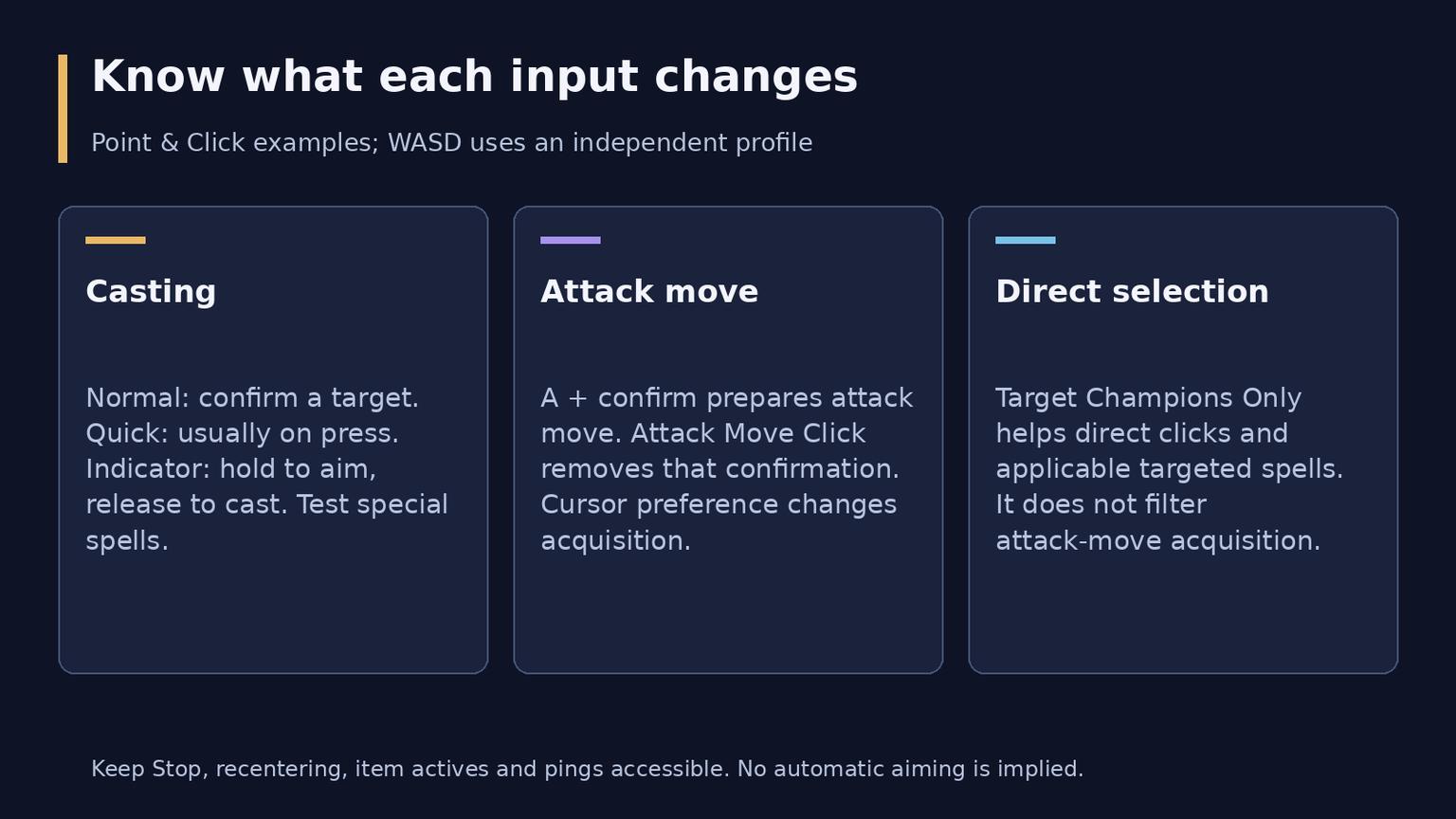
Casting, attack move and direct champion targeting are separate tools. Practice each before combining them.
Keep a small set of accessible hotkeys
For standard Point & Click, Q/W/E/R control abilities and D/F the summoner spells. The usual item keys are 1/2/3/5/6/7, with 4 for the trinket. Keep the arrangement if it is comfortable; move a frequently used active item to an easier binding rather than rearranging every slot at once.
The most useful additions are a comfortable attack-move binding and an accessible Target Champions Only modifier. Keep S for Stop and H for Hold Position unless you have an established alternative. Preserve camera recentering, ally views, a ping or ping-wheel binding, P for the shop and Tab for the scoreboard. Test that an item, trinket, spell level-up and self-cast all work without a collision.
Keyboard (WASD) has an independent input profile. Riot's current FAQ describes selecting it inside Hotkeys, champion-specific or global bindings and an input choice that locks after the first ten minutes. Its first activation enables Dynamic Camera and Scout Ahead behavior, adjustable under Camera. Its ability defaults are not Q/W/E/R, so this article's Point & Click shortcut examples must not be pasted into that profile. Set it up in the Practice Tool before using it in a match.
Make the HUD minimap and cursor readable
Reduce HUD Scale only until you recover useful screen space without losing readable cooldowns, resources and item actives. Enlarge Minimap Scale enough to recognize champion icons and ping direction with a short glance. There is no benefit in a tiny minimap you repeatedly fail to read, or an oversized one that causes accidental interactions.
Choose the minimap's left or right position according to where you actually look comfortably. Distinguish clicking it to inspect the map from issuing movement through it. If accidental map movement is a recurring problem, review Allow Minimap Movement and test the result. Changing left-click attack bindings can also change your minimap habits, so recheck camera inspection afterward.
Set Cursor Scale so you can find the pointer during overlapping spell effects without covering small targets. Use a chat scale you can read, champion names if player names make identification harder, and visible health and resource bars. Keep Show Spell Costs and readable numeric cooldowns so your next action is based on available resources. Show Loss of Control UI helps identify control effects; choose target-frame and damage-number displays by whether they help rather than crowd the screen.
Use built-in scoreboard objective information and minimap indicators as awareness aids, not as permission to ignore vision or as a promise of a precise timer for every unseen camp. Keep useful pings visible, including off-screen indicators if they help. Turning off optional HUD animation is a cleaner first reduction than removing information you still need to learn.
Colorblind Mode is under Video near Resolution in Riot's support instructions. It is designed to help distinguish allied and enemy health bars and effects, particularly for red-green color-vision differences. Compare it during actual combat and use the clearer palette; it is not a mandatory competitive enhancement. Scale, contrast, stable camera framing and audible cues are accessibility choices too, but this guide does not invent extra filters or an automatic aiming function.
Balance sound and communication
Keep Master Volume at a comfortable level, then preserve Sound FX and Pings so ability cues and warnings remain audible. Announcer information can help track match events. Voice Volume is champion dialogue, not a substitute for party voice-chat controls. Music and Ambience can be reduced first if they mask important cues. There is no need to mute all game sound to concentrate.
Inside Interface, Change Chat Visibility separates Everyone, Same Team and Premade Only coverage of all, allied and party channels. For a focused setup, Same Team or Premade Only is a reasonable choice according to how much written coordination you want. Enable Show Timestamps if you use messages to track events. The profanity filter and emote options are separate preferences, not FPS optimizations.
Use the scoreboard's individual mute controls when one player's messages, emotes or pings are distracting. A blanket mute command can remove useful alerts too, and Riot's articles describe some command behavior differently, so selective icons are clearer than assuming every mute is text-only. Client notification sounds can be adjusted separately from the in-match combat mix.
Two presets to test and a sensible upgrade path
For a low-end PC, first enable client Low Spec Mode outside a game. It reduces client animation and effects; it is not the in-match graphics-quality slider. Close Client During Game can free client resources but can also make returning to the post-game client slower. Compare it if memory is tight, and change client animation or notification preferences only where those controls are exposed.
In the game, start with low quality, shadows and anti-aliasing off, then preserve the resolution and effect clarity you can afford. If this still fails, lower resolution carefully. Update the supported graphics driver and close unnecessary background applications before adding obscure tweaks. DX9 support ended in 14.9, and the current Windows requirement is DX11 feature level 11_0; an old DX9 compatibility switch is not a performance route.
Area | Low-end starting test | Competitive starting test |
Video | Low quality, no shadows/AA; native resolution if sustainable | Medium characters, Low/Medium environment, readable effects, no distracting shake |
Frame delivery | Test 60 FPS or another sustainable available cap | Compare a stable higher cap with uncapped; test V-Sync off first |
Camera | A follow mode you can manage, with deliberate map checks | Unlocked plus recenter, or a tested semi-locked/dynamic alternative |
Mouse and keys | Familiar sensitivity; reachable attack and targeting commands | The same repeatable input, quick cast where learned, indicator alternative |
Interface | Readable bars, costs, cooldowns and a useful minimap | Readable HUD and cursor, large enough minimap, visible useful pings |
Sound | Audible effects, pings and useful announcements | The same cues, with music/ambience reduced if distracting |
A midrange PC can raise character or environment quality until it finds a clear, stable balance. A powerful PC can retain high detail if demanding fights stay responsive; competitive use still does not require maximum decoration. Keep the same control and readability principles at every budget.
Finish by testing a small target click, an attack-move order, champion-only direct selection near minions, a recenter, an item active and a ping. Change one failing part rather than resetting everything after a bad match. Recheck bindings and the relevant menu after a major input update.
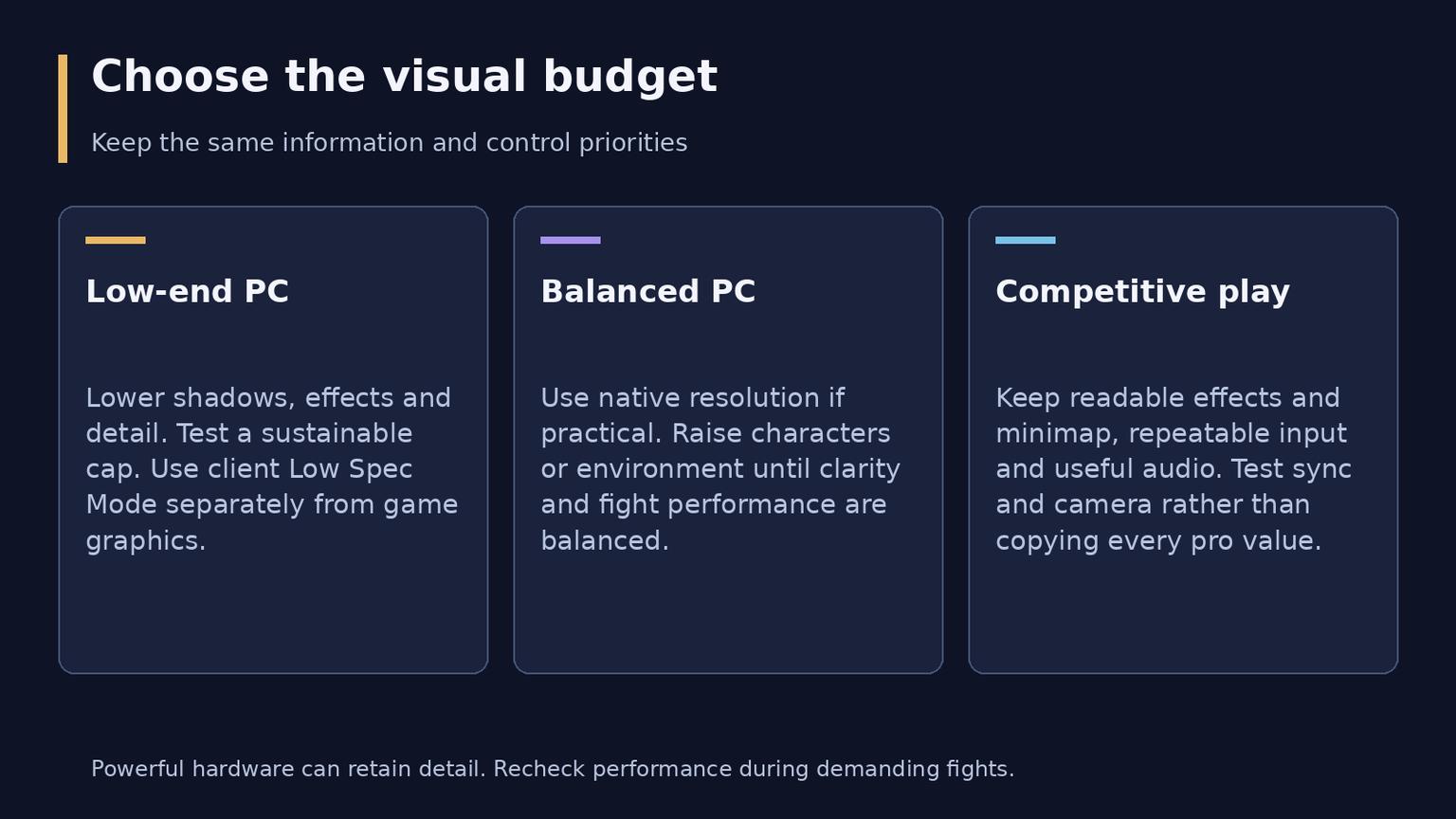
Hardware changes the visual budget. Reliable control and readable information remain common priorities.
Frequently asked questions
Which graphics settings should I lower first for FPS
Start with shadows, effects, environment quality and anti-aliasing, then test a sustainable cap. Preserve readable spell cues and native resolution where possible. Lower resolution if necessary; no preset guarantees the same FPS on every PC.
Should I turn on Quick Cast for every ability
No. Quick Cast can reduce clicks, while an indicator or normal cast can help with range and placement. Choose per spell and test special or charged abilities instead of assuming one casting method suits everything.
Is unlocked camera always better
It offers more control over framing but requires practice. Locked, semi-locked or dynamic camera can suit learning or accessibility needs. Keep recentering and deliberate map checks regardless of the follow mode.
Which targeting hotkeys should a beginner learn
Learn an attack-move command and Target Champions Only as separate tools, plus Stop and camera recentering. Attack Move Click removes the confirmation step, while champion-only targeting protects direct selections; it does not make attack move ignore minions.