Best Modern Warfare 4 Settings for PC and Console
The best Call of Duty: Modern Warfare 4 settings make enemies easier to see and aiming more predictable without sacrificing stable performance. Begin with motion blur and film grain disabled, frame generation off, a sustainable frame-rate cap and controls you can repeat under pressure. Then change one group at a time.
This guide covers the full release of October 23, 2026, using the official Launch Patch Notes dated October 22 as its patch reference. No numerical build is supplied there. Modern Warfare 4 is available on PC, PlayStation 5, Xbox Series X|S and Nintendo Switch 2; it is not a PS4 or Xbox One release. The detailed graphics profiles below are for PC. Switch 2 menu parity has not been established, so those values should not be copied to it.
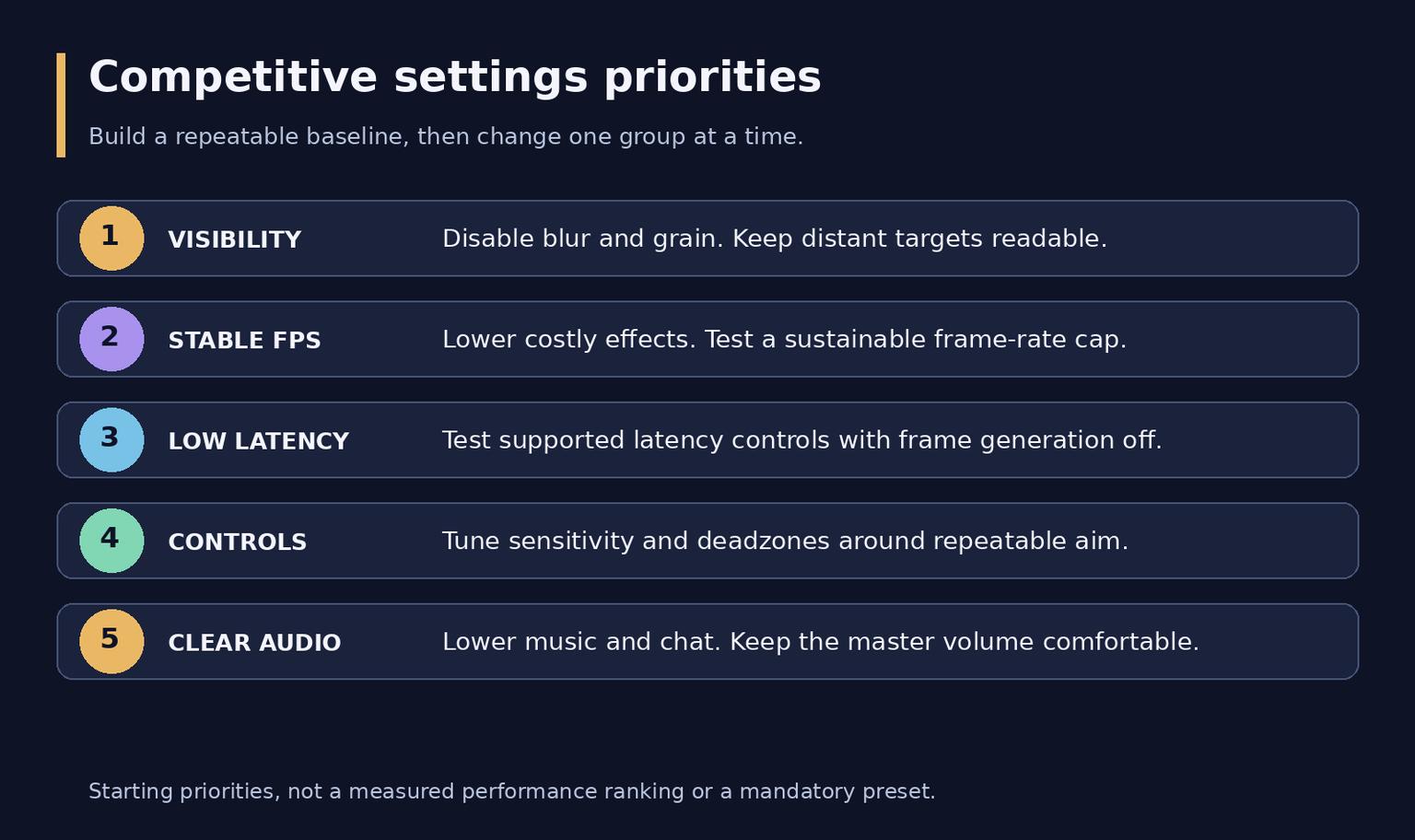
Five priorities for a clear and repeatable competitive setup.
A compact competitive starting preset
Treat this as a first pass, not a mandatory configuration. Test it in the mode you actually play: a short multiplayer match and a long DMZ deployment can stress a PC differently.
Group | Starting point | What to check |
Clarity | World Motion Blur Off; Weapon Motion Blur Off; Film Grain 0 | Follow a moving target against a busy background. |
Focus | World Depth of Field Off; Weapon Depth of Field Off | Keep a sharp sight picture; restore weapon blur only if preferred. |
Performance | Ray Tracing Off; Frame Generation Off; custom FPS cap | Watch sustained performance during combat, not the menu peak. |
View | FOV 105; ADS Field of View Affected; Enhanced FOV Off initially on PC | Lower FOV if distant targets become too small. |
Controls | ADS multiplier 1.00; consistent input device; tested deadzones | Stop overshooting before increasing turning speed. |
Audio | Low music, clear effects, comfortable master level | Speech and team chat should not cover combat cues. |
PC display, FPS and latency
Open Settings > Graphics. Display, Quality and View contain different parts of the setup. Use the monitor's native Display Resolution and highest supported Screen Refresh Rate. Fullscreen Exclusive exposes manual resolution and refresh controls; Fullscreen Borderless follows the desktop configuration. Neither is a universal performance winner, so compare the one that works reliably with your setup.
FPS counts frames produced by the game; Hz describes display refreshes. A 144 Hz screen cannot show 240 complete refreshes each second, although rendering above its refresh rate can still affect responsiveness. Stable frame delivery matters more than a brief high counter followed by pauses.
Set Custom Frame Rate Limit to Custom and choose a gameplay cap the PC can sustain in demanding fights. A cap just below the display ceiling can be a useful VRR starting point, but it is not a universal latency formula. Lower menu and background limits separately. If performance repeatedly drops beneath the cap, reduce demanding settings or lower the cap rather than chasing the highest number.
V-Sync (Gameplay) Off is a useful first comparison for latency-focused play, with possible screen tearing. If tearing distracts you, test a synchronized configuration and compare the response. VRR support, display settings and drivers affect the result. V-Sync (Menus) is separate.
On a supported NVIDIA GPU, start NVIDIA Reflex Low Latency at On. Reflex coordinates CPU and GPU rendering to reduce latency. Compare On + Boost only after the baseline is stable, including temperature and power behavior; a higher setting is not automatically necessary. Reflex is not a network-ping fix.
Let shader preloading finish before judging stutter. Leave Background Shader Preloading enabled where available. After a driver change, allow the cache to rebuild instead of repeatedly restarting it during every session. Use the built-in multiplayer Benchmark Tool for a repeatable comparison, then confirm the result in normal play. Record resolution, hardware and the same test scene before claiming a gain.
Three PC graphics profiles
The launch menu includes Texture Resolution, Texture Filter Anisotropic, Detail Quality, Particle Resolution, Shadow Quality, Shadow Filtering Quality, Volumetric Quality, Screen Space Reflections and Occlusion and Screen Space Lighting. The last option combines effects that older guides may list separately. Start with Graphic Preset Custom and use these priorities rather than lowering every option indiscriminately.
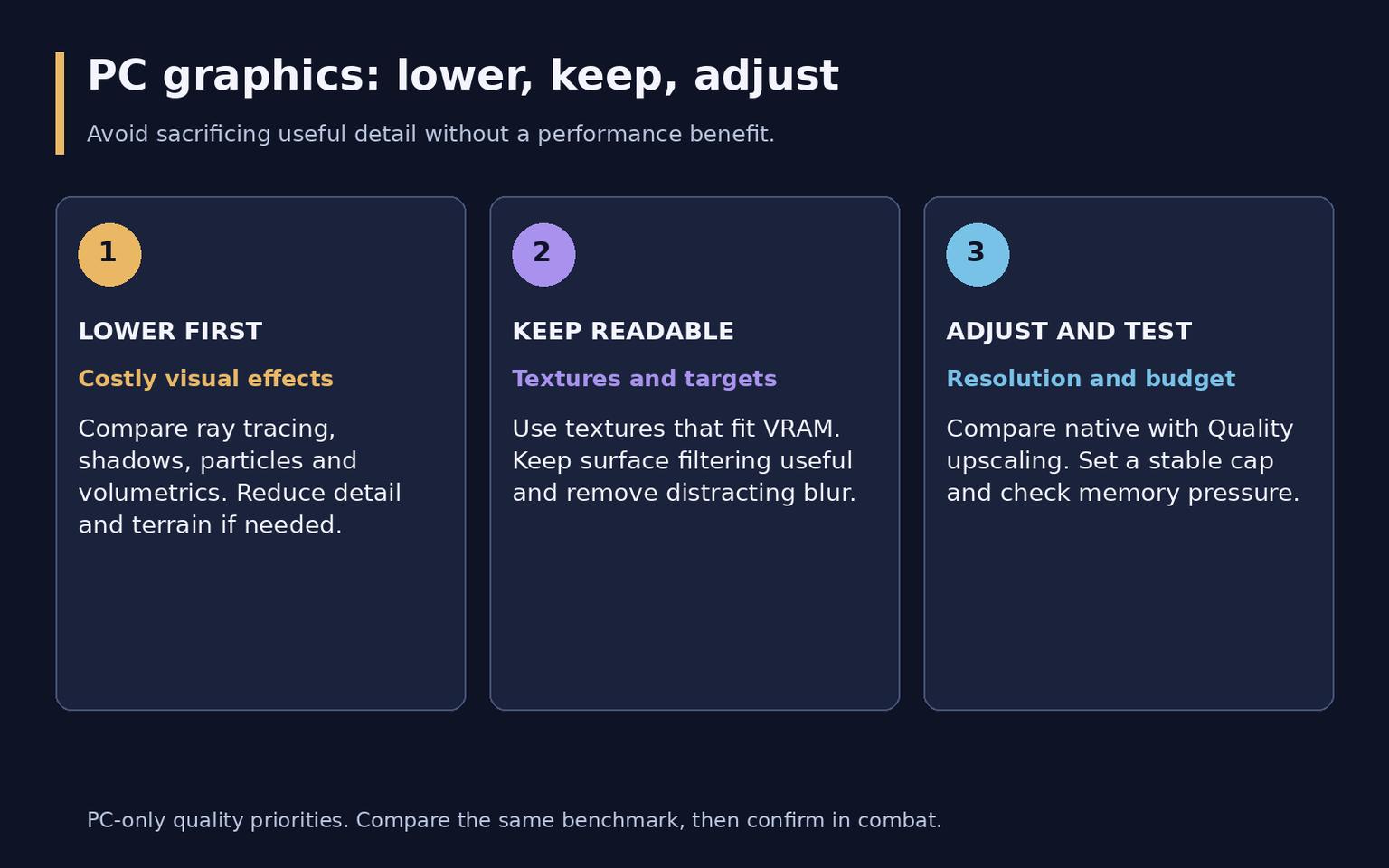
PC graphics priorities: reduce costly effects while preserving readable targets.
Profile | Recommended direction | Preserve or adjust |
Competitive visibility | Low shadows and shadow filtering; low particles and volumetrics; reflections and combined occlusion/lighting Off | Normal textures if VRAM allows; enough filtering to read angled surfaces; blur Off. |
Balanced | Normal textures and detail; moderate shadows; compare optional reflections individually | Native or Quality upscaling; increase visual detail only while frame delivery stays stable. |
Weak PC / maximum FPS | Lower detail, terrain, particles, shadows and volumetrics first; ray tracing Off | Reduce textures if VRAM is constrained; test upscaling before lowering output resolution. |
These are editorial starting profiles, not measured presets with promised FPS gains. If reducing quality barely changes performance, avoid making the image progressively less readable for no benefit. Compare CPU and GPU timing in the benchmark before choosing the next change.
Keep Render Resolution at 100% when evaluating native rendering and turn Dynamic Resolution Off for that fixed baseline. Dynamic resolution is a separate adaptive choice, not a required companion to an upscaler. Check that a selected scaling mode has not changed the effective internal resolution before comparing screenshots.
VRAM Scale Target is a budget control, not extra physical memory. Begin around the menu's recommended value rather than forcing the maximum; reduce texture demands if memory pressure coincides with hitching. On-Demand Texture Streaming also uses data. Select the least demanding available streaming setting if downloads disrupt play or data is limited; guides differ between Minimal and Optimized labels, so use the option present in your build. Local Texture Streaming Quality is separate. Do not assume a complete Off toggle exists.
DLSS, FSR, XeSS and frame generation
The official PC feature list confirms NVIDIA DLSS 4.5, AMD FSR Redstone and Intel XeSS 3. Resolution Scaling Technique is the official label; some launch guides describe the group as Upscaling/Sharpening. Availability and exposed modes depend on the GPU and build. Filmic SMAA T2X is an anti-aliasing option, not another machine-learning upscaler.
Compare native rendering with Quality first, particularly at 1440p or 4K when the GPU is limiting performance. Balanced and Performance, when offered, trade more source detail for speed. At 1080p, inspect distant players and fine sights carefully before accepting a more aggressive mode. Choose among technologies actually supported by your hardware, using the same route and moving targets. Sharpness can improve perceived edges but excessive sharpening creates halos; it cannot restore missing detail.
Leave Frame Generation Off while building a competitive baseline. Generated frames can make motion look smoother, but a larger displayed FPS number is not the same as more newly rendered input responses. Test it separately for campaign visuals after the underlying frame rate is comfortable, and look for artifacts around sights, HUD edges and fast movement. Do not assume every DLSS, FSR or XeSS generation feature is available on every GPU.
FOV and camera movement
The documented PC default Field of View is 95. Try 100-110 first, with 105 as a neutral experiment. A wider view reveals more surroundings but makes distant targets smaller and can change performance. It can reduce the apparent size of recoil movement without changing the weapon's actual recoil or damage.
Do not confuse the slider value with the true horizontal angle: the menu combines the selection with aspect ratio, and the documented true horizontal ceiling is 135 degrees. A verified minimum and identical slider limits on every console have not been established here. A copied claim that every platform simply uses a 60-120 range would be misleading.
ADS Field of View Affected is a useful starting point for a more consistent transition; compare Independent if you prefer a more magnified ADS presentation. Enhanced FOV is PC-only: it expands the lens view near the edges without changing the center FOV. Test it after choosing the base view and keep it off if edge distortion distracts you.
Vehicle Field of View is available; compare Default and Wide in vehicles separately. Set 1st Person Camera Movement and 3rd Person Camera Movement toward Minimal (25%) if camera motion obscures targets. This reduces camera movement rather than disabling all weapon animation. A separate Weapon FOV control has not been verified for this release.
Mouse, keyboard and controller
Mouse and keyboard
Select Mouse as Aiming Input Device. Keep one DPI while tuning Mouse Sensitivity: track a target, turn through a doorway and make a small correction. Lower sensitivity if you repeatedly overshoot; raise it if normal turns exhaust the available mouse space. There is no universal professional DPI.
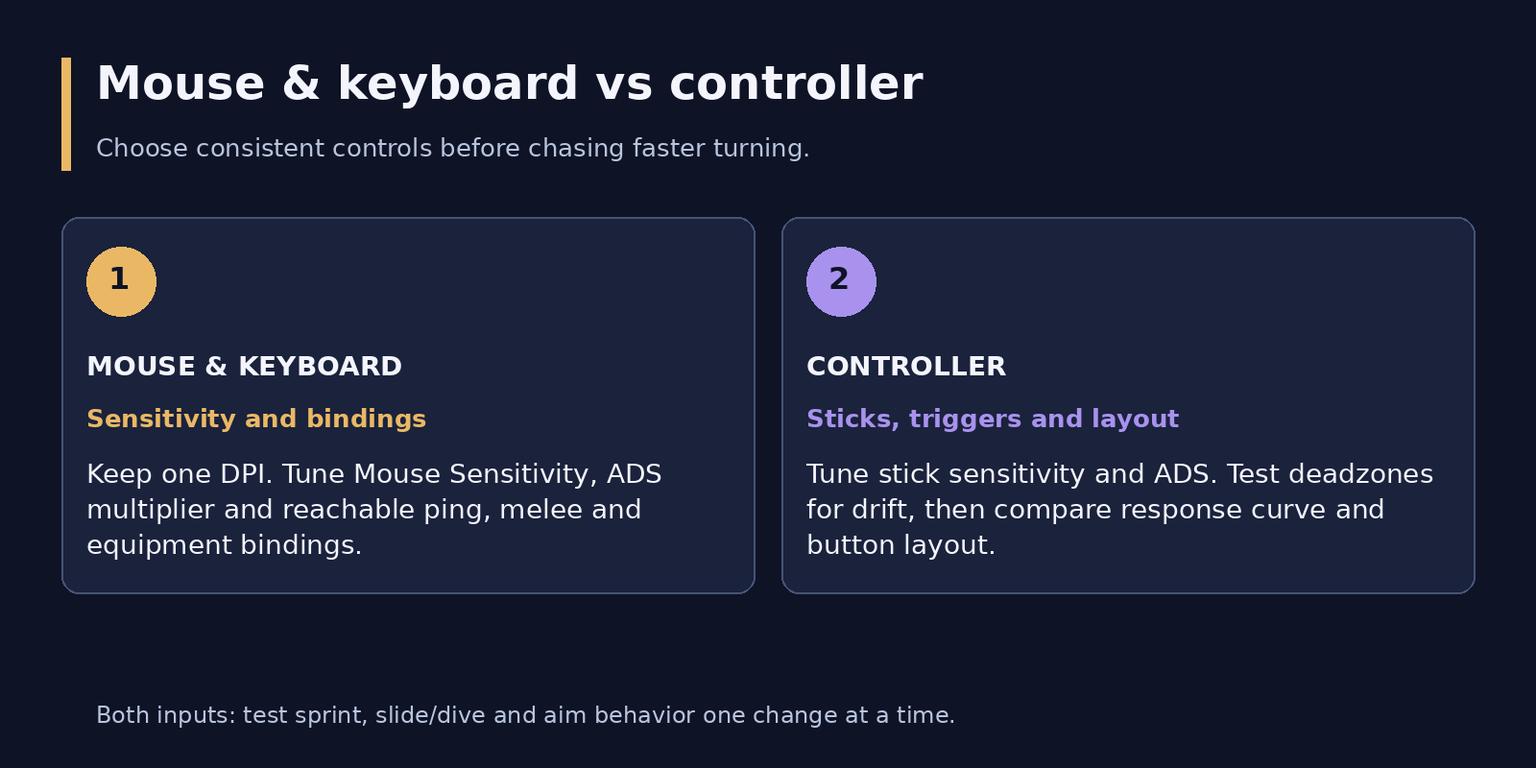
Different input devices require different sensitivity and control checks.
Begin ADS Sensitivity Multiplier at 1.00 and Custom Sensitivity Per Zoom Off. Relative ADS Sensitivity Type and Monitor Distance Coefficient exist; leave the coefficient at its documented 1.33 default while learning the baseline. ADS Sensitivity Transition Timing can be compared separately: Instant is a preference, not a proven universal improvement over Gradual. Dedicated acceleration, filtering and smoothing switches were not confirmed in the current menu evidence, so do not search for old-game options as required steps.
Use Settings > Keyboard & Mouse > Keybinds to make Ping, melee and equipment reachable without releasing movement. Ping defaults to Middle Mouse Button and the map to M, with Caps Lock as an alternate. Test Aim Down Sight Behavior Hold versus Toggle and choose deliberately. Weapon Mount Activation exists; give mounting a distinct, comfortable action if accidental mounts interrupt fights.
Tune Sprint Assist and Tactical Sprint behavior before adding automatic movement. Test crouch/slide and prone/dive independently, including Slide/Dive Activation and Tap to Slide where offered for your input. Verify interact and reload assignments in the active input's Combat or Keybinds page rather than copying a controller interaction preset to a keyboard. Armor Plate Behavior Apply All is relevant to DMZ armor use, not a universal multiplayer requirement. The launch notes change sprint-key behavior with the Blood Rush perk specifically; that is not a new default for every loadout.
Controller
Setting group | Starting point | Personal adjustment |
Stick sensitivity | Begin at the documented 1.20 horizontal and vertical default | Try small increases only when tracking is controlled; this is not the old 6/6 scale. |
ADS and curve | ADS multiplier 1.00; compare Dynamic response curve with the default | Keep the curve fixed while assessing sensitivity. |
Aim assist | Target Aim Assist On; ADS Aim Assist On | No unverified Aim Assist Type preset or secret strength setting is required. |
Stick deadzones | Run Test Stick Deadzone | Reduce minimum gradually; raise it until drift stops reliably. |
Triggers | Test trigger deadzones independently | Reduce travel only while avoiding unintended firing or ADS. |
Layout and movement | Default or Tactical layout by preference; vibration Off as a comparison | Check slide/dive, sprint and melee without losing aim control. |
Check both sticks at rest and after releasing them from different directions. A minimum of zero is unsuitable if the stick drifts. Maximum deadzones affect how soon full input is reached; leave them at their current defaults until you have a specific turning or movement problem. Repeat the test after reconnecting the controller. Do not copy a worn controller's values to a new one.
Audio and HUD that preserve useful cues
For stereo headphones, begin with Speaker Output Stereo and Mono Audio Off, unless mono suits your accessibility needs. Compare Audio Mix Home Theater with Headphones if offered, using the same equipment and scene. Neither is guaranteed to make every footstep louder. Reduce Gameplay Music Volume and Cinematic Music Volume first; keep Effects prominent, Dialogue intelligible and Master Game Volume comfortable rather than automatically setting everything to 100.
Reduce Tinnitus Sound On can make intense effects more comfortable. Test Enhanced Headphone Mode separately instead of layering several spatial effects at once. Keep Voice Chat below combat effects, check the microphone and use Push to Talk on PC if background noise is a problem. Headshot & Kill Alerts is documented; a separate configurable hitmarker sound preset was not verified.
In Interface, preserve useful minimap and compass information. Square minimap, rotation On and HUD Widget Shake Off are reasonable comparisons, not extra enemy detection. Adjust team/enemy colors for distinction and crosshair visibility for your screen. Keep subtitles if needed and check that text size does not cover essential combat information; exact localized menu wording is not assumed.
Open Interface > Telemetry and expand Show More. Enable the available FPS, latency and packet-loss readouts, plus network and hardware warning icons. Latency and packet loss can show N/A outside a public game; test the connection in a live match. A stutter with stable latency calls for a different investigation from a packet-loss spike. No server tick-rate or hidden connection-meter control is asserted here.
PlayStation and Xbox: use console modes
PC texture, VRAM, Reflex and upscaler controls are not a console checklist. On PS5 and Xbox Series X|S, use the available performance or resolution mode with a compatible display. Check console video output, the correct HDMI input and the display's Game Mode before blaming the game for a 60 Hz output.
The developer notice quoted on October 20 requires both 120 Hz support and VRR enabled for Performance Mode in Campaign and DMZ on PS5 and Xbox Series X|S. That notice does not establish the same requirement for every multiplayer mode. A 120 Hz label alone is insufficient for those two modes. If the mode stays at 60 Hz, check VRR compatibility and its console/display settings; 120 Hz support is not a promise of a locked 120 FPS.
The official PS5 page confirms HFR/VRR support, with PS5 Pro enhancements including PSSR and improved visuals in 60 Hz and 120 Hz modes. Keep console graphics choices separate from controller sensitivity. Tune shared clarity, audio and input options only when they appear in that platform's menu.
Frequently asked questions
Which settings should I lower first for more FPS?
Start with ray tracing, shadows, shadow filtering, particles and volumetrics, then compare detail and terrain. Reduce textures for VRAM pressure rather than assuming the lowest texture quality always increases FPS. Use the same benchmark and confirm in combat.
What FOV should I use?
Try 100-110 and reduce it if distant targets become difficult to identify. The documented PC default is 95. Aspect ratio affects the true horizontal angle; Enhanced FOV is a separate PC-only experiment, not a mandatory competitive setting.
Which controller settings are best for competitive play?
Start with controllable horizontal/vertical sensitivity, ADS multiplier 1.00, the documented aim-assist toggles On and minimum deadzones that eliminate drift. Compare Dynamic response and Tactical layout one at a time. Repeatable aim matters more than copying someone else's numbers.
Should I enable DLSS, FSR or Frame Generation?
Compare a supported upscaler's Quality mode with native rendering when GPU performance is insufficient. Use more aggressive scaling only if targets remain readable. Keep Frame Generation Off for the first competitive profile, then judge any separate trial by response and artifacts as well as the FPS counter.