Best WoW Forever Addons for Questing, Combat and Trade
The best WoW Forever addon setup solves the problems you actually encounter: finding a quest objective, reading enemy nameplates, locating a reagent or checking an auction price. Installing everything at once makes it harder to learn the interface and identify conflicts. Start with one activity, then add tools when a specific limitation becomes apparent.
This selection was checked on October 19, 2026, during the Forever beta. The main recommendations have published files listing Forever 1.60.1. That establishes author-declared compatibility, not a guarantee that every feature works in every beta build. The recommendations below are based on project documentation and release records, rather than a hands-on test of all addons.
Check the default interface first
Forever uses modern WoW UI architecture and the addon restrictions introduced with Midnight. A familiar Classic addon name or an old profile therefore does not prove compatibility. Conversely, one archive can legitimately support several WoW versions if its supported-game list includes Forever.
Try Edit Mode and the native combat tools before replacing them. Blizzard has confirmed the built-in damage meter and Cooldown Manager for Forever; beta notes continue to change their behavior. The October 15 update, for example, groups different ranks of a spell into one Cooldown Manager entry. An addon can improve presentation, but it cannot be assumed to restore access to information restricted by the current API.
Choose a small set for the job
The following combinations separate functions rather than rank unrelated addons against each other. None is required to play. Install only the components whose benefits matter to your next session.
Activity | Starting choice | What it adds |
Questing and leveling | Questie; optionally Leatrix Maps | Quest information plus a more adjustable map |
General interface and bags | Leatrix Plus; Baganator with Syndicator | Selected convenience options and organized inventory |
Professions and trading | Auctionator; Gathering for gathering sessions | Auction searches and prices; a separate collection-rate tracker |
Dungeon preparation and combat | Forever Dungeon Quests; optionally Plater | Quest preparation and configurable nameplates |
Battlegrounds | BattlegroundTargets Classic Forever | A dedicated friend/enemy unit-frame display |
Story presentation | Forever Voiceover with relevant voice packs | Spoken quest and NPC dialogue where recordings exist |
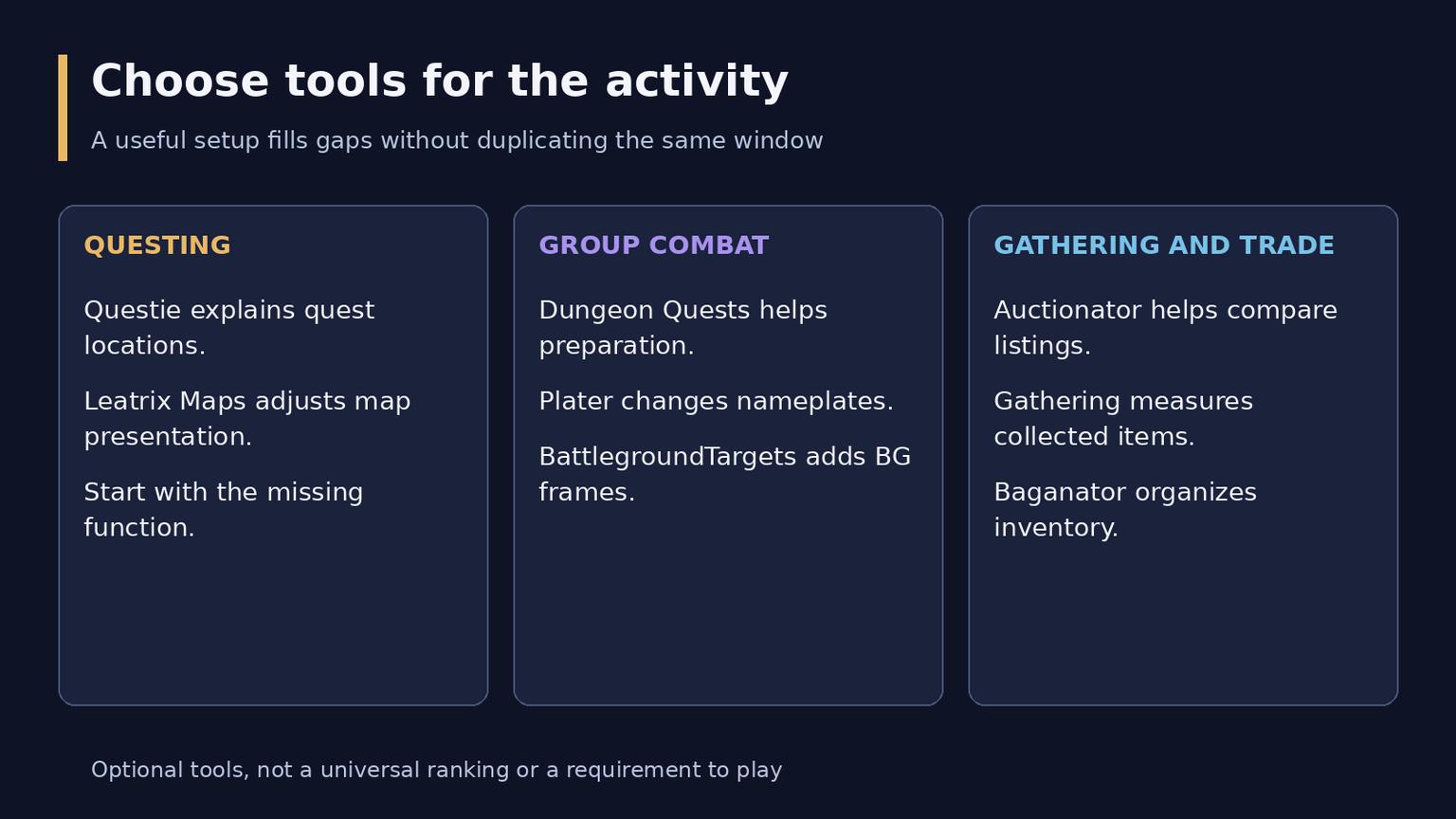
Three equal activity cards: questing, group combat and gathering or trade
Questing, maps and everyday convenience
Questie: understand where your quests lead
Questie adds quest starts, turn-ins and objectives to the map and provides a quest tracker. Its published v12.1.0+v1.0.6 archive includes a QuestieDB update using an October 10 Forever data snapshot. This is a stronger reason to use the current supported release than to copy a much older Classic quest database.
Use it when you are unsure where the next objective is or which quest is available in a zone. Open its settings with /questie and reduce unnecessary icons before filling the map with every possible task. New and changed beta quests can still expose data gaps. A missing marker does not establish that the quest is unavailable or broken.
Quest markers are not the same as navigation arrows. Questie's documented arrow integration uses TomTom as an optional addition; it is not a reason to install another navigation tool if map markers already solve your problem.
Leatrix Maps: make the map easier to read
Leatrix Maps offers map scaling and positioning, coordinates, revealed areas and dungeon entrance icons. Open /ltm and choose the features you need. Coordinates are useful when a group shares a location; scaling helps keep the map readable without covering the entire play area.
It complements Questie because it changes the map presentation rather than supplying the same quest database. Turn off overlapping displays if you already have another map modification. A coordinate display alone does not calculate an optimal route between objectives.
Leatrix Plus: enable individual conveniences
Leatrix Plus is modular, with its features disabled by default. Its documented options include automatic repairs, selling junk and accepting or turning in quests, alongside chat and interface adjustments. Use /ltp and enable a few options at a time.
The useful configuration depends on how you play. Automatic quest handling can suit repeated tasks; a player following the story may prefer to leave it off. If you later add spoken dialogue, review those settings so convenience automation does not rush the interaction you wanted to hear.
Bags, professions and the auction house
Baganator needs Syndicator
Baganator organizes inventory in a single view or categories and supports searches. Syndicator supplies its inventory data and is a required dependency, not a competing bag-window addon. Both have published files listing Forever 1.60.1.
Start with a few recognizable categories, such as equipment, materials and consumables, rather than a complex imported layout. Search for an item by name before creating elaborate filters. Stored information about another character's inventory is a record of known items, not permission to move those items remotely. Install one bag-window replacement at a time so that multiple addons do not compete to open the same interface.
Auctionator: compare listings before committing materials
Auctionator provides auction searches, shopping lists, selling tools and price information from scans. It is useful when buying repeated quantities of materials or checking whether an item has enough value to list. Refresh the relevant price data before using it for a decision; a remembered asking price is not proof of a completed sale.
Separate item value from profit. Deposits, auction fees, unsold stock and changing supply can change the result. A cross-version project description may also advertise features specific to another client. In particular, Auctionator's documented automatic scan on auction-house opening is marked Retail-only; this guide does not promise that behavior in Forever.
Gathering: measure a collection session
Gathering tracks collected items and rates over time. Open /gather or /gt, check which materials are being tracked and use a consistent session length when comparing routes. The tracker can be paused and reset, making it useful for separating active gathering from a break.
Its estimated gold values depend on available price data. Treat them as estimates, not guaranteed earnings. Gathering measures what you collected; it is not a database of every resource node or an automatic route planner. Auctionator and Gathering can work together because one addresses market information and the other addresses collection output. Neither determines what another player will pay tomorrow.
Dungeons, combat readability and PvP
Forever Dungeon Quests: prepare before traveling
Forever Dungeon Quests groups dungeon-related quests into missing, in-log and completed states. It provides quest-giver locations and access-related notes so that you can check preparation before joining the group. Its published v0.6.0-forever file lists 1.60.1.
Use the list as a preparation aid: check the quest giver and any prerequisites before assuming a missing quest can be collected immediately. It is not a complete loot database, and a displayed quest does not waive level, faction or access requirements. If Questie's dungeon information already covers your needs, this dedicated window is optional.
Plater: make important nameplates legible
Plater offers configurable nameplates. Begin with size, spacing and readable text; add more elaborate styling only when you know what information you need during a pull. Keep one nameplate replacement active and test it in a simple fight before using a heavily customized profile with a group.
Plater-v661 lists Forever support, but an imported script or profile is a separate compatibility question. Do not assume every aura, threat display or combat-information feature described for another WoW client will work identically here. A readable display is more useful than a dense arrangement of indicators whose behavior you have not checked.
For boss warnings, verify both the chosen boss-mod core and its encounter module against Forever. A familiar brand name alone does not establish coverage of a new dungeon. Use the native meter as a starting point instead of installing several overlapping damage displays.
BattlegroundTargets Classic Forever: a focused battleground display
This project provides friend/enemy unit frames for battlegrounds. Version 2.0.1 explicitly adds the new Darkspear Islands map and lists Forever 1.60.1. If its frame does not appear, the author suggests opening it with /bgt.
Place the display where it helps track the match without hiding the battlefield. Its purpose is battleground unit information, not guaranteed detection of every stealthed opponent in the open world. The project's older Classic specialization-detection explanation should not be treated as a promise of unrestricted, perfectly accurate specialization information under the Forever API.
Exploration markers and spoken quests
HandyNotes: WoW Forever has a published v3-forever plugin for rare and treasure markers, but it requires the HandyNotes framework. The dependency needs its own compatibility check. At this review, the framework's v1.6.31 file did not list Forever or 1.60.1, despite the project page displaying a Forever category. For that reason, this combination is a conditional option, not part of the verified starter set. Recheck the framework's actual release file before installing it for Forever.
Map markers also represent recorded locations, not proof that a rare is currently alive on your realm. Keep exploration information separate from live encounter detection.
Forever Voiceover is an optional story tool. The core plays generated voices for quest and NPC dialogue, but audio comes from separate packs covering Classic quests, new Forever quests, gossip and other text. The core alone does not provide the recordings. Check pack language and coverage before downloading; Russian audio is not established by having a Russian game client.
Missing speech can mean the line has not yet been recorded or collected, rather than a broken installation. Check /fvo options and the relevant pack before reinstalling everything. This is a presentation preference, not a leveling-speed requirement.
Install and test in a controlled order
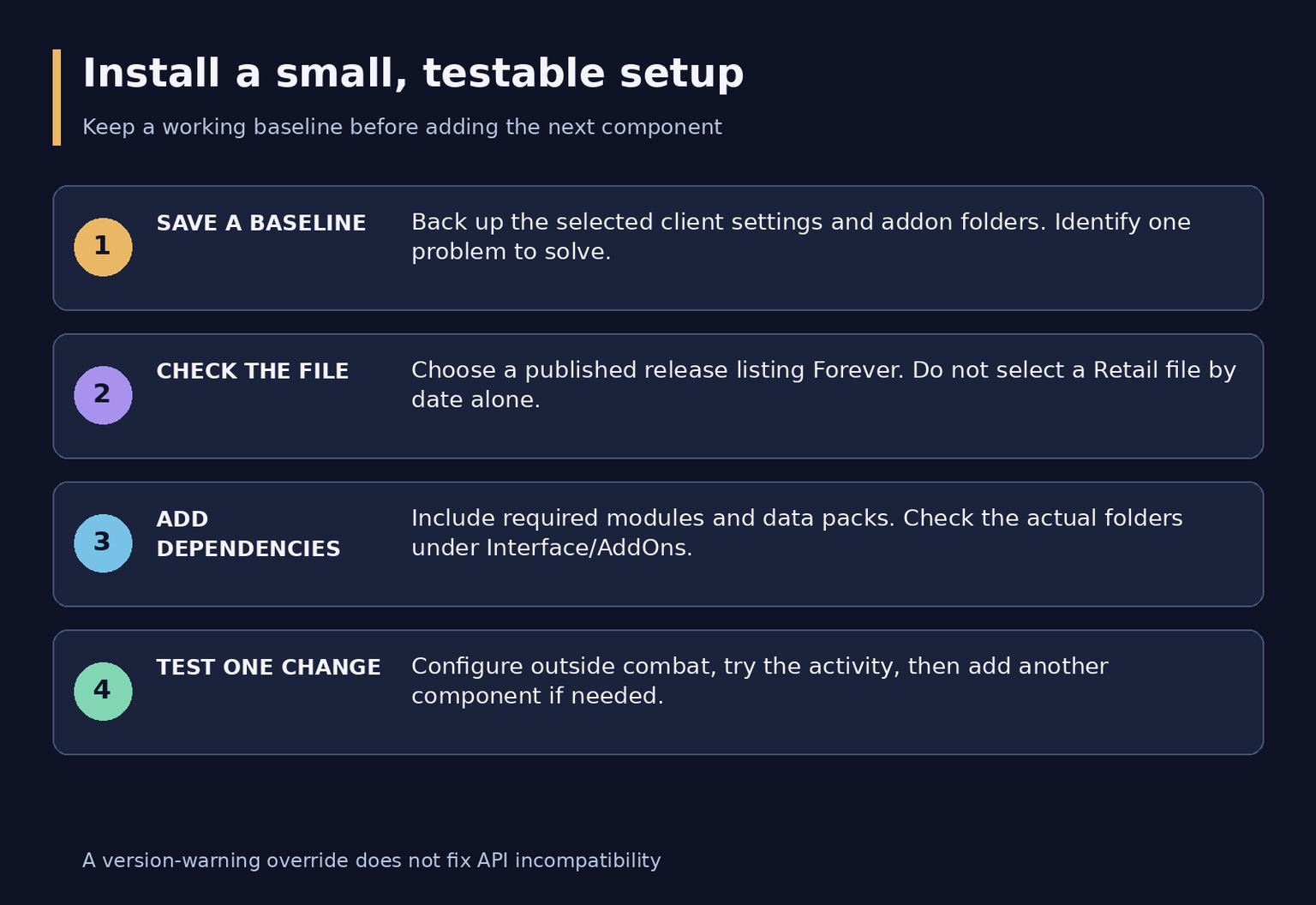
Four numbered installation steps: baseline, compatible file, dependencies and testing
1. Save a baseline. Back up the selected client's addon folders and settings before a large change. Try the default UI, then write down the one problem you want to solve.
2. Select the correct file. Use the author's project page or repository, choose the Forever-compatible release and inspect its supported game versions. The most recent Retail file is not automatically the right file. Use an addon manager only after checking which game installation it is managing.
3. Include dependencies. Install Syndicator with Baganator and relevant audio packs with Forever Voiceover. For a manual installation, place the actual addon folders in that client's Interface/AddOns directory; avoid an extra enclosing ZIP-name folder above them. Restart the client if newly installed folders do not appear.
4. Test one change. Confirm the addon is enabled, inspect its settings outside combat and try the activity it modifies. Add the next component only after you can identify what the first one changed.
Keep a note of the working versions before a beta update. When a new build causes problems, checking the affected project's release notes is more useful than replacing every addon simultaneously. The option to load an outdated addon can bypass a version warning, but it does not fix missing APIs or establish compatibility.
Troubleshoot the symptom you actually have
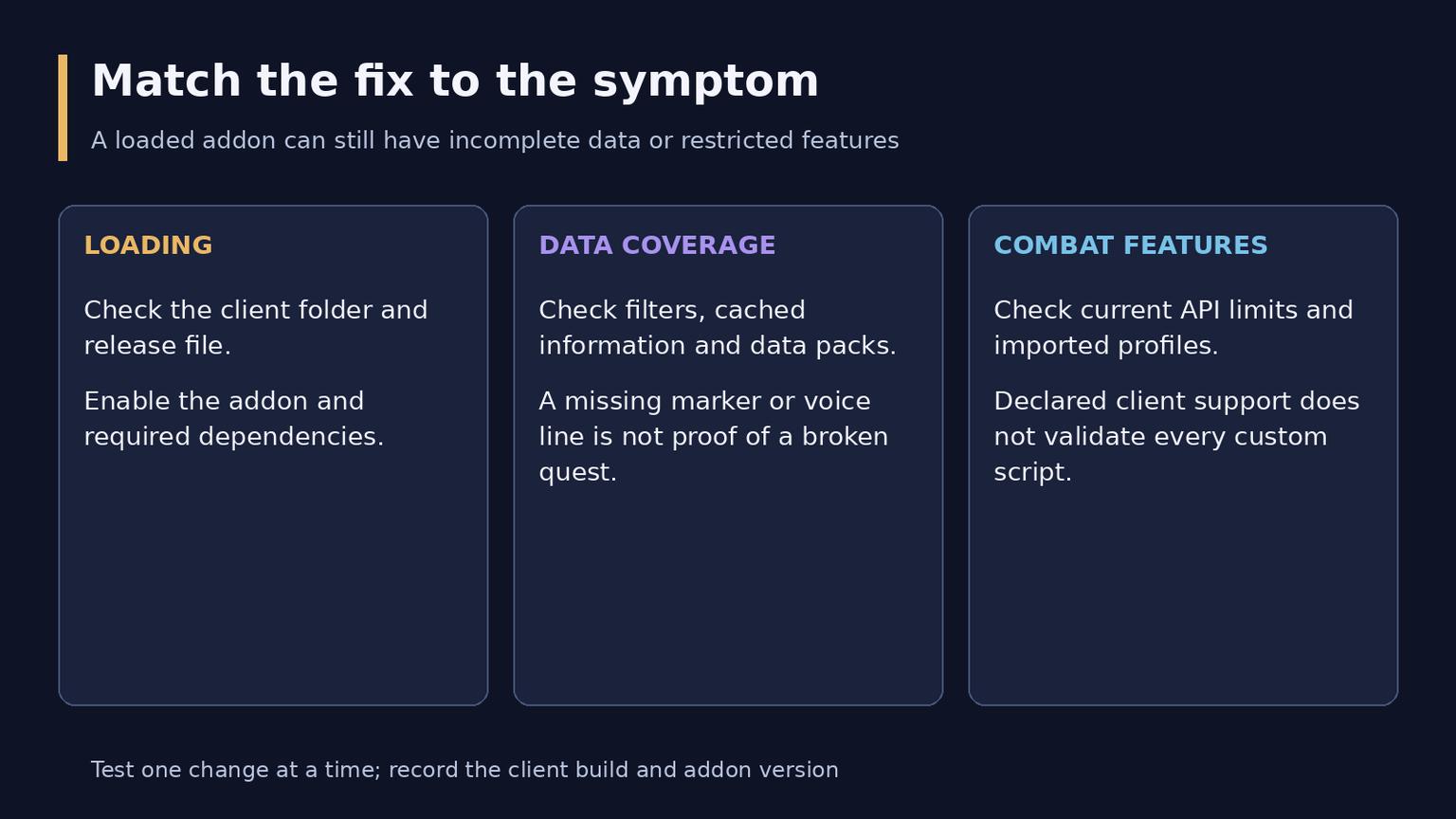
Three equal diagnostic cards: loading, data coverage and combat restrictions
Symptom | First checks |
The addon is absent or will not load | Correct client directory, folder nesting, enabled status, supported file and required dependencies |
The window works but information is missing | Quest/database or voice-pack coverage, filters, faction context and the age of cached data |
A combat feature fails | Current API restrictions, the profile or script version and conflicts with another combat UI addon |
Disable overlapping addons one at a time and repeat a simple test. If the issue disappears, narrow down the combination rather than deleting all settings immediately. When reporting a problem to an author, include the client build, addon version, error message and steps that reproduce it.
The best finished setup is the smallest one that makes your regular activities clearer. A questing character might need Questie and map adjustments; a trader may get more value from Auctionator and organized bags. Add battleground frames, collection tracking or spoken dialogue when those activities become part of your routine, and review the setup after beta updates.