WoW Forever Graphics Settings for Quality and Smooth Play
The best-looking WoW Forever setup is one that stays readable while you move, turn the camera and fight. Start at your display's native resolution and 100% Render Scale, choose the character models you prefer, then raise environmental effects only while performance remains comfortable. Maximum sliders are a choice for scenery, not a requirement for a good image.
This guide reflects the beta information checked on October 19, 2026. The profiles below are editorial starting points, not Blizzard presets or measured promises of a particular frame rate. Resolution, hardware, drivers, location and the number of players can change the result substantially.
Check the current menu before copying old advice
There are two important changes to account for. The October 1 beta notes removed Ray Traced Shadows until its functionality is fixed. The October 15 update moved Bloom Intensity to the Advanced graphics section and made it a slider. That update also fixed excessively bright fog at lower shadow settings.
Do not spend time searching for the removed ray-tracing switch or follow an old instruction to disable fog with a console command. Blizzard already removed a setting that disabled fog unintentionally. Use the options present in your build and revisit your choices after graphics fixes.
Choose models separately from world quality
SD uses the classic character presentation; HD uses the more detailed character models. The choice affects how you see characters, including other players and NPCs. It does not change another player's preferences or give everyone your selected appearance.
This is a style decision. HD is a reasonable choice if you prefer its detail, while SD preserves the familiar character look. Neither option is a switch that restores every aspect of the old world renderer. Forever also changes environmental lighting, fog and water.
When judging quality, compare the same character at the same camera distance. Inspect faces, armor and movement rather than deciding from the model label alone. No reliable measured SD-versus-HD performance advantage is established here.
Set sharpness before adding more effects
Keep your desktop and game output at the display's native resolution for the first comparison. At 100% Render Scale, the world is rendered at the output resolution. Lowering this scale trades world-image detail for a smaller rendering workload; it does not automatically solve a slowdown caused elsewhere.
Use 100% as the quality baseline. If you need a diagnostic comparison, temporarily try 80%, observe the same scene, then restore 100%. This is a test value, not a recommended final quality target. A clear improvement suggests that resolution-dependent rendering deserves attention. Little change is a reason to investigate other limits rather than repeatedly shrinking the image.
Going above 100% can reduce some visible edge roughness, but asks the GPU to render more pixels than the display outputs. Do not combine aggressive supersampling and expensive anti-aliasing before checking whether either produces a visible benefit at normal viewing distance.
Textures filtering and anti-aliasing solve different problems
Texture Resolution affects surface detail and memory demands. Keep a higher level if your system handles it comfortably. Reduce it when testing memory pressure or stutter associated with loading areas, rather than treating it as a guaranteed fix for every low-FPS situation. Shared memory on integrated graphics also makes a simple dedicated-VRAM rule unreliable.
Texture Filtering helps surfaces retain detail when viewed at an angle, such as a road stretching into the distance. Try a high anisotropic level, including 16x if offered, then compare its cost on your own system. Anti-aliasing addresses jagged edges. Compare available methods on fences, foliage and rooflines while moving the camera; a still image can hide shimmer.
Resample Quality becomes relevant when scaling a differently sized rendered image to the output. Sharpening cannot reconstruct all detail lost by lowering Render Scale. Avoid using a very sharp filter to compensate for a badly blurred base image.
A practical graphics baseline
The table separates a starting decision from its visual tradeoff. English labels identify options; available values and exact placement can change during beta. Preserve the current client default for an unlisted advanced option rather than enabling every checkbox at once.
Setting | Starting decision | What to compare |
Render Scale | 100% | World sharpness and camera-motion stability |
Texture Resolution | High if memory allows | Surface detail versus loading stutter |
Texture Filtering | High; test 16x if offered | Roads and ground viewed at an angle |
Shadow Quality | Moderate first | Shadow detail versus cost in the same scene |
Secondary Lighting | Moderate first; lower if unstable | Indirect lighting, artifacts and responsiveness |
SSAO | Low or moderate first | Contact shading around objects and characters |
Legacy Liquid Detail / PBR Liquid Detail | Moderate first | Water detail where that effect is visible |
View Distance / Environment Detail | Middle of the available range | Distant scenery and object density |
Ground Clutter | Moderate first | Grass density and ground readability |
Bloom Intensity | Low to taste in Advanced | Bright halos and legibility in light scenes |
Secondary Lighting, shadows, water and screen-space effects are useful candidates when testing the graphics workload. Their relative cost is scene-dependent. A water option cannot be judged meaningfully from an indoor room with no visible water, and a quiet field says little about a crowded fight.
Particle Density and Spell Density deserve a separate combat check. Reduce decorative clutter if it obscures targets, but do not remove needed information simply to make a screenshot cleaner. Keep Projected Textures enabled as a conservative gameplay baseline and confirm that ground effects remain visible in the actual encounter. This setting is not a guarantee that every mechanic will be readable.
Three profiles for different priorities
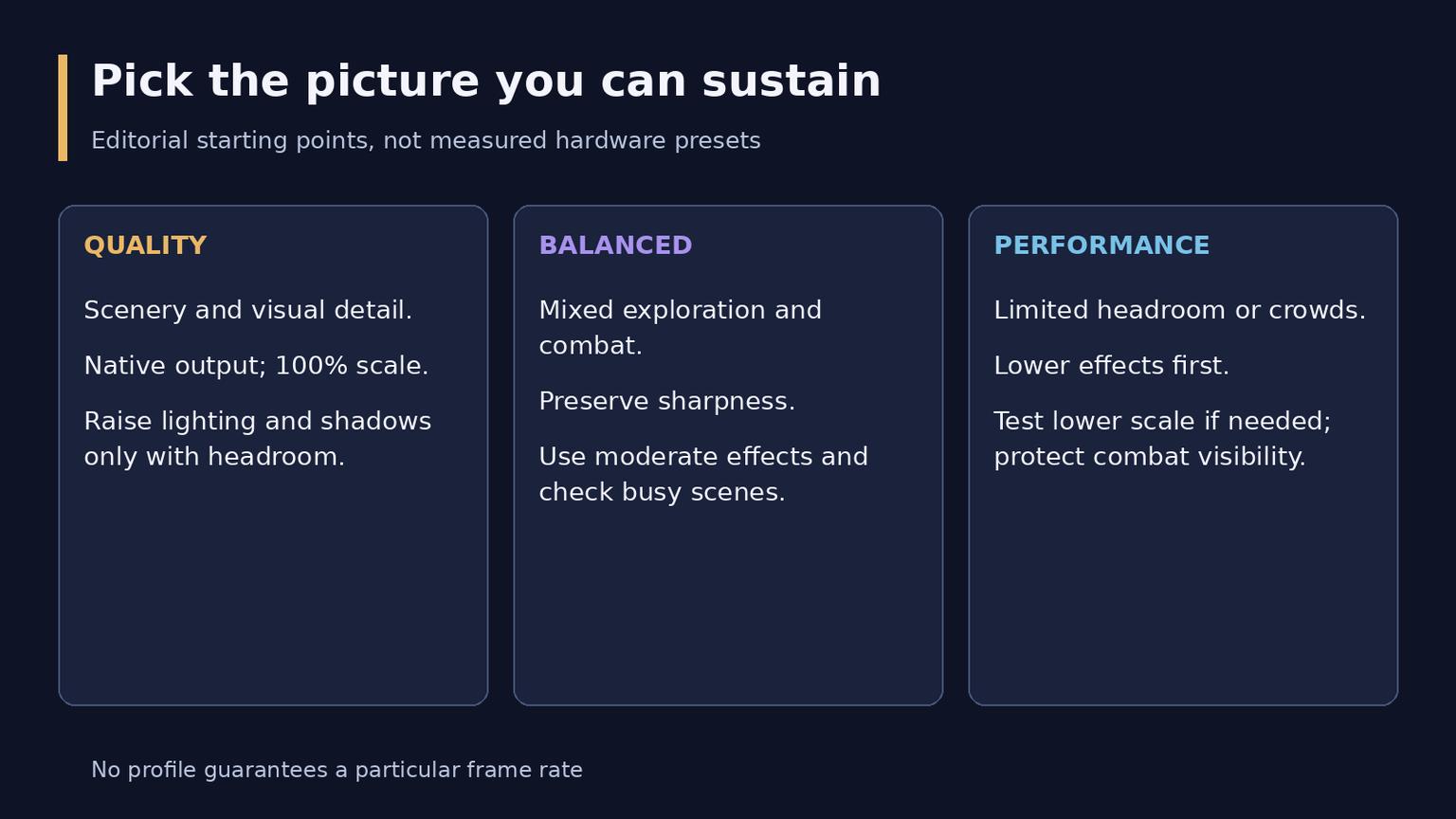
Quality, Balanced and Performance profiles compared
Quality for exploration and visual detail
Choose this profile if the system already has comfortable headroom at your chosen resolution. Keep native output, 100% Render Scale, detailed textures and your preferred models. Raise shadows, Secondary Lighting, water and environmental distance individually, checking the visible improvement after each step.
Bloom is optional artistic emphasis, not extra geometric detail. Set it to the amount you enjoy instead of assuming its highest value is more accurate. Leave room for a busy scene: a setup that feels fine beside an empty lake may not hold up in a city.
Balanced for mixed play
Start with the table above. Preserve image resolution and textures where possible, while using moderate shadows, lighting and environmental detail. In group content, favor identifiable enemies, casts and ground effects over the fullest display of other players' spells.
This is the most useful first profile when you do not yet know what limits the machine. It leaves several effects available to lower without immediately sacrificing the entire image's sharpness.
Performance for constrained systems or crowded content
Lower shadows, Secondary Lighting, SSAO, environmental detail and clutter in small steps. Test a lower water level in a relevant scene. If the GPU still struggles, reduce Render Scale and judge the resulting softness before accepting it.
This profile does not make unsupported hardware compatible. Blizzard requires AMD GCN 1, NVIDIA Maxwell or Intel Skylake GPU architectures or newer for the updated renderer. The older compatible examples in that announcement are explicitly below the game's full minimum requirements; architectural compatibility is not a promise of playable performance.
Tune with a repeatable comparison
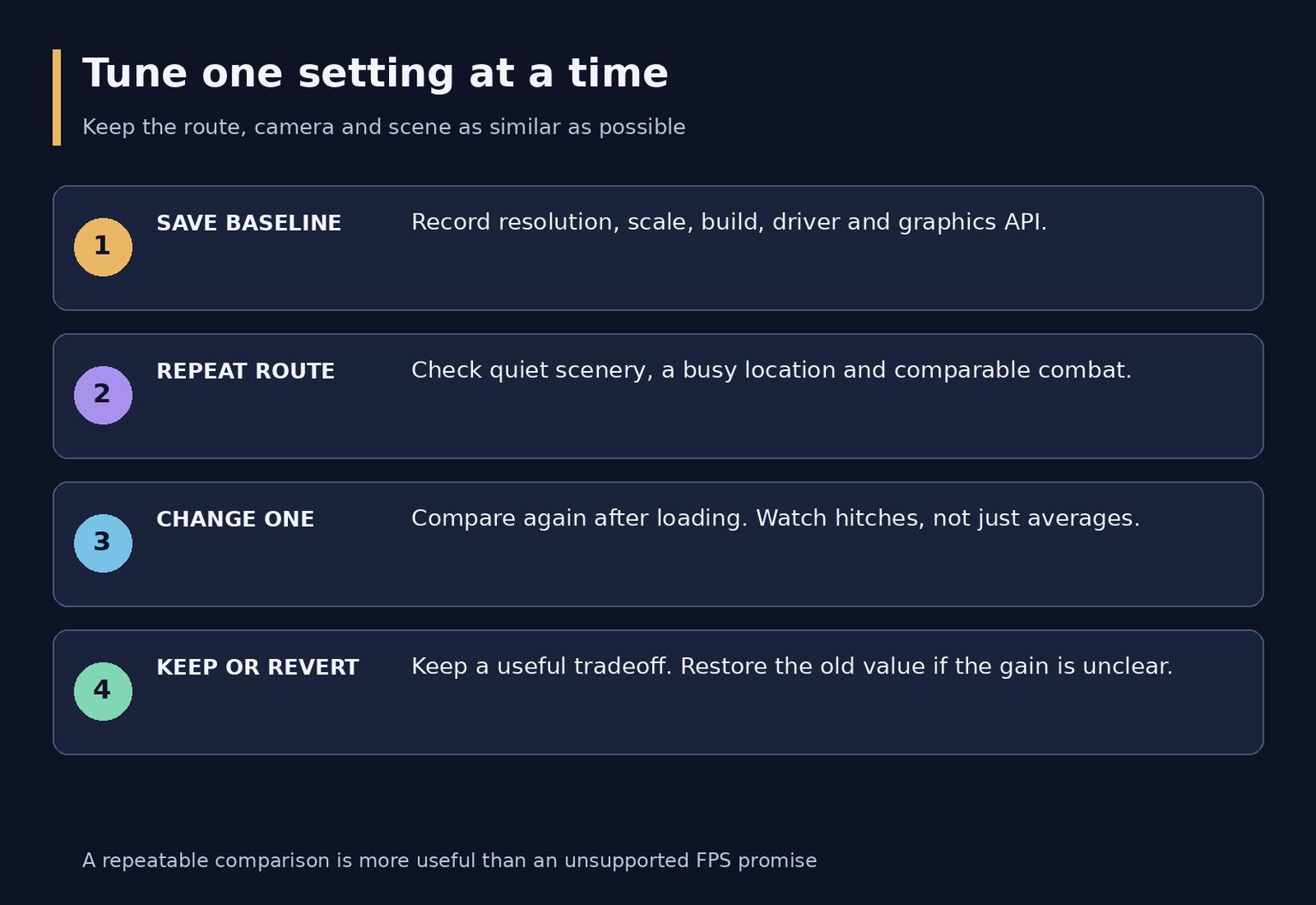
Four steps for a repeatable graphics comparison
1. Save the baseline. Record resolution, scale, driver, graphics API and the settings you intend to test. Choose a target you find comfortable, such as a steady 60 FPS, without assuming that your hardware will reach it everywhere.
2. Repeat a short route. Include a quiet area, a busy location and comparable combat. Keep camera direction and movement similar; a changing crowd or different weather can invalidate a quick comparison.
3. Change one option. Compare the same route more than once, allowing the scene to finish loading. Watch camera hitching and the worst moments as well as the average frame counter.
4. Keep or revert. Accept a lower setting only if the gain or comfort improvement is worth the visual loss. Restore the previous value when the difference is unclear.
For a quality-focused pass, try lighting and shadows before reducing the image scale. For diagnosis, a temporary scale reduction is useful earlier because it helps establish whether pixel workload matters. These are different goals, so there is no single mandatory order for every machine.
Read the symptoms before cutting more quality
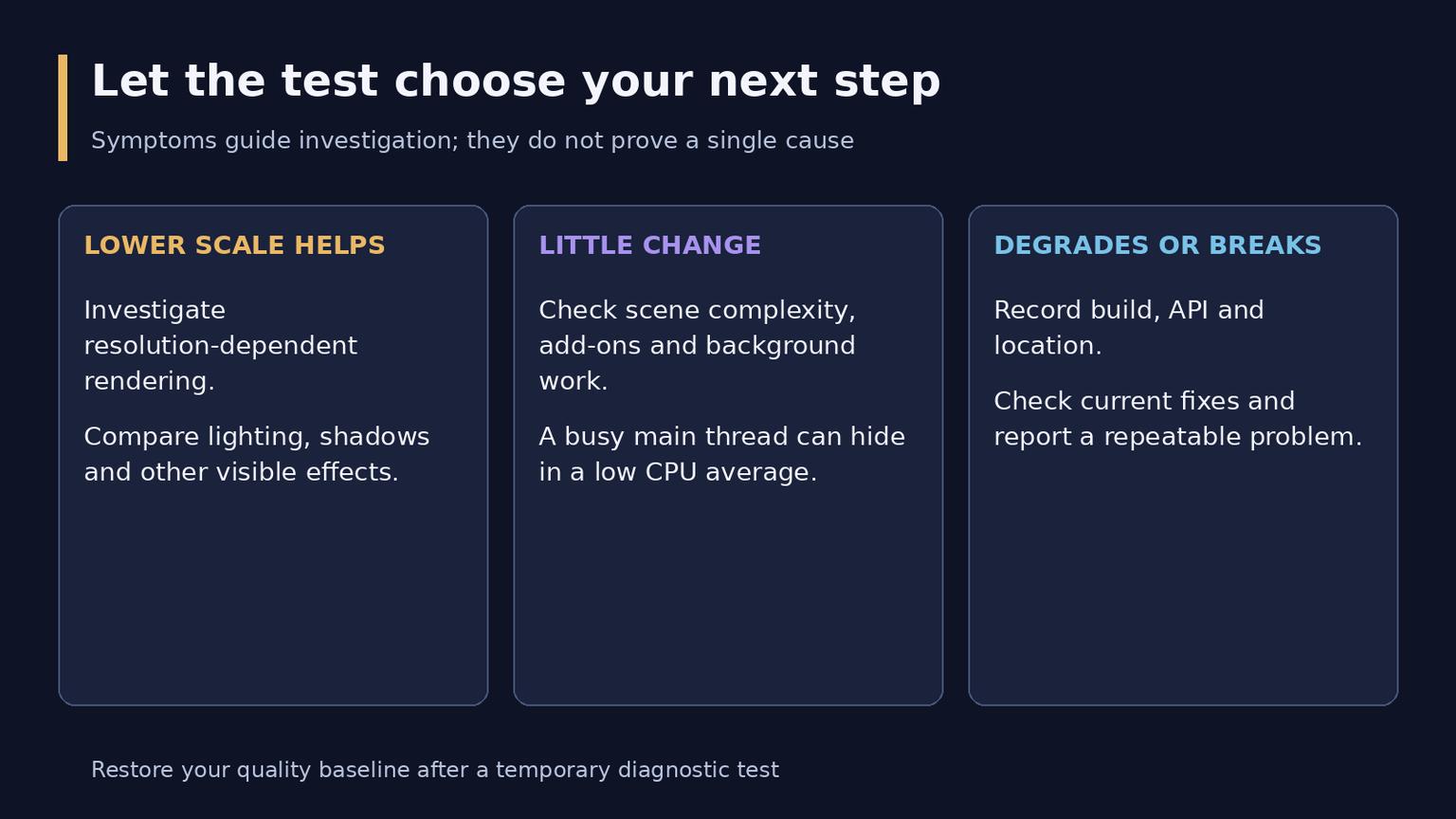
How to interpret three common test results
If lowering Render Scale makes the same scene noticeably smoother, concentrate on rendering-heavy effects and resolution. This is evidence for a useful direction, not proof that every slowdown is GPU-limited.
If lower scale changes little but busy locations remain slow, investigate CPU-side work, add-ons, background applications and the client itself. View Distance, Environment Detail and clutter can change scene complexity, involving both CPU preparation and GPU rendering. Low overall CPU utilization does not rule out a busy main thread.
If performance deteriorates during a session or a scene shows broken colors, flickering or missing surfaces, treat that as a troubleshooting problem. Record the build, location, API and a reproducible sequence. Check current beta notes before concluding that a permanent lower quality level is necessary. A historical fix does not prove that every related symptom on every machine has disappeared.
Frame limits synchronization and graphics API
Use a foreground frame limit you can sustain to avoid rendering unnecessary extra frames. A lower background limit is useful when the game is out of focus. A cap controls the upper rate; it cannot raise the minimum rate during a demanding scene.
Vertical Sync trades tearing behavior against presentation timing and possible latency. Adaptive-sync displays also depend on their driver configuration and operating range. Test tearing and responsiveness together; a universal instruction to disable synchronization or use exactly refresh rate minus three is too broad.
On Windows, compare the APIs offered by your client if you have repeatable graphics problems. On macOS, use the platform's available renderer rather than looking for DirectX. Keep the working default unless a controlled comparison justifies changing it. No API is declared fastest for every system here, and advanced threading or submission options are not universal fixes.
Preserve combat and interface clarity
A good image also has readable information. Set interface size for your display and viewing distance, keep enemy cast bars easy to find, and position important frames without covering the ground around your character. Adjust text size directly rather than lowering the entire game resolution to make elements larger.
For healers, compare party-frame readability during damage and debuffs. For damage dealers and tanks, inspect overlapping enemy nameplates and the cast you need to interrupt. In PvP, verify that enemy-player information remains distinguishable when the camera moves. These are role-based priorities, not one fixed interface layout.
Keep important sound cues audible at a comfortable volume. Sound and network adjustments serve different purposes from graphics: a clean audio mix does not increase visual detail, and graphics sliders do not repair an unstable connection. Avoid turning an image-quality pass into an unrelated list of mandatory audio and network values.
Common questions
Should everything be set to maximum for the best picture
Only if you prefer the result and performance remains suitable in the content you play. Maximum bloom, spell clutter and distance can be less readable than a carefully chosen moderate setup.
Should I enable ray-traced shadows
The option was removed in the October 1 beta update pending a fix. Check later official notes for its return instead of treating an older menu screenshot as current.
Will SD models restore Classic performance
No such guarantee follows from the model choice. SD changes character presentation, while Forever's updated world rendering still matters.
What should I save when I finish
Keep a screenshot of the settings, the build and driver versions, your display resolution and a short note on the route used for comparison. Retest after a meaningful graphics update. A repeatable setup is more useful than a preset name with no hardware or scene context.