WoW Forever Graphics Settings for Performance and Quality
For a first pass, use your monitor's native resolution, Render Scale at 100% and moderate shadows. Keep Projected Textures enabled. Then check both a familiar route and a busy scene. A profile that feels smooth in a quiet forest may behave differently in a city or group fight.
The three starting points below target performance, balance and image quality. They are recommendations to test, not measurements from specific graphics cards. There is no single best configuration for every computer.
Checked October 20, 2026 against beta material and the Forever UI source branch reporting version 1.60.1.70450. This is not a report of hands-on client testing. Options can depend on the build, operating system and hardware. Check the menu again after an update rather than assuming every listed control must appear.
Compatibility is not a performance recommendation
Blizzard describes a renderer compatibility floor of AMD GCN 1, NVIDIA Maxwell and Intel Skylake architectures or newer. This concerns support for a required compute-shader operation. It is different from minimum system requirements for playable performance.
The official explanation explicitly lists Radeon HD 7850, GeForce GTX 9xx/750 Ti and Intel HD 530 as compatible examples below minimum requirements. Do not treat them as buying recommendations. Check the full requirements on the Battle.net product page specifically for WoW Forever; Retail or another Classic client's requirements are not substitutes.
A limited graphics card makes resolution and expensive visual effects important. A constrained processor is more likely to show its limits in populated areas and fights with many participants. A powerful GPU alone cannot remove CPU, addon or current beta limitations.
Check the display and render scale first
Display Mode, Resolution and Render Scale
The checked interface offers Windowed and Windowed Fullscreen. It does not list a separate exclusive Fullscreen mode, so advice to switch to that option is not applicable here. Choose the correct monitor and a convenient mode without expecting an automatic FPS improvement.
Start at native display resolution and 100% Render Scale. Going above 100% renders more pixels; return to 100% before diagnosing low frame rates. UI Scale changes interface size and does not replace the world's rendering scale.
If the GPU is the limit, compare 100% with 90%, then 80% if needed. These are testing steps, not a universal preset. Watch moving grass, thin branches, character edges and target readability. If smoothness barely improves, restore the sharper image and investigate another limit.
Anti-aliasing and image reconstruction
FXAA, CMAA/CMAA2 and MSAA are represented in the settings code, with availability checked by the client. For balance, try CMAA2 if offered; otherwise compare available FXAA with no anti-aliasing. For image quality, test MSAA without raising Render Scale at the same time, so you can assess each change separately.
Resample Quality includes a FidelityFX Super Resolution option. That does not establish support for FSR 2/3, DLSS, XeSS or frame generation. At a reduced Render Scale, compare the offered reconstruction options while moving. Do not select a technology solely for its name or import another WoW client's instructions.
Find the limiting factor before lowering everything
Choose a repeatable viewpoint and a short route. Let the area load, then keep camera position, weather and player numbers as similar as practical. Change one setting, or one closely related group, at a time. Record the original values so you can reverse the test.
Account for an FPS cap and VSync. Reaching a limit explains low GPU utilization without a fault. Temporarily removing the limit can help a short comparison; restore it afterward. Do not compare capped and uncapped sessions as evidence of a shadow setting's cost.
If lowering Render Scale clearly helps in the same scene, a graphics-side limit is likely. Start with shadows, lighting, screen-space effects and rendering scale. If it changes little, particularly in crowds, investigate object distance, addons and CPU work. Overall CPU utilization does not reveal whether the busiest thread is saturated.
These clues select the next test rather than proving a diagnosis. Frame-time spikes can also involve loading, memory pressure, background tasks or heat-related clock reductions. Network latency is a different problem from low FPS; identify which behavior you are seeing.
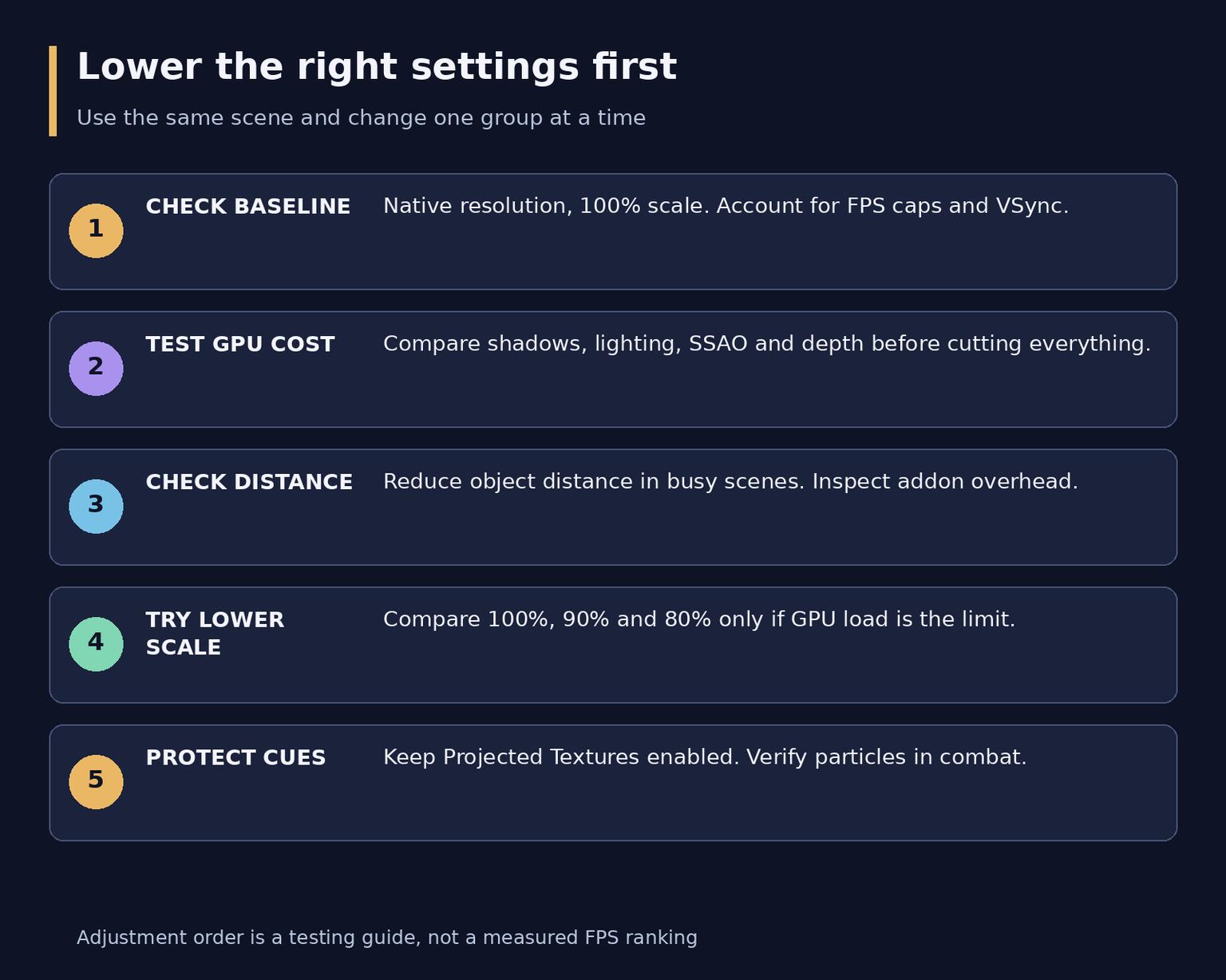
Reduce visual cost in stages while preserving readable combat mechanics
Settings to adjust and effects to preserve
This table provides a balanced starting point. Use only options that your menu actually offers. For example, the checked Texture Resolution control has Low, Fair and High choices, not a universal Medium setting.
Setting | Balanced starting point | When to change it |
Shadow Quality | Medium | Lower for a GPU limit; recheck combat and dark areas |
Secondary Lighting | Fair or Medium | Compare offered levels if present; separate from Ray Traced Shadows |
Liquid Detail | Medium | Test near water rather than only inside a dry cave |
Particle Density | Medium | Check dangerous combat effects; do not minimize blindly |
SSAO | Low | Compare with Disabled when graphics performance is limited |
Depth Effects | Low | Reduce for a GPU limit and compare scene depth |
Compute Effects | Fair | Compare with Low in a scene that shows the effect |
Texture Resolution | High if memory permits | Try Fair for suspected video-memory pressure and repeat the route |
Texture Filtering | 8x | Compare 16x for angled surface clarity and smoothness |
Spell Density | A reduced available choice | Read the tooltip; cut excess effects while preserving warnings |
Projected Textures | Enabled | Preserve projected effects and combat readability |
View Distance / Environment Detail / Ground Clutter | Moderate positions | Adjust separately and inspect distance, objects and vegetation |
Distance, shadows and textures solve different problems
Shadow Quality, SSAO, depth and compute effects are candidates to test for graphics-side limits, not a measured ranking of cost across every Forever scene. Check Liquid Detail beside a river or shoreline. Raising options that are barely visible at your current location makes comparison less useful.
View Distance, Environment Detail and Ground Clutter use sliders showing levels 1-10. Do not copy internal variable values from someone else's configuration file. Lower one slider by a couple of steps and repeat the scene. In a city, distant objects and participants matter more than grass that is scarcely present.
Lowering Texture Resolution will not necessarily fix a CPU limit. If textures fit in memory, compare expensive effects first and preserve detailed surfaces. For suspected video-memory pressure, try Fair and repeat the route after loading. An allocation figure alone does not establish the cause of stuttering.
Readable combat comes before an attractive empty landscape
Keep Projected Textures enabled in all three profiles. The UI code warns that disabling it can hide combat cues. A cheap image that conceals a dangerous area is not a good dungeon or PvP configuration.
Spell Density provides reduced and full choices when the client supports that system. Follow the available tooltip rather than a label copied from Retail. Lower Particle Density cautiously and inspect your own, friendly and hostile effects in a familiar fight. There is no verified guarantee that every minimum setting is equally safe for every mechanic.
If a separate group-content graphics profile is available, configure it and confirm which set is active. Preserve mechanic visibility and save performance on distance, decoration and costly lighting. Do not assess a group profile exclusively while standing alone.
Three profiles for different goals
Maximum performance
Use this on limited hardware or when consistent control matters most. Start with low or moderate shadows, SSAO Disabled and low Depth Effects. Keep Secondary Lighting at Fair if offered. Reduce object distance according to the test, and lower Render Scale only when it actually helps.
This is not an instruction to disable everything. Projected Textures stays enabled, Particle Density needs a combat check, and textures can remain High if memory permits. The goal is useful smoothness rather than the smallest number in every menu.
Balanced
A sensible first pass for a midrange computer is native resolution, 100% scale, moderate shadows and liquids, low SSAO and depth, and readable combat effects. Use the table, then test water, a city and a group separately. Set a sustainable FPS cap if you want less noise and unnecessary work.
If only empty areas feel comfortable, reduce costly effects or group-profile distance instead of raising the overall slider because a forest looks good. Your saved configuration should suit the way you normally play.
Image quality
On powerful hardware, raise shadows, lighting, liquids and distance one at a time. Establish acceptable smoothness at 100% scale first. Only then test more expensive anti-aliasing or a scale above 100%. Ultra is still not automatically the best choice for every option.
Repeat a demanding scene. If the CPU is limiting performance, spare GPU capacity does not guarantee a stable crowd frame rate. A lighter group profile may serve better than the same maximum settings everywhere.
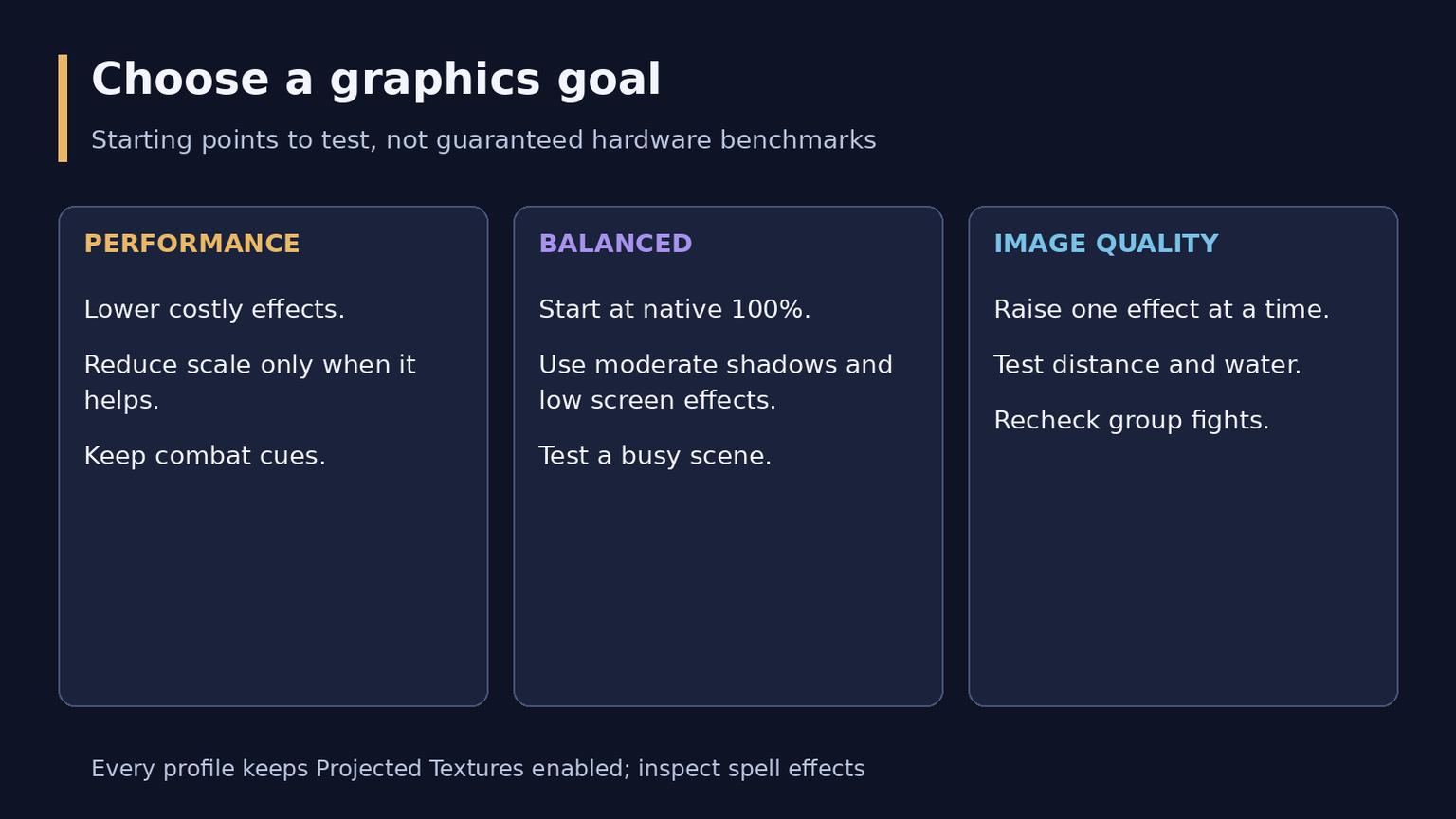
Performance, balance and quality have different priorities but retain mechanic visibility
VSync, frame limits and latency
VSync helps address tearing but changes presentation behavior and can affect latency. Compare it on and off with your own display. It is not mandatory for every computer; separately account for variable-refresh support in your monitor and driver.
Foreground FPS limits the active window; Background FPS limits the inactive one. Both sliders span 8-200 in the checked interface. Choose a sustainable target such as 60, 90 or 120 only if your computer maintains it in the relevant scene. Those examples are not performance predictions. A lower background cap is reasonable when you do not need smooth observation of the inactive window.
Target FPS is a separate control, not another name for the hard Foreground FPS limit. Do not use it alone as evidence that the game cannot render more frames. Record every active limiter during comparisons.
On Windows, the code provides Low Latency Mode with validated choices including Auto Detect, a built-in mode, NVIDIA Reflex and Intel XeLL. Start with automatic selection. Do not force unsupported modes through console commands. Reducing frame-processing latency does not fix network delay or guarantee higher FPS.
Conditional options are not missing features to force on
The checked code hides Ray Traced Shadows when Secondary Lighting is supported and does not offer it on Mac. Its absence therefore does not prove a faulty installation. If available on your system, start with Disabled for performance and test quality separately. Secondary Lighting should not be described as the same ray-tracing switch.
On Windows, Graphics API choices are generated from those available to the client. Keep a record of the original choice. Change API to investigate a reproducible issue rather than because one is supposedly always faster. Perform the restart requested by the client, repeat the scene and revert if behavior worsens. Do not promise identical API menus on Windows and Mac.
Blizzard's October notes fixed excessively bright fog with low shadows and moved Bloom Intensity into Advanced. If the image looks wrong, check your build and its notes before treating that behavior as a permanent property of the graphics card.
If frame rates remain low
Recheck resolution, scale and the active profile. Compare an empty area with a city and a group. A crowd-only problem needs a different test from consistently high GPU load everywhere. Then check the graphics driver and demanding background processes.
Run a separate comparison without addons. If behavior changes, restore them in small groups and repeat the same route. Save the configuration before removing settings. Reinstallation is not the first universal response: narrow down the cause first.
On a laptop, compare the same power mode and plugged-in state. Check that the intended GPU is selected on dual-GPU systems. Integrated graphics shares system resources, and technical compatibility does not promise high image quality. Heat, power limits and background work can change results even at identical slider positions. Do not compensate with unsafe overclocking.
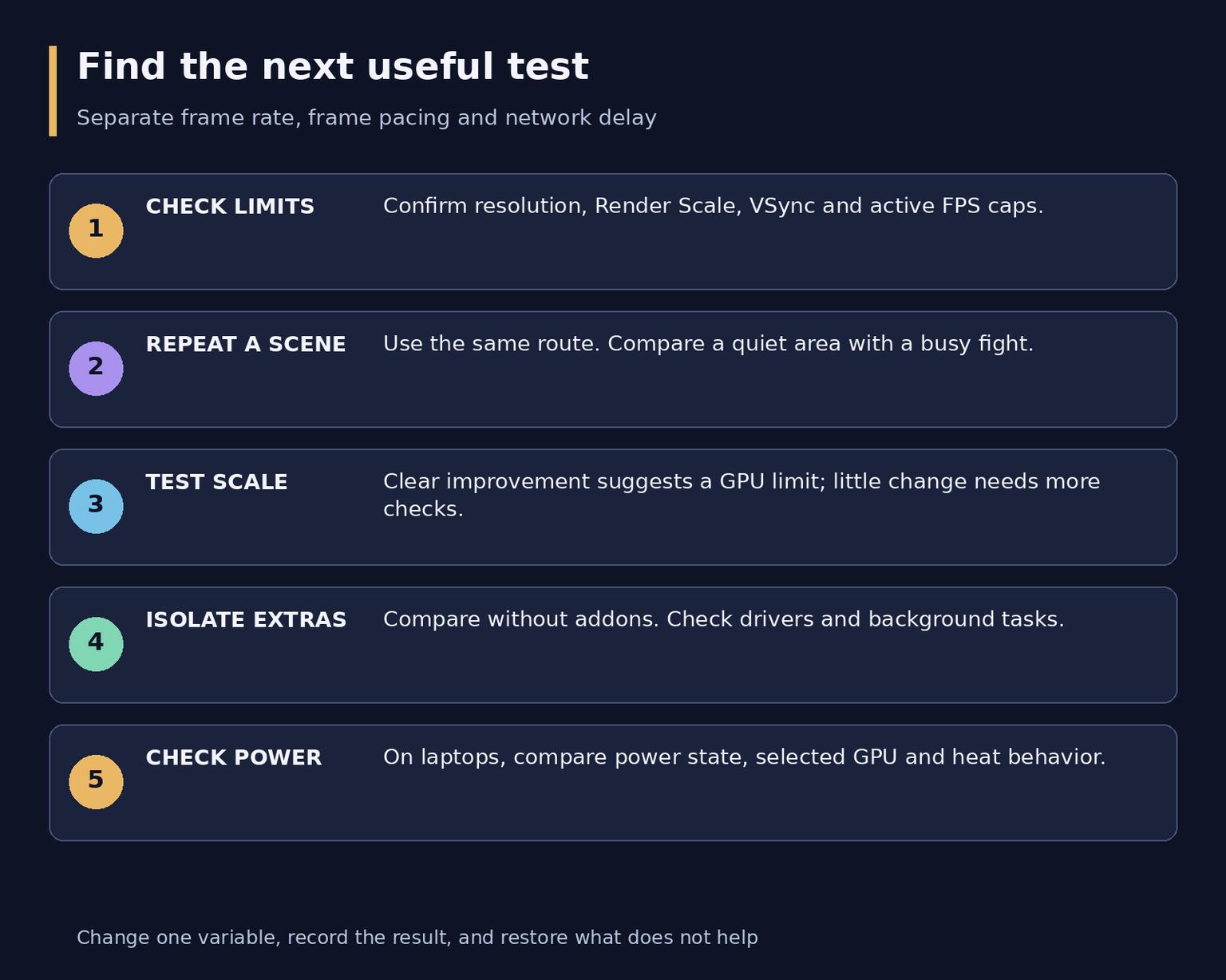
A repeatable scene and one change at a time beat random reductions across every setting
Frequently asked questions
Is Classic mode automatically faster than Enhanced?
There is no universal guarantee. The experience choice includes interface and convenience features as well as appearance. Compare the actual graphics values in one scene rather than relying on the mode name.
Why does the frame rate fall after Alt-Tab?
Check Background FPS and whether the window is active. The background cap may intentionally be lower. Assess active gameplay after returning instead of mixing those two states.
Can I import a ready-made configuration from another WoW version?
Not without checking it. Controls, ranges and support differ. Save the current configuration and transfer only understood values that are available in Forever's menu.
Must I configure everything again after a beta update?
Not necessarily. Check the selected profile and changed controls against the build notes, then repeat a short route. Reserve a full reset for a specific diagnostic test and keep the original settings.