Battlefield REDSEC Best Settings
Battlefield REDSEC Best Settings Guide
This guide lays out the best Battlefield REDSEC settings for higher FPS, lower input lag, and cleaner visibility. Tune a few options, restart a match, and you’ll feel the difference as soon as you drop.

Learn About Battlefield REDSEC Best Settings
Welcome to the complete Battlefield REDSEC best settings breakdown. The mode looks gorgeous, but smoothness wins fights. Every extra frame helps you track targets faster, react sooner, and stay locked on during chaotic pushes.
Below you’ll find quick, high-impact tweaks for performance and clarity. Apply a handful, test in the Firing Range, then fine-tune for your rig and playstyle.
Best Battlefield REDSEC Graphics Settings
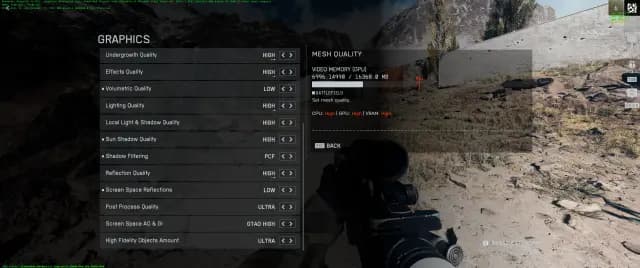
These values aim for maximum clarity per frame: sharp enemies and loot silhouettes, minimal clutter, and stable frametimes.
Texture Quality: High
Texture Filtering: Overkill
Mesh Quality: High
Terrain Quality: Low
Undergrowth Quality: Low
Effects Quality: Low
Volumetric Quality: Low
Lighting Quality: High
Local Light & Shadow Quality: Low
Sun Shadow Quality: Medium
Shadow Filtering: PCF
Reflection Quality: Low
Screen Space Reflections: Off
Post Processing Quality: Low
Screen Space AO & GI: Off
High-Fidelity Objects Amount: Medium
Why this works: High textures/meshes keep targets crisp; cutting terrain, foliage, volumetrics, and heavy post-effects reduces noise and frees GPU time. Medium sun shadows retain depth without tanking FPS; PCF filtering stays readable and cheap.
Advanced Graphics Settings
Fixed Resolution Scale: 100
Frame Rate Limiter: Off
Dynamic Resolution Scale: Off
NVIDIA Reflex Low Latency: Enabled
Anti-Aliasing: Off
Upscaling Technique: Off
NVIDIA Multi-Frame Generation: Off
Future Frame Rendering: Off
Performance Overlay: Simple
Notes: Keep scale at 100 for a sharp image; let your GPU push as high as it can without artificial caps. NVIDIA Reflex trims input latency. Skip AA/upscalers unless your GPU has overhead. Future Frame Rendering Off keeps controls snappy.
Best Battlefield REDSEC Settings for FPS (Low-End Preset)
If you’re prioritizing raw frames and stability, use this lean profile:
Texture Quality: Low
Texture Filtering: Low
Mesh Quality: Low
Terrain Quality: Low
Undergrowth Quality: Low
Effects Quality: Low
Volumetric Quality: Low
Lighting Quality: Low
Local Light & Shadow Quality: Low
Sun Shadow Quality: Low
Shadow Filtering: PCF
Reflection Quality: Low
Screen Space Reflections: Off
Post Processing Quality: Low
Screen Space AO & GI: Off
High-Fidelity Objects Amount: Low
Why it helps: Lower memory pressure, fewer particle/lighting passes, and reduced draw-call stress keep FPS steady across long sessions and big firefights.
Best Battlefield REDSEC Camera Settings
Max awareness, minimal visual noise:
Field of View: 110–120
Vehicle 3rd-Person FOV: 83
Weapon FOV: Wide
World Motion Blur: 0
Weapon Motion Blur: 0
Camera Shake Amount: 50
Reduce Sprint Camera Bobbing: On
Chromatic Aberration: Off
Vignette: Off
Film Grain: Off
Why: High FOV reveals flanks; zero blurs prevent smearing when tracking. Reduced bob/shake keeps sightlines stable. Disabling CA/Vignette/Grain eliminates overlay “noise” so enemies pop.
How to Increase FPS in Battlefield REDSEC
Method | Description |
|---|---|
Lower Visual Settings | Shadows/effects are the biggest GPU sinks; drop them first. |
Disable Screen Space Reflections | Removes glossy passes that cost frames with little gameplay value. |
Use Fullscreen Mode | Reduces desktop compositing overhead; lowers input lag. |
Turn Off V-Sync | Avoids frame caps and input latency; use G-Sync/FreeSync instead if available. |
Keep Drivers Updated | New drivers often fix stutter and improve frametimes. |
Close Background Apps | Free RAM and CPU cycles for the game. |
Disable Future Frame Rendering | Keeps input responsive during micro-stutters. |
Order of impact: Shadows/effects → reflections → fullscreen + V-Sync → drivers → background apps.
Best Mouse & Keyboard Settings in BF REDSEC
Simple, repeatable, aim-focused:
DPI: 800
Sensitivity: 15 (global)
Infantry Aim Sensitivity: 15
Aim Zoom Sensitivity: 80% (steadier scoped control)
Raw Mouse Input: On
Crouch: Left Ctrl
Slide (Double-Tap Crouch): Off (single-tap for reliability)
Slide/Crouch: Left Ctrl
Prone: Rear mouse button (instant drops)
Jump / Vault: Separate keys (prevents accidental vaults mid-fight)
Ping: Forward mouse button
Prioritize Interact: On
Auto Parachute Deploy: Tethered Only
Controller tip: Set stick dead zones as low as possible without drift; keep max input threshold ~30 for smooth response.
Best Battlefield REDSEC Audio Settings
Footsteps > fireworks:
Master Volume: 45
Sound Effects Volume: 100
Music Volume: 0
Commander VO Volume: 100
Soldier & Campaign VO: 60
UI SFX Volume: 45
Hit Indicator: On
Why: FX at 100 preserves directional cues (steps/reloads/doors/zip lines); music off prevents masking; VO and UI remain audible without drowning threats.
Battlefield REDSEC System Requirements
Minimum (playable at reduced settings):
OS: Windows 10
CPU (AMD): Ryzen 5 2600 • CPU (Intel): Core i5-8400
RAM: 16 GB
GPU (AMD): Radeon RX 5600 XT 6 GB • GPU (NVIDIA): RTX 2060 • GPU (Intel): Arc A380
DirectX: DX12
Storage: 55 GB HDD (SSD strongly recommended)
Online: Required
Recommended (high frames, clear image):
OS: Windows 11
CPU (AMD): Ryzen 7 3700X • CPU (Intel): Core i7-10700
RAM: 16 GB
GPU (AMD): Radeon RX 6700 XT • GPU (NVIDIA): RTX 3060 Ti • GPU (Intel): Arc B580
DirectX: DX12
Storage: 80 GB SSD
Online: Required
Tip: Even on minimum, an SSD dramatically improves loading and reduces hitching.
Conclusion
With these REDSEC best settings, you’ll boost FPS, clean up your image, and shave input lag without sacrificing the ability to spot targets quickly. Start with the balanced preset, test in the Firing Range, then push quality up or down until frametimes feel consistent during explosions and multi-squad fights.
F.A.Q.
What are the best settings for Battlefield REDSEC?
A strong balanced baseline is: High Textures/Meshes, Low Terrain/Undergrowth/Effects/Volumetrics, High Lighting, Medium Sun Shadows, PCF filtering, Reflections/SSR/AO/GI Off.
How much FPS is good for REDSEC?
120–140 FPS feels ideal; higher frames tighten tracking and reduce perceived recoil.
What is a good sensitivity for REDSEC?
800 DPI with 15 in-game is a reliable starting point; adjust by ±1 until micro-corrections feel natural.
Best mouse settings?
Raw Input On, Infantry Sens 15, Zoom Sens ~80% to stabilize scoped aim.
Easy wins for performance?
Lower effects/lighting, disable motion blur, turn off reflections/SSR, update drivers, use fullscreen, and keep V-Sync off.
Is 60 FPS okay?
Yes—playable and consistent. More frames = smoother recoil control and tracking.
Is REDSEC well-optimized?
Yes, especially on mid-range rigs with an SSD and tuned settings.
Average FPS on balanced settings?
Many mid-range systems land around 90–100 FPS with consistent frametimes.